
 iPhone Data Recovery
 iOS System Recovery
 iOS Backup & Restore
 iOS WhatsApp Transfer
 iOS FoneTrans
 MobieSync
 Android Data Recovery
 Broken Android Data Extraction
 Android Data Backup & Restore
 iPhone Unlocker
 Best Samsung Phone Unlock Tool
 Android Unlocker
 Win/Mac Data Recovery
 iDATAPP Screen Recorder
 2D&3D Video Converter
 Video Repair Software Ai
 AI Video Converter
 Ai Blu-ray Player
 How to Bypass Factory Reset Protection Samsung Tablet?
Factory Reset Protection (FRP) on Samsung tablets protects devices from unauthorized access after a reset. This guide explains three practical FRP bypass methods, troubleshooting tips, and related Samsung data recovery solutions.

Have you ever reset a Samsung tablet only to discover that it still asks for the previously synced Google account? Many Samsung users encounter this situation after purchasing a second-hand tablet, forgetting login credentials, or performing a factory reset without removing the Google account first.
This security feature is called Factory Reset Protection (FRP). While FRP is extremely useful for preventing theft and unauthorized access, it can become a frustrating obstacle for legitimate owners who simply want to regain access to their devices.
The good news is that FRP is not an impossible barrier. Depending on your situation, there are several legal and practical ways to bypass Samsung FRP verification and regain access to your tablet.
In this guide, we'll explore how Samsung FRP works, why it appears, and three effective methods to bypass Factory Reset Protection on a Samsung tablet.
Guide List
- Understanding Samsung Factory Reset Protection (FRP)
- Method 1: Bypass Samsung Tablet FRP Using iDATAPP Samsung Unlocker
- Method 2: Recover the Original Google Account
- Method 3: Remove FRP Through Samsung Official Support
- Why FRP Appears More Frequently on Samsung Tablets Today
- Recovering Lost Data On Samsung tablet After a System Crash
- Tips to Avoid FRP Lock in the Future
- Frequently Asked Questions
Understanding Samsung Factory Reset Protection (FRP)
Before attempting any solution, it is important to understand why FRP exists.
FRP was introduced by Google as part of Android security enhancements. Once a Google account is added to a Samsung tablet, FRP automatically becomes active. If the device is reset through Recovery Mode or other non-standard methods, Android requires verification using the last synced Google account before allowing access.
This means that even if someone wipes the device, they still cannot use it without the original account credentials.
Common situations where users get stuck on the FRP screen include:
- Forgot Google account password
- Purchased a used Samsung tablet
- Received a tablet from a family member
- Device reset after software failure
- Password changed recently
- Business-owned devices reassigned to new employees
Fortunately, there are several solutions available.
Method 1: Bypass Samsung Tablet FRP Using iDATAPP Samsung Unlocker
For users who cannot remember their Google account information, a dedicated Samsung unlocking solution is often the quickest approach.
iDATAPP Samsung Unlocker is specifically designed to remove various Samsung lock restrictions, including screen locks and FRP verification screens. Unlike complicated manual procedures that may stop working after software updates, the tool provides a more streamlined process.
One major advantage is that users do not need advanced Android technical knowledge. The software guides users through device recognition, model matching, and FRP removal procedures. This makes it particularly suitable for beginners and users who need a faster solution.
Steps to Use iDATAPP Samsung Unlocker:
Step 1: Download and install Samsung Unlocker on your Windows computer.
Step 2: Launch the software and choose the Remove Google FRP Lock option.

Step 3: Connect your Samsung tablet using a USB cable.
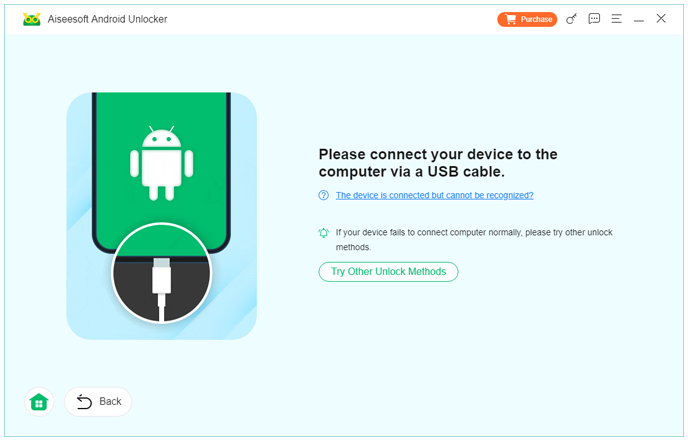
Step 4: Allow the software to detect your tablet model and Android version.
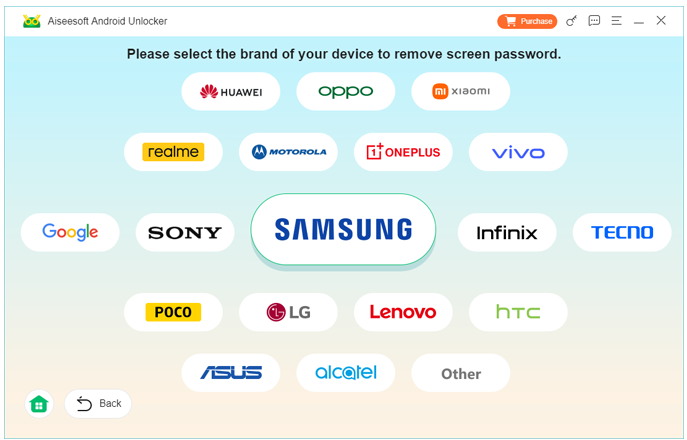
Step 5: Follow the on-screen instructions provided by the program.
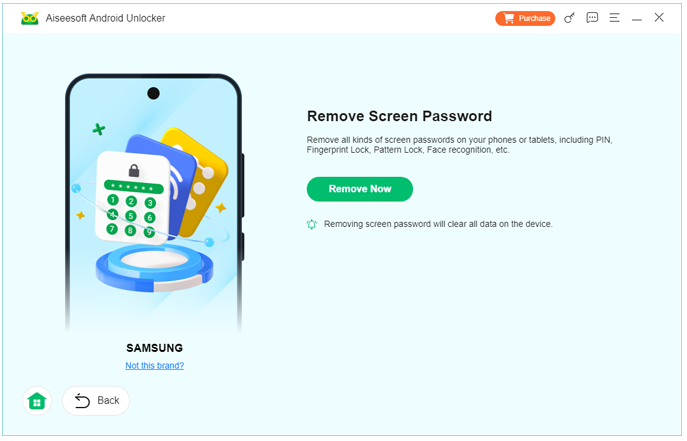
Step 6: The software will begin removing FRP restrictions.
Step 7: Wait until the process finishes and the tablet restarts.
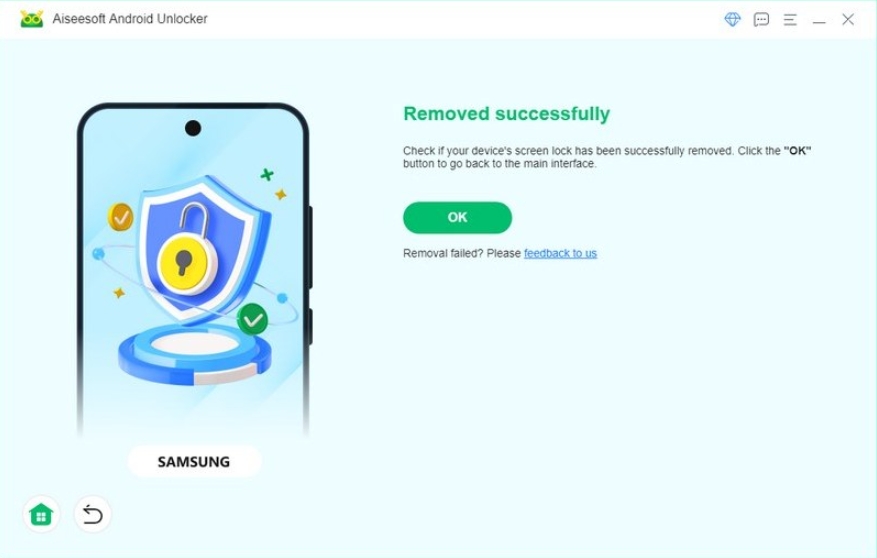
Step 8: Set up the device normally without encountering the previous FRP verification screen.
Important Notes
- Use an original USB cable whenever possible.
- Ensure the tablet battery remains above 50%.
- Avoid disconnecting the device during processing.
- Follow model-specific instructions carefully.
Method 2: Recover the Original Google Account
Many users immediately search for bypass tools when FRP appears, but sometimes the easiest solution is simply recovering the original Google account.
Google provides several account recovery mechanisms that allow legitimate owners to reset passwords and verify ownership. Once account access is restored, FRP verification can usually be completed normally without modifying the device.
This approach is particularly recommended when the tablet belongs to you and the account still exists. It maintains the integrity of the device and avoids unnecessary software changes.
Steps to Recover Google Credentials
Step 1: Visit Google's Account Recovery page.
Step 2: Enter the email address previously associated with the Samsung tablet.
Step 3: Choose a verification method:
- Recovery email
- Phone number
- Security prompts
Step 4: Complete Google's identity verification process.
Step 5: Create a new password.
Step 6: Wait approximately 24–72 hours if Google imposes a security delay after password changes.
Step 7: Restart the Samsung tablet.
Step 8: Enter the recovered account credentials when FRP verification appears.
Important Notes
- Recent password changes may temporarily trigger FRP waiting periods.
- Use the exact Google account previously synchronized with the device.
- Keep recovery information updated for future emergencies.
Method 3: Remove FRP Through Samsung Official Support
If you can prove ownership of the tablet, Samsung support may be able to assist with account-related verification issues.
This option is often overlooked because users assume customer support cannot help. However, if the device was legally purchased and supporting documentation is available, Samsung representatives may provide guidance based on regional policies.
This method is especially useful for corporate devices, inherited devices, or tablets that have become inaccessible after system issues.
Steps to Seek Samsung Assistance
Step 1: Locate proof of purchase.
Examples include:
- Original receipt
- Invoice
- Carrier documentation
- Warranty registration
Step 2: Record the device information:
- Model number
- Serial number
- IMEI (if applicable)
Step 3: Contact Samsung customer support.
Step 4: Explain the FRP situation clearly.
Step 5: Submit ownership verification documents if requested.
Step 6: Follow instructions provided by Samsung representatives.
Step 7: Complete any additional verification procedures.
Important Notes
- Support policies vary by country.
- Ownership verification is usually required.
- Processing times may differ depending on documentation.
Why FRP Appears More Frequently on Samsung Tablets Today
Modern Samsung tablets receive regular Android security updates. These updates strengthen FRP mechanisms and reduce vulnerabilities that older bypass tricks once exploited.
As a result, many online tutorials become obsolete after software updates. Methods that worked on Android 9 or Android 10 may fail entirely on Android 13, Android 14, or newer versions.
Samsung has also integrated deeper security checks into One UI, making unauthorized bypass attempts increasingly difficult.
Because of these improvements, users should prioritize legitimate solutions such as account recovery, verified ownership assistance, or professional unlocking software designed for supported Samsung models.
Recovering Lost Data On Samsung tablet After a System Crash
FRP lock is not the only issue Samsung tablet owners face. In fact, many users experience something even more stressful: losing important data after a failed update, system crash, boot loop, or accidental factory reset.
Imagine finally bypassing FRP and regaining access to your tablet, only to discover that family photos, work documents, messages, and downloaded files have disappeared. This situation is surprisingly common among Samsung users.
A system crash can occur due to:
- Interrupted firmware updates
- Battery failure during updates
- Corrupted operating system files
- Malware infections
- Rooting errors
- Failed customization attempts
- Unexpected factory resets
When these events occur, many users assume their files are permanently lost. However, deleted or inaccessible data often remains recoverable until it is overwritten.
This is where dedicated Android recovery software becomes valuable.
iDATAPP provides Android Data recovery solutions designed to recover information from Samsung devices affected by system problems, accidental deletion, crashes, and other common issues.
Potentially recoverable content includes:
- Photos
- Videos
- Contacts
- Call logs
- Messages
- WhatsApp data
- Documents
- Audio files
A typical recovery workflow involves connecting the Samsung device to a computer, scanning internal storage, previewing recoverable files, and selectively restoring important data.
The biggest advantage is that users can often retrieve specific files rather than restoring an entire backup. This is particularly useful when only a portion of the data is missing.
To maximize recovery success, users should stop using the affected device immediately after discovering data loss. Continued usage may overwrite recoverable information and reduce the likelihood of successful restoration.
For Samsung tablet owners, having both an FRP solution and a reliable data recovery strategy creates a more complete protection plan. Security and data preservation should always work together.
Tips to Avoid FRP Lock in the Future
Preventing FRP issues is much easier than dealing with them later.
Consider these best practices:
Keep Google Credentials Updated
Store recovery email addresses and phone numbers in your Google account.
Remove Accounts Before Resetting
Always remove the Google account before performing a factory reset.
Save Purchase Documentation
Keep receipts and invoices in a secure location.
Enable Backup Features
Regularly back up important data to cloud storage.
Verify Used Devices
Before purchasing a second-hand Samsung tablet, ensure all Google accounts have been removed.
Frequently Asked Questions
1. What is FRP on a Samsung tablet?
FRP (Factory Reset Protection) is an Android security feature that requires the previously synced Google account after a factory reset.
2. Can I bypass Samsung FRP without a Google account?
Yes. Depending on your device model and ownership status, dedicated FRP removal tools such as iDATAPP Samsung Unlocker may help remove the verification screen.
3. Will factory resetting remove FRP?
No. FRP is specifically designed to remain active after a factory reset. The original Google account is still required unless FRP is properly removed.
Conclusion
Samsung Factory Reset Protection is an essential security feature, but it can create challenges for legitimate users who forget account credentials or acquire previously owned devices. The most effective solutions include recovering the original Google account, seeking assistance from Samsung support, or using iDATAPP Samsung Unlocker to remove FRP restrictions on Samsung. By understanding how FRP works and preparing for future resets, Samsung tablet owners can avoid unnecessary lockouts while keeping their devices secure.
 English
 Nederlands
 Tiếng Việt
 日本
日本 Español
 Português
 Deutsche
 Français
 Italiano
 Norsk
Norsk Suomalainen
 Svenska
 Dansk
Dansk Ελληνικά
 Türk
Türk русский
 हिंदी
हिंदी தமிழ்
தமிழ் Bahasa Melayu
 ไทย
ไทย 한국어
한국어 Română
 Polskie
 қазақ
қазақ Gaeilge
 繁體中文
繁體中文