
 iPhone Data Recovery
 iOS System Recovery
 iOS Backup & Restore
 iOS WhatsApp Transfer
 iOS FoneTrans
 MobieSync
 Android Data Recovery
 Broken Android Data Extraction
 Android Data Backup & Restore
 iPhone Unlocker
 Best Samsung Phone Unlock Tool
 Android Unlocker
 Win/Mac Data Recovery
 iDATAPP Screen Recorder
 2D&3D Video Converter
 Video Repair Software Ai
 AI Video Converter
 Ai Blu-ray Player
 How to Backup Samsung S26 Series Phone to PC?
Learn how to safely backup Samsung S26 series phones to a PC using three reliable methods. This guide covers built-in tools, manual techniques, and professional backup software with detailed steps.
Why Backing Up Your Samsung S26 Series Matters?
Modern smartphones like the Samsung S26 Series are powerful personal data hubs. They store thousands of photos, videos, messages, contacts, documents, and app data. Losing that information can feel like losing a piece of your digital life.
But data loss is more common than many people expect. System crashes, accidental deletion, storage corruption, failed updates, or even a damaged screen can make your data inaccessible overnight. Even routine actions such as factory resetting your device require a backup beforehand.
That’s why creating a Samsung S26 backup to PC is one of the safest strategies for protecting your files. Unlike cloud storage, a local PC backup gives you:
- Faster transfer speeds
- Full control over your data
- Offline access
- Extra protection against account issues
The challenge is that many users are unsure how to backup Samsung S26 to a computer properly. Some methods only copy photos, while others allow full device backups.
In this guide, we’ll explore three practical solutions for backing up Samsung S26 series phones to a PC. Each method works in different situations, so you can choose the one that fits your needs best.
Guide List
- Why Backing Up Your Samsung S26 Series Matters?
- Method 1: Backup Samsung S26 Data to PC Using Android Data Backup & Restore
- Method 2: Backup Samsung S26 Series Using File Explorer (Manual Method)
- Method 3: Backup Samsung S26 Series Using Samsung Smart Switch
- When Things Go Wrong: Recovering Lost Samsung Data After System Problems
- Frequently Asked Questions
- Final Summary
Method 1: Backup Samsung S26 Data to PC Using Android Data Backup & Restore
If you want a complete and organized backup, using a dedicated backup tool is often the easiest option.
is designed specifically for Android device backup and restore, including Samsung models.
Unlike manual copying, this method allows you to backup specific data types such as:
- Contacts
- Messages
- Call logs
- Photos
- Videos
- App data
- Documents
It also supports selective backup and encrypted backups, which adds an extra layer of security.

Steps to Backup Samsung S26 Series to PC
Step 1: Install the Backup Software
- Download and install Android Data Backup & Restore from the official website.
- Launch the program after installation.
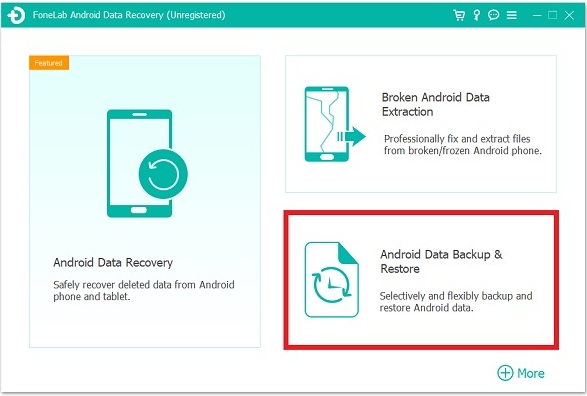
Step 2: Connect Your Samsung S26 Phone
- Use a USB cable to connect your Samsung S26 device to the computer.
- Enable USB debugging on your phone if prompted:
- Settings → Developer Options → USB Debugging
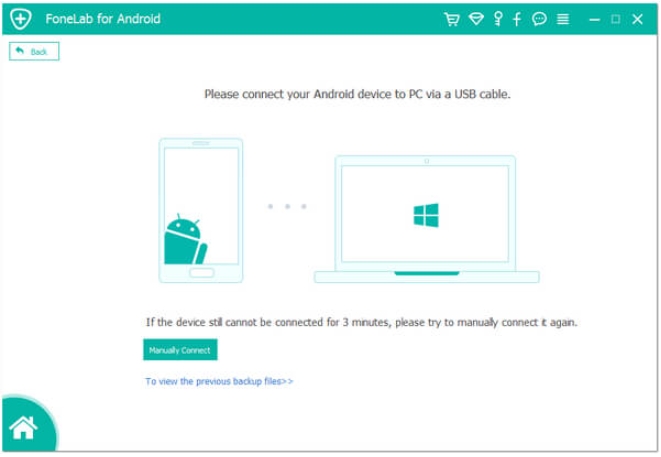
Step 3: Select “Device Data Backup”
- Inside the program interface, choose:
- Device Data Backup
- You can also choose One-Click Backup if you want to back up everything automatically.
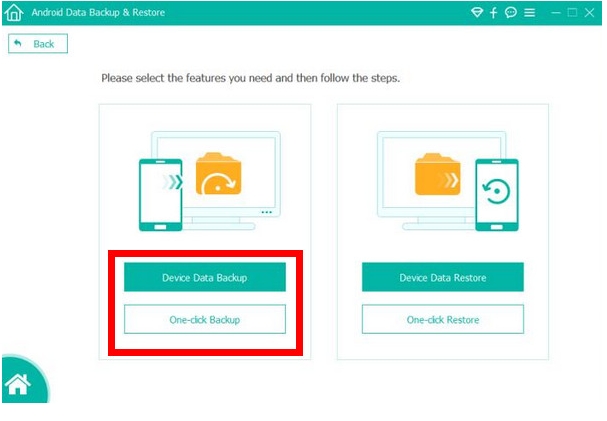
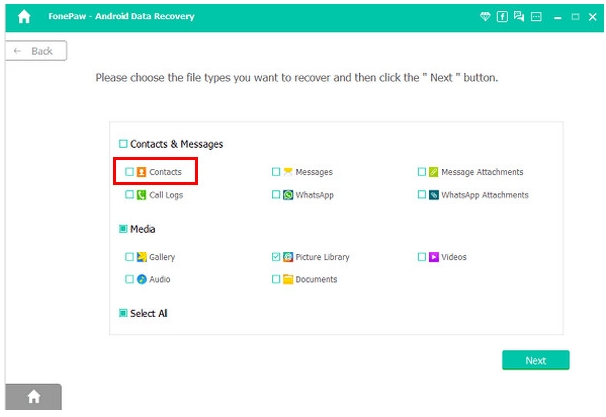
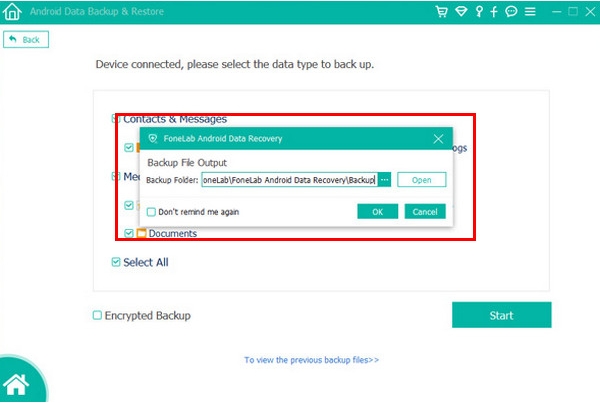
Step 4: Choose Data Types
The software will display multiple data categories such as:
- Contacts
- Messages
- Photos
- Videos
- Audio
- Documents
Select the items you want to include in the backup.
Step 5: Start the Backup Process
- Click Start Backup.
- The program will create a complete backup file on your PC.
- Depending on your data size, the process may take several minutes.
Important Tips
- Keep the phone connected during the backup process.
- Do not disconnect the USB cable prematurely.
- Store the backup file in a secure folder on your PC.
Method 2: Backup Samsung S26 Series Using File Explorer (Manual Method)
If you prefer a simple and free solution, manually copying files to your PC is a practical option.
This method works best for media files, including:
- Photos
- Videos
- Music
- Documents
- Downloads
However, it cannot backup system data like contacts, SMS, or app settings.
Still, it’s a fast way to create a basic Samsung S26 backup.
Steps to Backup Files Manually
Step 1: Connect Your Phone to the Computer
- Use a USB cable to connect your Samsung S26 to the PC.
- When prompted on your phone, choose:
- File Transfer / MTP Mode
Step 2: Open File Explorer
- On your computer, open File Explorer.
- You should see your Samsung device listed under This PC.
- Click the device name to access internal storage.
Step 3: Locate Important Files
Navigate to folders such as:
- DCIM (camera photos)
- Pictures
- Movies
- Music
- Documents
- Download
Step 4: Copy Files to Your Computer
- Select the folders or files you want to backup.
- Right-click → Copy
- Then paste them into a folder on your PC.
Step 5: Verify the Backup
- Open the copied files on your computer to confirm they transferred correctly.
- This ensures your data is safely stored.
Important Tips
- Always copy the entire DCIM folder to preserve all photos and videos.
- Create labeled folders on your PC for easier organization.
- Consider backing up regularly.
Method 3: Backup Samsung S26 Series Using Samsung Smart Switch
Samsung provides an official backup tool called Smart Switch, which supports backing up Samsung devices to a computer.
Samsung Smart Switch
This tool is designed specifically for Samsung phones and supports backups of:
- Contacts
- Messages
- Photos
- Apps
- Settings
- Call logs
- Calendars
It is especially useful if you plan to upgrade to a new Samsung phone.
Steps to Backup Using Smart Switch
Step 1: Install Smart Switch
- Download and install Samsung Smart Switch on your computer.
- Launch the program after installation.
Step 2: Connect Samsung S26 to PC
- Connect your phone using a USB cable.
- The software will automatically detect your device.
Step 3: Click Backup
- On the main interface, select Backup.
- Smart Switch will automatically prepare the device.
Step 4: Start Backup
- Click Allow on your phone if prompted.
- The backup process will begin and copy your phone data to the computer.
Step 5: Finish the Backup
- Once completed, Smart Switch will display a confirmation message.
- You can also review which files were backed up.
Important Tips
- Keep your phone unlocked during the process.
- Ensure your PC has enough storage space.
- Perform regular backups to keep data updated.
When Things Go Wrong: Recovering Lost Samsung Data After System Problems
Even if you regularly create backups, unexpected issues can still happen.
One common scenario among Samsung users is data loss after system updates or firmware crashes.
For example:
- A failed Android update
- Boot loop after rooting
- Accidental factory reset
- Virus or malware attack
- Storage corruption
In these situations, users often realize that their latest files were never included in the previous backup.
This is where data recovery tools become essential.
A reliable solution is available through:
https://idatapp.com
Their Android Data Recovery software is designed to recover lost files directly from Android devices, including Samsung phones.
The tool can retrieve:
- Deleted photos
- Lost messages
- Contacts
- Videos
- Call logs
- Documents
- WhatsApp data
Even when the phone is partially damaged or experiencing system problems.
Example Scenario
Imagine your Samsung S26 suddenly freezes after a system update.
The device restarts repeatedly and eventually requires a factory reset.
After resetting the phone, you realize several months of photos and messages were never backed up.
Using Android Data Recovery software, the program scans the device’s storage and attempts to reconstruct deleted data fragments.
This allows users to recover files that standard backup tools cannot restore.
Why This Matters
Many smartphone users rely solely on backups, but data recovery tools provide a safety net when backups fail or are incomplete.
Combining:
- regular backups
- local PC storage
- recovery solutions
creates a much stronger data protection strategy.
For Samsung users, this approach significantly reduces the risk of permanent data loss.
Frequently Asked Questions
How often should I backup my Samsung S26 to PC?
Ideally once per week or before performing major actions like system updates, factory resets, or installing new firmware.
Can I backup my Samsung S26 without USB?
Yes. Some cloud or wireless solutions exist, but USB backups to a PC are faster and more secure.
Will backing up my phone delete existing files?
No. Backups simply copy data to your computer. Your original files remain unchanged on the phone.
How much storage space is required for a Samsung backup?
It depends on your data size. Phones with many photos and videos may require 10–50GB or more.
Can I restore the backup to another Samsung device?
Yes. Most backup tools allow restoring data to a new Samsung phone during migration.
Final Summary
Backing up your Samsung S26 Series phone to a PC is one of the most effective ways to protect your personal data. Whether you use professional backup software, manual file transfers, or Samsung’s official tools, each method provides a reliable safeguard.
The key is consistency. Creating regular backups ensures that your photos, messages, and important files remain safe—even if unexpected problems occur. By combining backup strategies with recovery solutions, you can build a strong defense against data loss and keep your digital life secure.
 English
 Nederlands
 Tiếng Việt
 日本
日本 Español
 Português
 Deutsche
 Français
 Italiano
 Norsk
Norsk Suomalainen
 Svenska
 Dansk
Dansk Ελληνικά
 Türk
Türk русский
 हिंदी
हिंदी தமிழ்
தமிழ் Bahasa Melayu
 ไทย
ไทย 한국어
한국어 Română
 Polskie
 қазақ
қазақ Gaeilge
 繁體中文
繁體中文