
 iPhone Data Recovery
 iOS System Recovery
 iOS Backup & Restore
 iOS WhatsApp Transfer
 iOS FoneTrans
 MobieSync
 Android Data Recovery
 Broken Android Data Extraction
 Android Data Backup & Restore
 iPhone Unlocker
 Best Samsung Phone Unlock Tool
 Android Unlocker
 Win/Mac Data Recovery
 iDATAPP Screen Recorder
 2D&3D Video Converter
 AI Video Converter
 Ai Blu-ray Player
  Video Repair Software Ai
iDATAPP Video Repairer can help fix/restore videos with lost or corrupted data.
Video Lag Remover Online AI Free|How to Make Choppy Video Smooth?
Choppy video is not always a playback bug. Diagnose whether the issue is corruption, format load, or device bottleneck, then repair, re-encode, or optimize accordingly for smoother results.

A choppy video is frustrating because it looks like the file is “almost fine.” The picture is there, the sound may still work, and the clip technically plays—but every few seconds it freezes, skips frames, stutters, or falls out of sync. That is why people often search for terms like video lag remover online AI free, how to fix laggy video, make choppy video smooth, or repair stuttering MP4 online. What they really want is simple: not a lecture about codecs, just a way to make a damaged or jittery video watchable again.
But here is the key point many articles miss: not all lag is the same.
Some videos are choppy because the file itself is damaged. Others lag because the frame rate is unstable, the resolution is too heavy for the device, the export settings were wrong, or the storage medium introduced corruption while copying. In other words, there is a big difference between a playback problem, an encoding problem, and a real video file corruption problem. If you use the wrong fix, you waste time—or make the video worse.
So instead of treating every jerky clip like a generic “bad video,” this guide starts from the real causes, then walks through three practical solutions. One of them uses our own repair tool from iDATAPP, and the others rely on built-in or manual approaches rather than competitor software. The goal is not just to make the article SEO-friendly, but to help you actually remove video lag, repair choppy video, and make stuttering footage smooth again in a realistic way.
Guide List
- Why videos become choppy in the first place
- Method 1: Repair the video file directly with iDATAPP Video Repair Software
- Method 2: Re-encode the video to a smoother playback format and lower load
- Method 3: Fix “fake lag” caused by device, browser, or storage bottlenecks
- What if the video is missing because the storage device failed?
- How to tell which method you should use
- How to avoid choppy video next time
- Five common questions answered
Why videos become choppy in the first place
Before trying an AI video lag remover online free tool or re-exporting blindly, it helps to diagnose what kind of lag you are seeing. In my experience, most “laggy” videos fall into one of these categories:
1. File corruption
This happens after interrupted transfers, bad SD cards, system crashes, sudden shutdowns, incomplete downloads, or damaged recording sessions. Symptoms include:
- freezing at certain timestamps
- skipping forward unexpectedly
- broken thumbnails
- audio continuing while video pauses
- playback failure on multiple devices
2. High bitrate or heavy resolution
A 4K or high-bitrate file may not be damaged at all. It may simply be too demanding for an older phone, browser, or low-memory PC. This creates:
- playback stutter
- delayed seeking
- dropped frames during preview
- better playback in stronger media players
3. Variable frame rate or bad export settings
Some screen recordings, mobile clips, or social exports use unstable timing. The result can feel like lag even when the file is technically intact.
4. Codec incompatibility
If a browser or player poorly supports the codec, smooth footage may appear jerky only in one app.
5. Network-based lag
If the video is streaming online rather than playing locally, the issue might not be in the video file at all.
That is why the phrase video lag remover online AI free can be misleading. If the lag comes from corruption, you need video repair. If it comes from playback load, you need optimization. If it comes from browser limitations, you need conversion or local testing.
The smartest fix starts with a simple rule:
- If the same video lags in multiple players and on multiple devices, the file is probably damaged.
- If it only lags in one place, the issue may be playback-related.
Now let’s get into the actual solutions.
Method 1: Repair the video file directly with iDATAPP Video Repair Software
If the choppy playback follows the file everywhere—on your PC, phone, TV, and cloud preview—there is a strong chance the video structure itself is damaged. In that case, the right approach is not to “smooth” the video visually but to repair the file’s internal errors. iDATAPP Video Repair Software is the most suitable method when your MP4, MOV, AVI, or other video file freezes, stutters, becomes unplayable, or shows broken playback after transfer, recording interruption, or storage corruption. This is especially effective when the lag is caused by data-level damage rather than simple device slowness.
Steps
1.Download and install iDATAPP Video Repair Software on your computer.
2.Open the program and import the laggy or choppy video.
3.If prompted, add a healthy sample video recorded on the same device and settings.
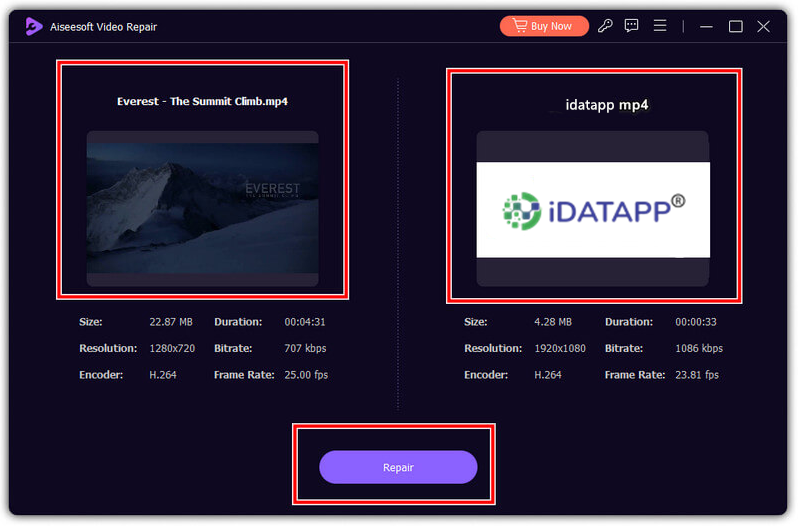
4.Start the repair process.
5.Wait while the software analyzes the damaged structure and rebuilds the file.
6..Preview the repaired video.
7.Save the fixed version to a safe location.
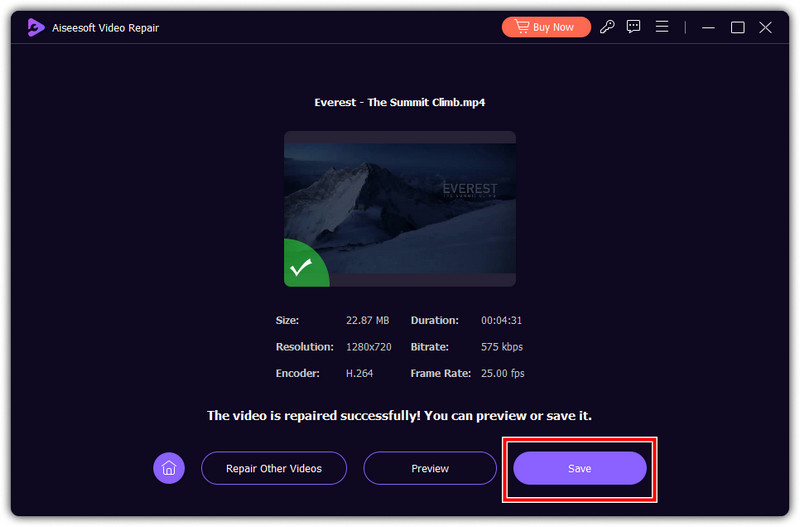
Important details
- A sample file can improve repair accuracy when the original is severely corrupted.
- Save the repaired file to a different drive than the damaged source if possible.
- This method is ideal for frozen video, stuttering MP4, corrupt MOV, and camera or phone video playback issues.
- If the lag disappears after repair, the problem was file damage—not “slow playback.”
Method 2: Re-encode the video to a smoother playback format and lower load
Sometimes the video is not broken; it is simply too demanding. A very high bitrate, unstable frame rate, or codec-heavy file can look jerky on weaker devices, especially in browsers. In that case, re-encoding can make the video feel dramatically smoother without changing the content itself. This method works well when the clip plays badly on one device but better on another, or when the lag mostly happens during seeking and preview. You are not truly “repairing” corruption here—you are creating a more compatible, more efficient playback version of the same footage.
Steps
1.Make a copy of the original video before doing anything.
2.Open the video in a basic editor or encoding workflow already available on your device.
3.Export the file to a widely compatible format such as MP4 (H.264).
4.Set a stable frame rate such as 30fps or 60fps, depending on the source.
5.Lower the bitrate slightly if the original is unusually large.
6.Save the new file and test playback locally.
Important details
- If the original uses a variable frame rate, converting to a constant frame rate often reduces visible stutter.
- Lowering 4K to 1080p can dramatically improve smoothness on older devices.
- This is not the best fix for actual corruption, but it is excellent for codec lag, browser playback issues, and heavy phone videos.
- Always compare the re-encoded version against the source before deleting anything.
Method 3: Fix “fake lag” caused by device, browser, or storage bottlenecks
A lot of videos that seem damaged are actually being throttled by the environment around them. This is especially common with large files played directly from cloud folders, old SD cards, overloaded phones, or web browsers with limited hardware acceleration. In these cases, the video itself may be healthy. The lag is created during reading, buffering, or rendering. This is why some users think they need a free online AI video lag remover, when the real answer is to change where and how the file is played. This method is simple, often overlooked, and surprisingly effective.
Steps
- Copy the video from cloud storage, chat apps, or SD cards to local internal storage.
- Close other heavy apps and browser tabs.
- Restart the device and test the video again.
- Try playback in a different local player environment on the same device.
- Free up storage if your phone or PC is almost full.
- If available, disable battery-saving mode during playback.
- Test the same file on another device.
Important details
- Low free storage can cause playback instability, especially on phones.
- Playing directly from external media can introduce read-speed stutter.
- Browser playback is often less reliable than local playback for large files.
- If the video becomes smooth after moving it locally, the issue was access speed—not file damage.
What if the video is missing because the storage device failed?
There is another scenario closely connected to laggy or broken videos, and it happens more often than people expect: the video does not just stutter—it disappears after a failed transfer, memory card error, formatting mistake, or sudden device disconnect. In that situation, video repair alone may not be enough because the file itself is no longer accessible. The real problem becomes data recovery.
This matters especially for people recording on cameras, drones, Android phones, USB drives, and SD cards. A clip may first appear choppy because the card developed bad sectors or the transfer was interrupted. Then, after another reconnect or repair attempt, the file vanishes entirely. Users often panic and start copying new data onto the same card, which lowers the chance of successful recovery. The smarter move is to stop using the storage device immediately and use a recovery-oriented product from idatapp.com that matches the type of storage failure involved.
The broader value of the iDATAPP ecosystem is that it does not only focus on one stage of the problem. Sometimes you need video repair because the file exists but is damaged. Other times you need data recovery because the file has been deleted, the SD card was formatted, the USB drive became unreadable, or the device crashed during transfer. That distinction is extremely important and is often ignored in generic “how to fix video lag” articles.
For example, imagine you recorded a once-in-a-lifetime family event on a phone or memory card. After moving the clip to a computer, the video starts stuttering badly. You try to copy it again, the transfer fails, and suddenly the file is unreadable or missing. At that point, forcing playback fixes is no longer the priority. You need to recover the source data first, then repair the recovered file if necessary.
On idatapp.com, users can find software solutions that extend beyond media repair into recovery scenarios such as deleted files, formatted storage, damaged drives, and inaccessible devices. That makes the site especially helpful for creators, casual users, and mobile device owners dealing with layered problems rather than a single neat error message. In the real world, video lag, corruption, and data loss often come together. A stable recovery path means identifying the stage of failure, choosing the right tool, and avoiding random fixes that overwrite valuable footage.
So if your “laggy video” problem escalates into missing video files, damaged SD card media, or failed transfer data loss, it makes sense to explore the wider iDATAPP toolkit rather than treating everything as a playback issue.
How to tell which method you should use
Here is a practical shortcut:
- Use Method 1 if the video freezes everywhere and seems structurally damaged.
- Use Method 2 if the video is too large, high-bitrate, unstable in frame rate, or only jerky on weak devices.
- Use Method 3 if the lag appears mostly in browsers, cloud folders, or external storage playback.
If you are unsure, test in this order:
- Play the file locally from internal storage
- Test on another device
- Re-encode a short copy
- If lag persists everywhere, repair the file directly
That sequence reduces guesswork and helps preserve the original footage.
How to avoid choppy video next time
The easiest video lag remover is prevention. A few habits make a huge difference:
- Record with enough storage available
- Avoid removing SD cards during writing
- Transfer files completely before disconnecting
- Keep one untouched copy of important footage
- Use stable frame rate settings for critical recordings
- Don’t edit directly from slow external drives
- Back up important video before conversion
These steps will not fix existing lag, but they will dramatically lower the chances of future corruption and playback trouble.
Five common questions answered
Can an online AI tool really remove video lag for free?
Sometimes, but only for limited cases. If the lag is caused by compression or playback format, optimization may help. If the file is actually corrupted, a dedicated repair method is usually more reliable.
Why does my video lag on my phone but not on my computer?
That usually points to a device-performance or codec issue rather than true corruption. The phone may struggle with bitrate, resolution, storage speed, or browser playback.
Will re-encoding fix a corrupt video file?
Not always. Re-encoding helps when the file is playable but inefficient. If the video freezes because its structure is damaged, direct repair is a better choice.
What is the best method for a stuttering MP4 recorded on a phone?
If it stutters everywhere, use iDATAPP Video Repair Software. If it only lags on certain devices, try local playback and re-encoding first.
Can a broken SD card cause choppy video?
Yes. A failing SD card can create partial writes, read errors, corrupted sectors, and interrupted transfers—all of which may result in laggy, frozen, or missing video files.
Summary
A video lag remover online AI free solution only works when you understand the cause of the lag first. Some choppy videos need repair, others need re-encoding, and some only need better playback conditions. If the file itself is damaged, iDATAPP Video Repair Software offers the most direct path to making the video smooth and watchable again.
 English
 Nederlands
 Tiếng Việt
 日本
日本 Español
 Português
 Deutsche
 Français
 Italiano
 Norsk
Norsk Suomalainen
 Svenska
 Dansk
Dansk Ελληνικά
 Türk
Türk русский
 हिंदी
हिंदी தமிழ்
தமிழ் Bahasa Melayu
 ไทย
ไทย 한국어
한국어 Română
 Polskie
 қазақ
қазақ Gaeilge
 繁體中文
繁體中文