
 iPhone Data Recovery
 iOS System Recovery
 iOS Backup & Restore
 iOS WhatsApp Transfer
 iOS FoneTrans
 MobieSync
 Android Data Recovery
 Broken Android Data Extraction
 Android Data Backup & Restore
 iPhone Unlocker
 Best Samsung Phone Unlock Tool
 Android Unlocker
 Win/Mac Data Recovery
 iDATAPP Screen Recorder
 2D&3D Video Converter
 Video Repair Software Ai
 AI Video Converter
 Ai Blu-ray Player
 How to Unlock OPPO Reno Without a Password?
Forgot your OPPO Reno password? This guide explains three effective unlocking methods, including OPPO tools, recovery solutions, and professional unlocking software, while protecting your data whenever possible.

Smartphones have become the storage center for our daily lives. Photos, banking apps, work chats, private notes, and even authentication codes are now locked behind a six-digit PIN or fingerprint. That security is useful—until you forget the password yourself.
Many OPPO Reno users face this exact situation after changing a password, restarting the phone after a long time, buying a second-hand device, or dealing with a broken fingerprint sensor. Suddenly, the phone refuses access, and repeated attempts only make things worse by triggering temporary lockouts or factory reset warnings.
What makes the OPPO Reno series challenging is that different Reno generations use slightly different ColorOS security systems. Some methods online only work for older versions, while others require risky tools that can damage system partitions or trigger FRP (Factory Reset Protection).
The good news is that unlocking an OPPO Reno without a password is still possible. The key is choosing the right method based on your situation:
- Forgot PIN or pattern
- Locked after too many attempts
- Screen lock issue after update
- Second-hand OPPO Reno with unknown password
- Fingerprint sensor not working
- Device stuck on verification screen
This article explores three practical unlocking methods that actually work today, explains when each method should be used, and highlights important details most tutorials ignore.
Guide List
- Before Unlocking Your OPPO Reno: Important Things to Know
- Method 1: Unlock OPPO Reno Using Android Unlocker Software
- Method 2: Unlock OPPO Reno via Recovery Mode
- Method 3: Unlock OPPO Reno Using Find My Device
- Why OPPO Reno Password Problems Happen More Frequently Today
- How to Recover Lost Data After Unlocking an OPPO Phone?
- Frequently Asked Questions
Before Unlocking Your OPPO Reno: Important Things to Know
Before trying any unlocking method, understand these important points:
1. Some Methods Erase Data
Most Android security systems are designed to prevent unauthorized access. That means unlocking often involves resetting the device.
2. FRP Lock May Appear Later
After resetting an OPPO Reno, Google may request the previously synced Google account credentials. This is called Factory Reset Protection.
3. Battery Level Matters
Ensure the phone has at least 50% battery before entering recovery mode or using unlocking software.
4. Avoid Random “Free Unlock” APKs
Many unofficial APK tools online contain malware or fake advertisements. Using unreliable software may permanently brick the device.
Method 1: Unlock OPPO Reno Using Android Unlocker Software
When users want the fastest and most stable unlocking process, professional desktop software usually provides the highest success rate. This method is especially useful if the OPPO Reno is completely inaccessible or the screen lock appears after multiple failed attempts. Unlike manual recovery operations, dedicated unlocking software simplifies the process through guided instructions and device detection. One advantage is compatibility with multiple OPPO Reno models and ColorOS versions. The process is beginner-friendly and does not require advanced Android technical knowledge. For users dealing with forgotten PINs, patterns, passwords, or fingerprint issues, this solution is often the most efficient starting point.
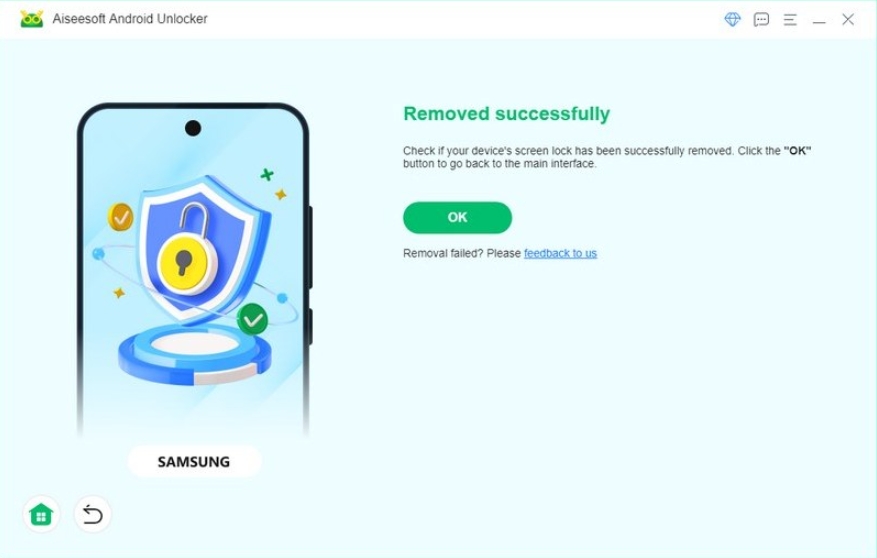
You can use iDATAPP Android Unlocker to remove screen locks from OPPO Reno devices.
Steps to Unlock OPPO Reno with iDATAPP Android Unlocker
Step 1: Install the Software
Download and install the unlocking tool on your Windows computer.
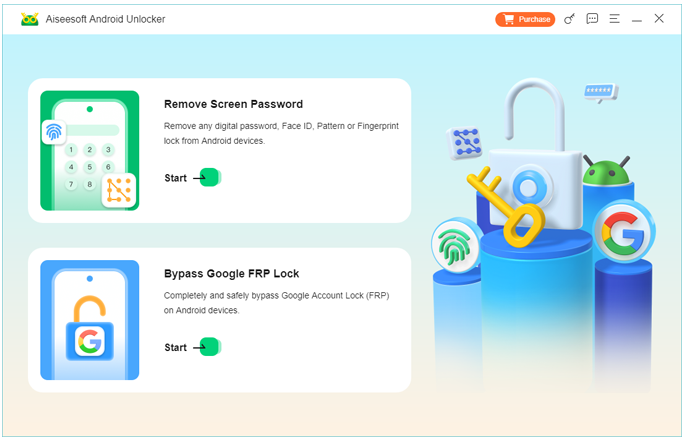
Step 2: Launch the Program
Open the software and choose “Remove Screen Password.”
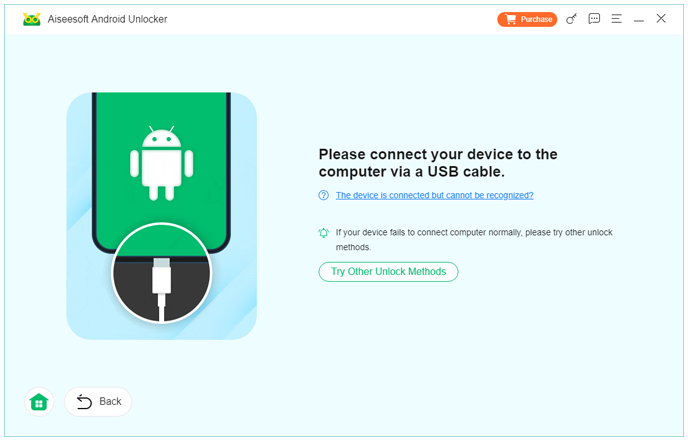
Step 3: Connect Your OPPO Reno
Use a USB cable to connect the phone to the computer.
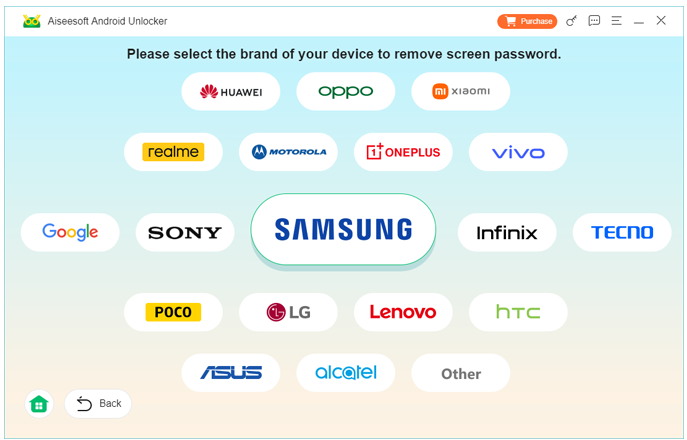
Step 4: Select Device Information
Choose the correct OPPO model from the available list.
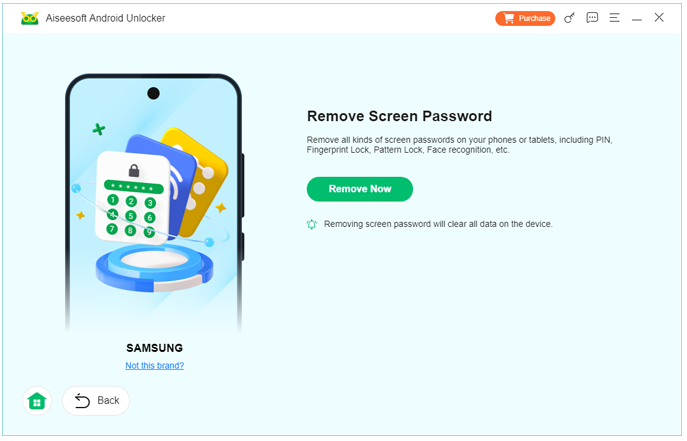
Step 5: Begin Unlocking
Click the Remove Now button and wait while the program removes the lock screen.
Step 6: Restart the Device
Once complete, reboot the phone and access it normally.
Notes:
- Use the original USB cable whenever possible.
- Some Reno models may erase data during unlocking.
- Keep the connection stable during the process.
- Disable antivirus temporarily if installation issues occur.
Method 2: Unlock OPPO Reno via Recovery Mode
Recovery Mode remains one of the oldest and most reliable Android emergency tools. It is built directly into the OPPO system and can help users regain access when they forget the lock screen password. This method works particularly well if the device buttons still function normally and USB debugging is unavailable. While Recovery Mode usually performs a factory reset, it can restore usability without additional software. Many users prefer this approach because it does not require installing programs on a computer. However, newer ColorOS versions sometimes change menu names or require confirmation steps that older guides fail to mention.
Steps to Use Recovery Mode
Step 1: Turn Off the Phone
Completely power down the OPPO Reno.
Step 2: Enter Recovery Mode
Press and hold: Power + Volume Down
Release the buttons when the OPPO logo appears.
Step 3: Choose Language
Select your preferred language.
Step 4: Tap “Wipe Data”
Navigate using the touchscreen or volume buttons.
Step 5: Confirm Factory Reset
Enter verification codes if requested.
Step 6: Reboot the Phone
After the reset completes, restart the device.
Step 7: Set Up the Device Again
Follow the setup wizard.
Notes:
- This method usually deletes local files.
- Google account verification may appear afterward.
- If buttons are damaged, Recovery Mode may not work.
- Backup restoration is possible if cloud sync was enabled.
Method 3: Unlock OPPO Reno Using Find My Device
Google’s Find My Device service is often overlooked as an unlocking-related tool. While it does not directly bypass passwords like desktop unlocking software, it provides a remote way to erase and reset a locked OPPO Reno. This method becomes valuable if the device is connected to Wi-Fi or mobile data and still linked to the user’s Google account. Unlike Recovery Mode, Find My Device can be performed remotely without touching the phone physically. For users who lost access while traveling or whose power buttons no longer respond correctly, this remote approach can be surprisingly convenient.
Use Google Find My Device from another device or browser.
Steps to Unlock OPPO Reno with Find My Device
Step 1: Open Find My Device
Log into the same Google account used on the OPPO Reno.
Step 2: Select the Locked Phone
Choose your OPPO Reno from the device list.
Step 3: Click “Erase Device”
This removes data and lock screen settings.
Step 4: Confirm the Action
Google may request password verification.
Step 5: Wait for Remote Reset
The device will automatically erase itself once online.
Step 6: Restart and Set Up
Configure the phone again after reset completion.
Important Details
- Internet connection is required.
- The Google account must already be logged in.
- The device location service should be enabled.
- This method cannot bypass FRP afterward.
Why OPPO Reno Password Problems Happen More Frequently Today
Modern Android security systems have become increasingly strict. Interestingly, many lock-screen issues are not caused by users forgetting passwords completely. Instead, they often happen because of:
- Auto-generated passwords from password managers
- Fingerprint failures after screen replacement
- ColorOS updates changing lock behavior
- Long periods without rebooting the device
- Children entering wrong passwords repeatedly
- Purchasing used phones without proper reset procedures
Some OPPO Reno users also confuse privacy passwords with lock screen passwords. These are different security systems inside ColorOS.
Another hidden issue involves failed biometric authentication. If the fingerprint reader stops responding multiple times, OPPO automatically requests the backup PIN or password. Many users realize too late that they no longer remember it.
How to Recover Lost Data After Unlocking an OPPO Phone?
Unlocking a phone is only half the battle. One of the biggest frustrations comes afterward: discovering that photos, messages, contacts, or WhatsApp chats disappeared during the reset process.
This is actually very common with OPPO devices because factory resets erase local storage encryption keys. Once the reset finishes, the phone behaves like a brand-new device.
Fortunately, some lost data may still be recoverable.
A common scenario involves users resetting an OPPO Reno to remove the screen lock and then realizing years of family photos are gone. Others lose business conversations, saved notes, or downloaded files.
In these cases, specialized Android recovery software can help scan remaining storage sectors and recover deleted information.
The software section on iDATAPP Official Website includes Android recovery solutions designed for problems like:
- Accidentally deleted OPPO photos
- Lost WhatsApp messages
- Missing contacts after reset
- Video recovery from Android storage
- Broken-screen data extraction
- System crash recovery
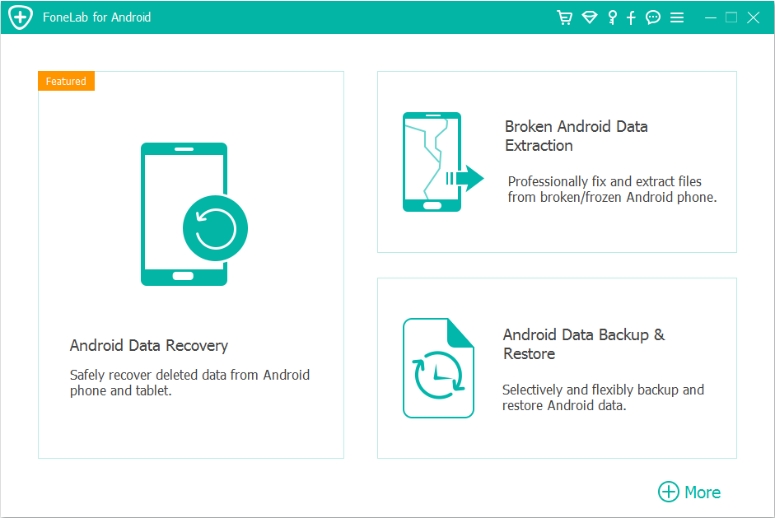
One relevant solution is Android Data Recovery Software.
This type of recovery tool is especially useful when:
- The phone was reset during unlocking
- Important files were not backed up
- SD card data disappeared
- OPPO system updates caused file corruption
- Data vanished after malware removal
Typical Recovery Process
1.Connect the OPPO Device
Install the recovery program on a computer and connect the phone using USB.
2.Enable USB Debugging
If accessible, activate developer options and USB debugging.
3.Scan Internal Storage
The software performs deep scanning for recoverable files.
4.Preview Recoverable Data
Users can view photos, contacts, messages, and documents before restoration.
5.Export Recovered Files
Save the recovered data to the computer securely.
Many users assume factory reset permanently destroys everything, but in reality, portions of deleted data may remain recoverable until overwritten by new files. Acting quickly improves recovery chances significantly.
This is why experienced Android technicians often recommend performing recovery immediately after unlocking instead of continuing heavy phone usage.
Tips to Prevent Future OPPO Reno Lockouts
Use Both PIN and Fingerprint
Always keep a memorable backup PIN.
Sync Data Regularly
Enable Google Photos and cloud backups.
Save Passwords Securely
Use a trusted password manager instead of random notes.
Avoid Unknown Unlock Apps
Unofficial tools can damage ColorOS security partitions.
Restart the Phone Occasionally
Frequent restarts help verify you still remember the password.
Frequently Asked Questions
1.Can I unlock OPPO Reno without losing data?
Most methods of unlocking a phone will result in the loss of most, if not all, of the data stored on the phone. This includes iDATAPP Android Unlocker, which will also cause the loss of all data after unlocking the phone.
2. What if I forgot my Google account after resetting?
You may encounter FRP verification. You must sign in with the previously synced Google account to activate the phone again.
3. Does Recovery Mode work on all OPPO Reno models?
Most Reno devices support Recovery Mode, but newer ColorOS versions may slightly change the menu structure.
4. Is unlocking OPPO Reno illegal?
No, unlocking your own device is legal. However, bypassing security on stolen or unauthorized devices may violate laws.
Conclusion
Unlocking an OPPO Reno without a password is completely achievable when using the correct method for your situation. Whether you choose Android Unlocker software, Recovery Mode, or Google Find My Device, understanding the risks and recovery options is essential. More importantly, preparing backups and protecting Google account access can prevent future lockouts and reduce the chance of permanent data loss.
 English
 Nederlands
 Tiếng Việt
 日本
日本 Español
 Português
 Deutsche
 Français
 Italiano
 Norsk
Norsk Suomalainen
 Svenska
 Dansk
Dansk Ελληνικά
 Türk
Türk русский
 हिंदी
हिंदी தமிழ்
தமிழ் Bahasa Melayu
 ไทย
ไทย 한국어
한국어 Română
 Polskie
 қазақ
қазақ Gaeilge
 繁體中文
繁體中文