
 iPhone Data Recovery
 iOS System Recovery
 iOS Backup & Restore
 iOS WhatsApp Transfer
 iOS FoneTrans
 MobieSync
 Android Data Recovery
 Broken Android Data Extraction
 Android Data Backup & Restore
 iPhone Unlocker
 Best Samsung Phone Unlock Tool
 Android Unlocker
 Win/Mac Data Recovery
 iDATAPP Screen Recorder
 2D&3D Video Converter
 Video Repair Software Ai
 AI Video Converter
 Ai Blu-ray Player
 [Approved]Unlock iPad Without Face ID or Passcode
This in-depth guide explains why iPads get locked, compares three reliable unlock methods without Face ID or passcodes, and highlights data recovery solutions for common post-unlock problems.
How to Unlock iPad Without Face ID or Passcode?
When Security Becomes the Obstacle: Understanding the Real Lockout Problem
Face ID and passcodes are designed to protect your iPad, but the moment they stop working, that protection turns into a wall. This problem isn’t rare, and it isn’t always the user’s fault. Face ID can fail after screen repairs, camera damage, or iOS updates. Passcodes are forgotten more often than people admit, especially on secondary or older iPads. Children can accidentally disable a device by entering the wrong code too many times. Second-hand iPads may arrive already locked, with no usable credentials.

The real challenge is not why the iPad is locked, but how Apple’s security architecture responds. iPadOS is designed so that once biometric and passcode authentication both fail, access to the system is completely blocked. This protects privacy, but it also means shortcuts don’t exist. Any working solution must interact with system-level security rather than “guessing” the code.
This article breaks the problem down logically:
- Why unlocking an iPad without Face ID or passcode is difficult
- What kinds of solutions actually work
- Which methods are realistic depending on your situation
Below, you’ll find three practical methods. One relies on professional unlocking software from our own website, while the other two use system-level approaches that don’t involve third-party commercial tools. Each method is explained in depth, with clear steps and realistic expectations.
Method 1: Unlock iPad Using iDatapp iOS Unlocker (Direct and Controlled)
When Face ID is unavailable and the passcode is forgotten, the most controlled approach is to remove the lock screen directly through system firmware interaction. iDatapp iPhone Unlocker is designed specifically for this purpose. Instead of relying on iTunes authorization or biometric verification, it removes the screen lock by resetting the security layer while reinstalling a clean iOS environment.
This method is particularly useful for disabled iPads, devices stuck on “iPad Unavailable,” or situations where Face ID hardware is damaged. The process is guided, avoids unnecessary technical jargon, and supports most iPad models. While it does reset the device, it does so in a predictable way, giving users clarity and control rather than trial-and-error.
- This method removes the lock screen but resets local data.
- It does not rely on Face ID, passcodes, or prior device syncs.
- Best choice when Apple-native methods are blocked or unavailable.
Detailed Steps and Important Notes:
1.Download and install iDatapp iPhone Unlocker from iDATAPP and select Unlock iOS Screen in the Main interface.
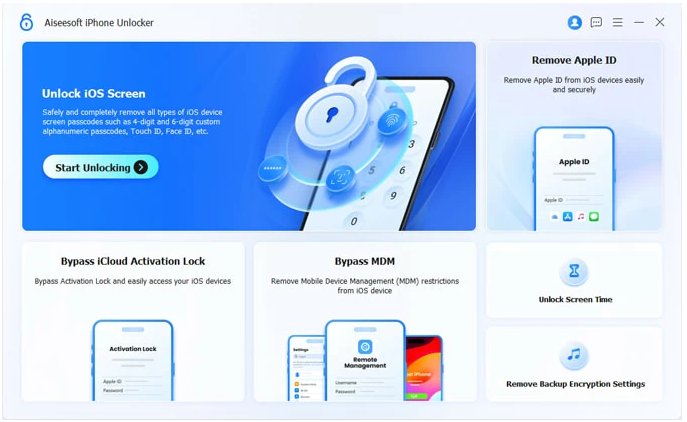
2.Connect your iPad to the computer using a Lightning cable. Follow the on-screen instructions to place the iPad into Recovery Mode or DFU Mode (the software provides model-specific guidance).
3.Confirm your iPad model and system version; the software will automatically match the correct firmware.
4.Download the firmware package and start the unlock process.
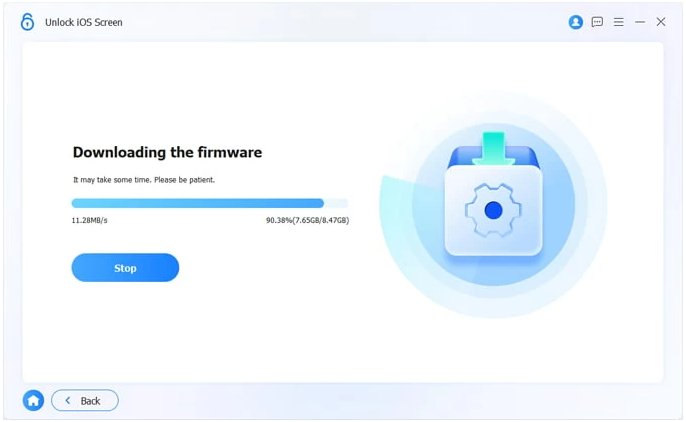
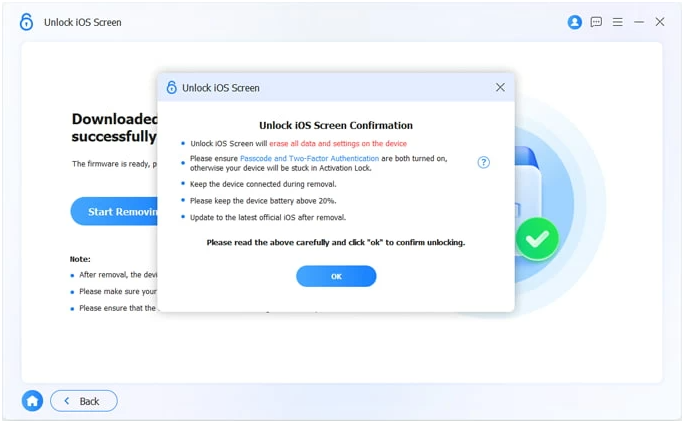
5.Once completed, the iPad restarts without Face ID or passcode restrictions.

Method 2: Unlock iPad via Recovery Mode Restore (Apple System Method)
Apple provides a built-in recovery mechanism designed for severe system issues, including forgotten passcodes. Recovery Mode allows the operating system to be reinstalled, which removes Face ID and passcode protection in the process. This method does not require third-party professional software, but it does come with limitations that many guides gloss over.
The biggest constraint is Apple ID verification. If “Find My iPad” is enabled, the device will require the original Apple ID after restoration. This method works best when the iPad belongs to you and you still remember your account credentials.
Detailed Steps and Important Notes:
- Power off the iPad completely.
- Connect it to a computer while holding the appropriate button to enter Recovery Mode (this varies by iPad model).
- When prompted on the computer, choose Restore instead of Update.
- Allow the system to download and reinstall iPadOS.
- After installation, set up the iPad and sign in with the Apple ID linked to the device.
Key details to remember:
- Removes Face ID and passcode by reinstalling iPadOS.
- Requires Apple ID credentials to bypass Activation Lock.
- Data is erased unless a previous backup exists.
Method 3: Unlock iPad Remotely Using iCloud Erase
For users who still have access to their Apple ID but cannot unlock the physical device, iCloud offers a remote erase option. This method doesn’t require Face ID, a passcode, or even a cable connection. As long as the iPad is connected to the internet and registered under your Apple ID, it can be reset remotely.
This approach is often overlooked, yet it can be surprisingly effective in real-world situations—especially when the iPad screen is unresponsive or damaged.
Detailed Steps and Important Notes:
1.Visit https://www.icloud.com/find from another device or browser.
2.Log in using the Apple ID associated with the locked iPad.
3.Open Find Devices and select the affected iPad.
4.Choose Erase iPad and confirm the action.
5.Once erased, set up the iPad again with the same Apple ID.
Key details to remember:
- Requires Apple ID access and internet connection.
- Removes Face ID and passcode through a remote reset.
- All local data will be erased during the process.
Data Loss After Unlocking an iPad
Unlocking an iPad without Face ID or a passcode almost always involves system-level resets, which means data loss is a frequent side effect. Photos, notes, messages, and app data can disappear instantly—especially if no recent backup exists.
This is a common scenario among iPad users after forced unlocks, failed iOS updates, or recovery-mode restores. Fortunately, this is where data recovery and extraction tools become essential.
On idatapp.com, you’ll find specialized solutions designed for iOS data recovery, even in cases involving:
- System crashes during restore
- Disabled iPads after multiple unlock attempts
- Accidental deletion during setup
- Partial backups that fail to restore
These tools focus on scanning device storage or backups and extracting recoverable data in readable formats. For iPad users, this often means salvaging photos, documents, or app data that would otherwise be permanently lost. Planning for recovery after unlocking is just as important as unlocking itself—and many users only realize this when it’s too late.
Frequently Asked Questions
Can I unlock an iPad without losing any data?
In most cases, no. Removing Face ID or a forgotten passcode requires resetting the system security layer.
Why does Apple make unlocking so difficult?
Apple prioritizes user privacy. Strong encryption prevents unauthorized access, even if it inconveniences legitimate owners.
Does Face ID failure always mean hardware damage?
Not always. Software bugs, calibration issues, or iOS updates can also disable Face ID.
What happens if I don’t remember my Apple ID after unlocking?
The iPad will remain locked by Activation Lock until the correct Apple ID credentials are provided.
Which method is best for a disabled iPad screen?
A computer-based unlock method is usually the most reliable when the screen is unresponsive or damaged.
Final Summary
Unlocking an iPad without Face ID or a passcode is never effortless, but it is absolutely possible with the right approach. Whether you choose a professional unlock tool, Apple’s recovery system, or a remote erase, understanding the limits and consequences of each method helps you avoid unnecessary mistakes and data loss.
 English
 Nederlands
 Tiếng Việt
 日本
日本 Español
 Português
 Deutsche
 Français
 Italiano
 Norsk
Norsk Suomalainen
 Svenska
 Dansk
Dansk Ελληνικά
 Türk
Türk русский
 हिंदी
हिंदी தமிழ்
தமிழ் Bahasa Melayu
 ไทย
ไทย 한국어
한국어 Română
 Polskie
 қазақ
қазақ Gaeilge
 繁體中文
繁體中文