
 iPhone Data Recovery
 iOS System Recovery
 iOS Backup & Restore
 iOS WhatsApp Transfer
 iOS FoneTrans
 MobieSync
 Android Data Recovery
 Broken Android Data Extraction
 Android Data Backup & Restore
 iPhone Unlocker
 Best Samsung Phone Unlock Tool
 Android Unlocker
 Win/Mac Data Recovery
 iDATAPP Screen Recorder
 2D&3D Video Converter
 Video Repair Software Ai
 AI Video Converter
 Ai Blu-ray Player
 How to Remove FRP Lock on Motorola Phone?
Motorola FRP lock protects devices after factory resets. Legitimate owners can regain access through Google account recovery, authorized recovery tools, and official support while maintaining device security and data protection.

Factory Reset Protection (FRP) is one of Android’s most important security features. It was designed to protect personal data if a phone is lost, stolen, or reset without the owner’s permission. While FRP improves security, it can also create a frustrating situation for legitimate Motorola users who have forgotten the Google account previously linked to their device.
If you've recently performed a factory reset on a Motorola phone and are now facing the “Verify your account” screen, you're dealing with FRP protection. The good news is that FRP is not a permanent problem. In most cases, genuine device owners can regain access through account recovery, verification, or authorized device management tools.
In this guide, we'll explore why Motorola FRP lock appears, how it works, and three practical ways to regain access to your device legally and safely.
Why Does FRP Lock Appear on Motorola Phones?
Motorola smartphones running Android automatically activate FRP when a Google account is added to the device. After a factory reset, Android asks for the same Google account that was previously synced before allowing access to the setup process.
This security mechanism prevents unauthorized users from using a reset device. However, many legitimate owners encounter FRP after:
- Forgetting their Google account password
- Purchasing a used Motorola phone with an uncleared account
- Resetting a device after a long period of inactivity
- Recovering a phone that hasn't been used for months or years
- Accidentally resetting the device without removing the Google account first
Before attempting any solution, remember that FRP verification is tied to account ownership. The safest approach is always to verify ownership rather than attempting to bypass security protections.
Method 1: Recover the Original Google Account
The most reliable way to remove FRP lock on a Motorola phone is to recover the Google account that was originally linked to the device. Since FRP is connected directly to Google's security system, successful account recovery immediately resolves the verification issue.
Many users assume they have permanently lost access to their account when they forget a password. In reality, Google provides several recovery options, including backup email verification, phone verification, security questions, and recovery codes. Once access is restored, the Motorola device can be activated normally.
Steps
Step 1: Identify the Google Account
Try to remember the Gmail address previously used on the Motorola device.
Step 2: Start Account Recovery
Visit Google's account recovery page and follow the identity verification process.
Step 3: Reset Your Password
Create a new secure password once verification is completed.
Step 4: Wait for Security Synchronization
Google may require a short security waiting period before allowing sign-in on recently reset devices.
Step 5: Complete Device Setup
Enter the recovered account credentials on the FRP verification screen and finish activation.
Important Notes
- Use a trusted device previously associated with the account when possible.
- Recovery success increases when using familiar locations and networks.
- Keep recovery information updated for future protection.
Method 2: Use iDATAPP Android Unlocker for Authorized Device Access Recovery
Sometimes users encounter a situation where account-related issues, screen locks, or device access problems complicate the setup process. In these situations, authorized device management and unlocking solutions can help users regain access to their own devices while following applicable account verification requirements.
iDATAPP Android Unlocker is designed to simplify Android access management for legitimate device owners. The software provides a guided workflow that reduces confusion during device recovery and helps users handle lock-screen-related issues efficiently.
Rather than manually troubleshooting multiple settings, users can follow a structured recovery process that saves time and minimizes mistakes.
Steps
Step 1: Install the Software
Download and install iDATAPP Android Unlocker on a Windows computer.
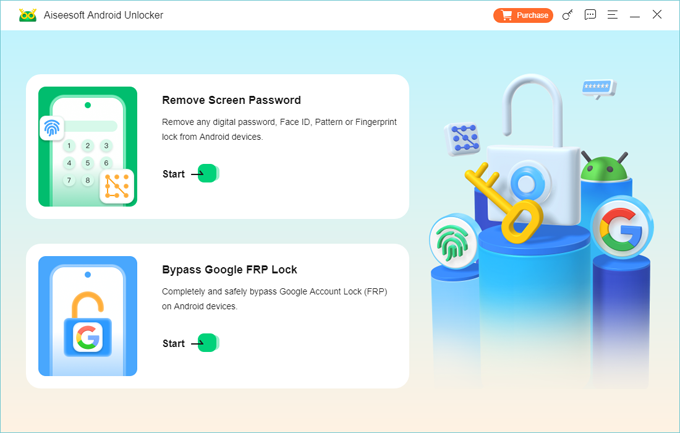
Step 2: Connect the Motorola Device
Use a stable USB connection between the phone and computer.
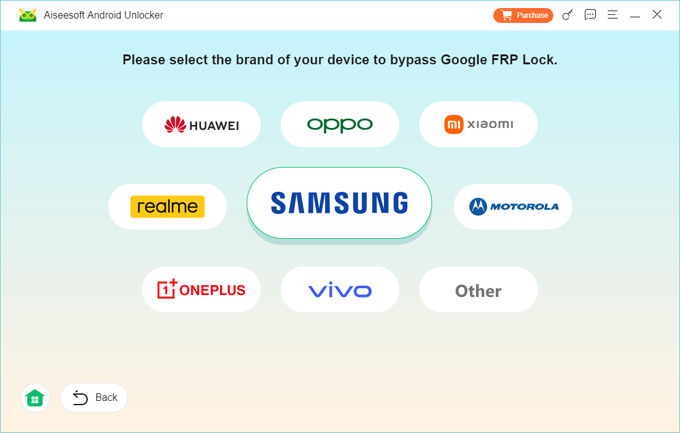
Step 3: Select the Appropriate Recovery Mode
Choose the option that matches your device access situation.
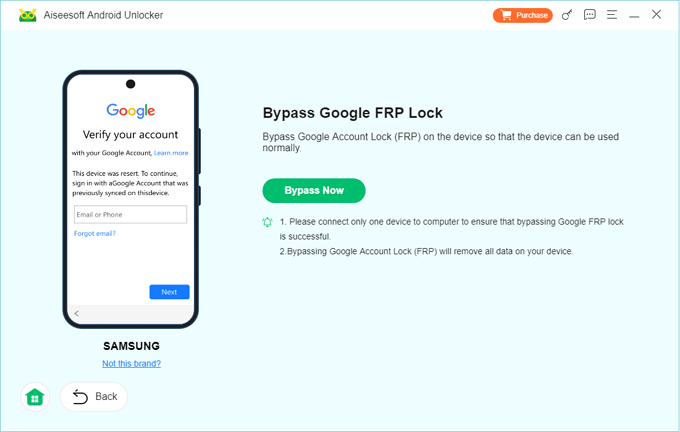
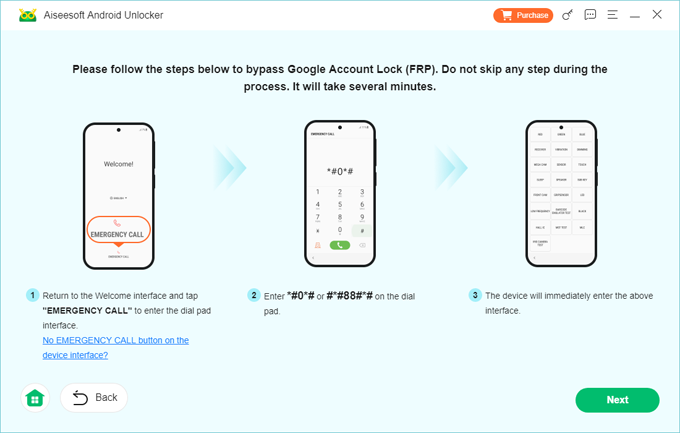
Step 4: Follow On-Screen Instructions
The software provides device-specific guidance throughout the process.
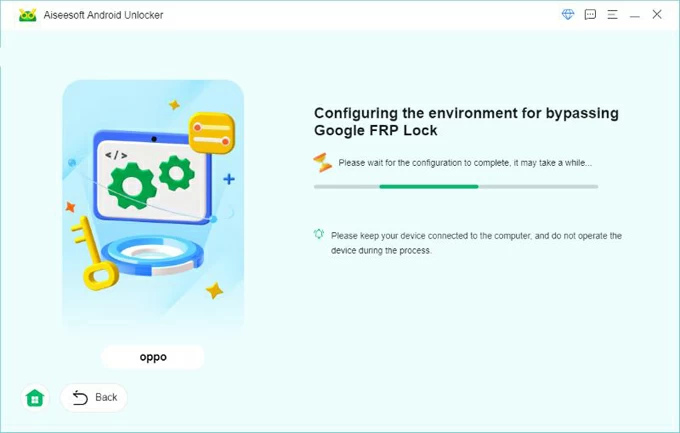
Step 5: Verify Ownership and Complete Setup
Once recovery is completed, continue the standard Android setup process using the appropriate account credentials.
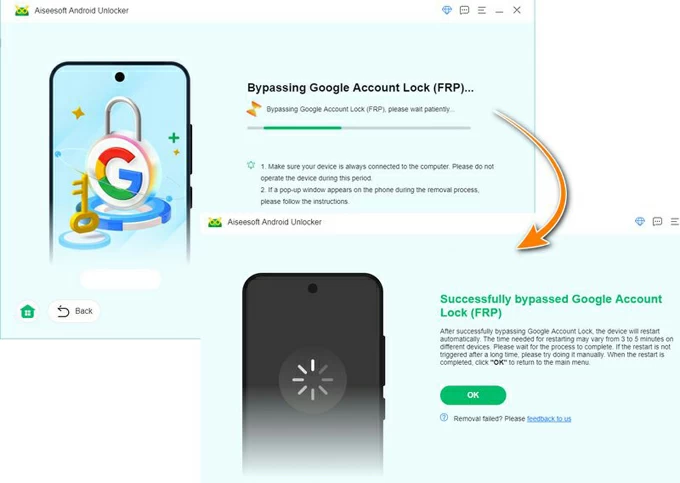
Important Notes
- Always ensure you are the legitimate owner of the device.
- Back up important data whenever possible.
- Use the latest version of the software for maximum compatibility.
What If Important Data Is Lost After a System Failure?
FRP isn't the only challenge Motorola users face. In fact, many people encounter a more painful issue immediately after solving a device access problem: data loss.
Imagine this situation. A Motorola phone becomes stuck in a boot loop after a failed system update. The owner attempts troubleshooting, performs a reset, and eventually regains access to the device. Unfortunately, photos, contacts, videos, work documents, and messages are suddenly gone.
This scenario is surprisingly common.
System crashes, firmware errors, failed updates, accidental resets, storage corruption, and software conflicts can all result in significant data loss. Users often focus entirely on unlocking or restoring access and only realize afterward that critical files have disappeared.
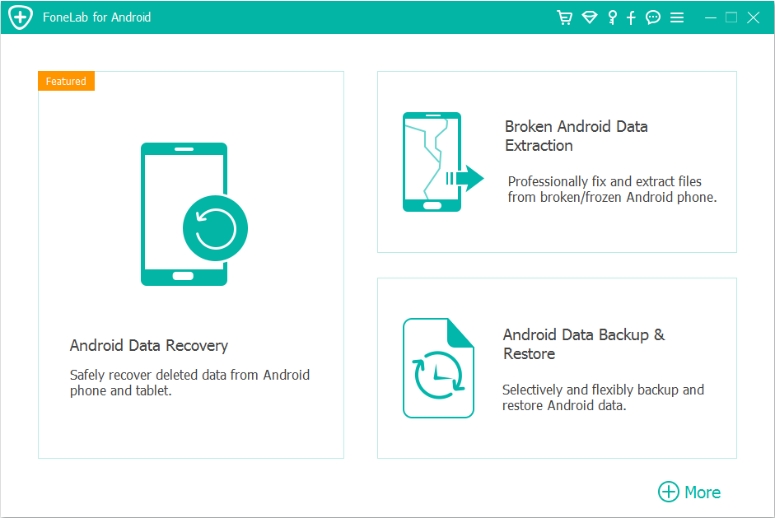
This is where professional data recovery solutions become valuable.
Within the iDATAPP software ecosystem, users can find recovery-oriented tools designed to help retrieve lost Android data under various circumstances. Depending on the device condition and available storage information, recovery software may assist with recovering deleted photos, restoring contacts, retrieving messages, or extracting files that appear inaccessible after system failures.
One advantage of using dedicated recovery software is that it reduces the risk of further data overwriting. Many users unknowingly continue using the device after data loss, which can permanently replace recoverable information. Recovery tools help users evaluate what can still be restored before additional damage occurs.
To reduce the likelihood of future data loss, Motorola users should also adopt a proactive backup strategy. Cloud synchronization, local computer backups, and routine exports of critical files provide additional protection if a device experiences unexpected problems.
The lesson is simple: recovering access to a phone is only part of the recovery process. Protecting personal data is equally important. Whether the issue originates from a failed update, accidental deletion, or a software malfunction, having a recovery solution available can significantly reduce downtime and stress.
When discussing Motorola FRP lock, it makes sense to consider the broader picture of device management. Security, accessibility, and data protection all work together. A phone is only truly recovered when both access and information are restored.
Frequently Asked Questions
1. What is FRP on a Motorola phone?
FRP stands for Factory Reset Protection. It is an Android security feature that requires verification of the previously linked Google account after a factory reset.
2. Can I remove FRP without the original Google account?
The safest and recommended approach is to recover the original account or verify ownership through official support channels.
3. Why does Google ask for a previously synced account?
This prevents unauthorized individuals from using a device after it has been reset.
4. Is FRP available on all Motorola phones?
Most modern Motorola devices running Android include Factory Reset Protection.
5. How can I prevent FRP issues before resetting my phone?
Remove your Google account before performing a factory reset and ensure you know your account credentials.
Summary
Motorola FRP lock is a valuable security feature designed to protect personal information. While it can be frustrating for legitimate owners after a factory reset, the problem is usually solvable through Google account recovery, authorized device recovery tools, or official ownership verification. Combining good account management with regular backups helps prevent future issues and keeps your Motorola device secure.
 English
 Nederlands
 Tiếng Việt
 日本
日本 Español
 Português
 Deutsche
 Français
 Italiano
 Norsk
Norsk Suomalainen
 Svenska
 Dansk
Dansk Ελληνικά
 Türk
Türk русский
 हिंदी
हिंदी தமிழ்
தமிழ் Bahasa Melayu
 ไทย
ไทย 한국어
한국어 Română
 Polskie
 қазақ
қазақ Gaeilge
 繁體中文
繁體中文