
 iPhone Data Recovery
 iOS System Recovery
 iOS Backup & Restore
 iOS WhatsApp Transfer
 iOS FoneTrans
 MobieSync
 Android Data Recovery
 Broken Android Data Extraction
 Android Data Backup & Restore
 iPhone Unlocker
 Best Samsung Phone Unlock Tool
 Android Unlocker
 Win/Mac Data Recovery
 iDATAPP Screen Recorder
 2D&3D Video Converter
 Video Repair Software Ai
 AI Video Converter
 Ai Blu-ray Player
 How to Recover WhatsApp Photos from Samsung S24?
Lost WhatsApp photos on Samsung S24 aren’t always gone forever. With the right recovery method, backups, or professional tools, you can retrieve deleted images safely and effectively.
Losing WhatsApp photos on a brand-new Samsung Galaxy S24 can feel especially painful. These aren’t just files — they’re family memories, work screenshots, travel moments, and conversations frozen in time. Because the S24 runs on the latest Android system with stricter security, many users are surprised to find that “deleted” doesn’t always mean “gone forever,” but recovery is also not as simple as it used to be.

This article takes a real-world, problem-first approach. We’ll start by understanding why WhatsApp photos disappear on Samsung S24, then walk through three proven recovery methods — from safest to most powerful — including one professional solution from our own website. Along the way, we’ll share technical insights most articles skip, so you know not just what to do, but why it works.
Guide List
- Why WhatsApp Photos Go Missing on Samsung S24?
- Method 1: Recover WhatsApp Photos Using Android Data Recovery Software
- Method 2: Restore WhatsApp Photos from Local or Cloud Backup (Safe but Limited)
- Method 3: Check Samsung Gallery, File Manager, and Cached WhatsApp Media
- Samsung S24 System Crashes Causing WhatsApp & App Data Loss
- FAQ
Why WhatsApp Photos Go Missing on Samsung S24?
On the Samsung S24, WhatsApp images are usually stored in internal storage under encrypted app directories. Deletions can happen due to:
- Accidental manual deletion in WhatsApp or Gallery
- Clearing WhatsApp storage to free space
- App crashes after One UI or Android updates
- Switching phones without proper backup
- System optimization tools removing “unused” media
Here’s the key technical reality: when a WhatsApp photo is deleted, Android doesn’t immediately erase it. Instead, it marks the storage space as reusable. Until new data overwrites it, recovery is often possible — but only with the right timing and method.
That’s why acting quickly and choosing the correct solution matters.
Method 1: Recover WhatsApp Photos Using Android Data Recovery Software
If the photos are not visible in Gallery, not present in WhatsApp chats, and not restorable from backups, a deep scan recovery is your best option. This method works directly with the Samsung S24’s internal storage structure and WhatsApp data fragments.
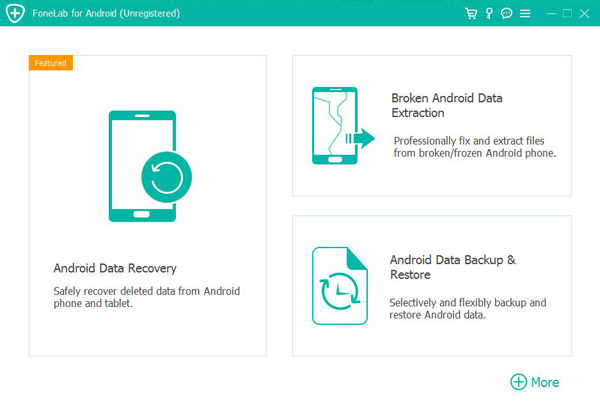
Using iDatapp Android Data Recovery, you can scan the device at a system level to locate deleted WhatsApp photos that still exist beneath the surface.
Why This Works on Samsung S24
Unlike basic file explorers, this software understands how WhatsApp stores media and metadata. It can identify deleted image records even after app cache cleanup or system updates.
Step-by-Step Recovery Process
1.Install iDatapp Android Data Recovery on your computer
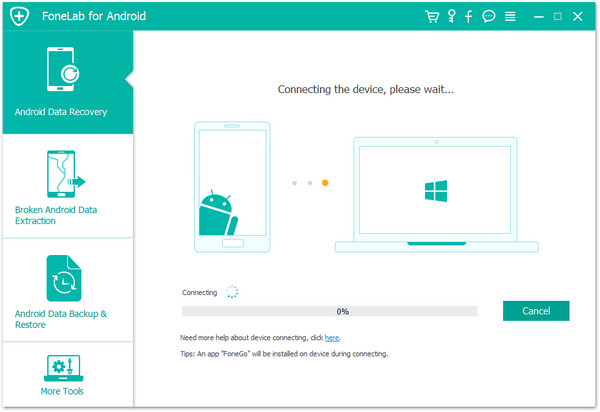
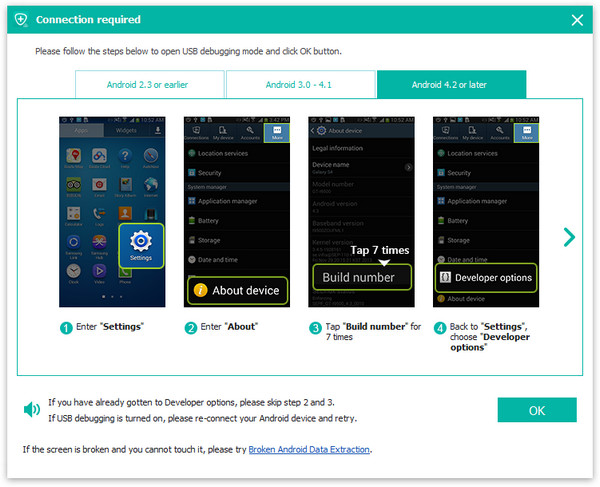
2.Connect Samsung S24 via USB and enable USB debugging
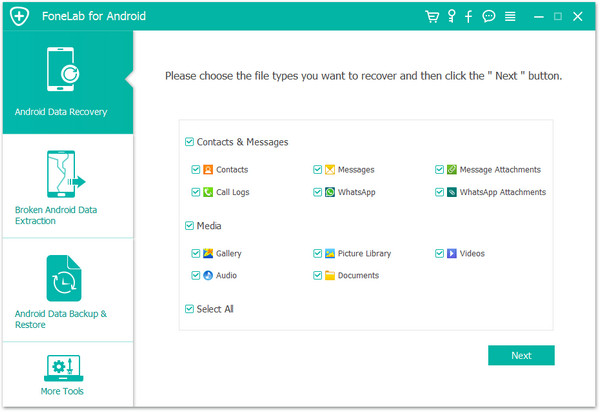
3.Select WhatsApp Photos/Images as scan targets
4.Perform a deep scan (this may take time on large storage)
5.Preview recoverable WhatsApp photos before restoring
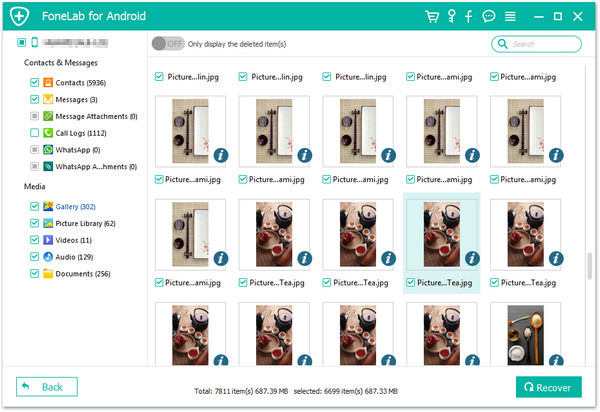
6.Export selected photos safely to your computer
Notes
- Stop using the phone immediately after data loss
- Do not reinstall WhatsApp before scanning
- Rooting is not required for most Samsung S24 models
This method offers the highest recovery success rate, especially when backups are unavailable.
Method 2: Restore WhatsApp Photos from Local or Cloud Backup (Safe but Limited)
WhatsApp automatically creates backups, but many Samsung S24 users don’t realize how these backups actually work — or their limitations.
There are two common backup locations:
- Google Drive (cloud backup)
- Local device storage (temporary backups)
If backups were enabled before deletion, restoring them may bring back your photos.
How to Restore from Backup
1.Uninstall WhatsApp from your Samsung S24
2.Reinstall WhatsApp from Google Play
3.Verify the same phone number and Google account
4.Choose Restore from Backup when prompted
5.Wait for media files to download
What You Should Know
- Newer photos after the backup date will be lost
- Backups overwrite current WhatsApp data
- Media restoration may take hours on large backups
- If backup was disabled, this method won’t help
This approach is safe and official, but only works if you planned ahead.
Method 3: Check Samsung Gallery, File Manager, and Cached WhatsApp Media
Before assuming full data loss, it’s worth checking whether the photos are misplaced rather than deleted.
On Samsung S24, WhatsApp images sometimes disappear due to:
- Hidden folders
- Gallery sync errors
- Media indexing failures
Where to Look
1.Samsung Gallery → Albums → WhatsApp Images
2.My Files → Internal Storage → Android → media → com.whatsapp
3.Enable “Show hidden system files”
4.Search by image date or file size
Extra Tip
Restart the phone and clear Gallery cache (not data). This forces Android to re-index media files, which can magically make “lost” photos reappear.
This method won’t recover permanently deleted files, but it often solves visibility issues — especially after system updates.
Samsung S24 System Crashes Causing WhatsApp & App Data Loss
Beyond accidental deletion, system instability is an increasingly common reason for WhatsApp photo loss on Samsung flagship devices.
Why This Happens
The Samsung S24 uses aggressive memory optimization, AI-driven storage management, and frequent One UI updates. While powerful, these features can cause:
- App data corruption after OTA updates
- WhatsApp crashing and auto-resetting storage
- Media database damage
- Boot loops that block access to files
When this happens, users often panic, factory reset the phone, and permanently erase recoverable data.
Smarter Way to Handle System-Related Data Loss
If your Samsung S24 shows symptoms like:
- WhatsApp opens but photos won’t load
- Media thumbnails appear gray or broken
- Phone randomly restarts or freezes
You should avoid factory reset and use a professional recovery tool that can extract data even from unstable systems.
At idatapp.com, specialized Android solutions are designed to handle:
- Data extraction from phones stuck on boot logo
- Recovery after system update failure
- App data loss caused by OS crashes
- Exporting photos, messages, and videos before reset
These tools act as a bridge, allowing you to secure important data before attempting risky fixes like flashing firmware or resetting the device.
This scenario is extremely common with high-end Samsung models — and yet rarely explained clearly online.
FAQ
Can I recover WhatsApp photos on Samsung S24 without backup?
Yes. If the data hasn’t been overwritten, deep scan recovery software can retrieve deleted photos without any backup.
Does Samsung Cloud store WhatsApp photos?
No. Samsung Cloud does not back up WhatsApp media by default. WhatsApp relies on its own backup system.
Will rooting my Samsung S24 increase recovery success?
Rooting may help in rare cases, but it risks data loss and voids warranty. Most users should avoid it.
Are deleted WhatsApp photos permanently gone after 30 days?
Not necessarily. Time alone doesn’t delete data — overwriting does. Light phone usage improves recovery chances.
Is it safe to use recovery software on Samsung S24?
Yes, as long as the software is read-only and does not modify existing data, like iDatapp Android Data Recovery.
Final Thoughts
Recovering WhatsApp photos from a Samsung Galaxy S24 is absolutely possible — but success depends on speed, method, and understanding how Android handles data. Whether you rely on backups, quick system checks, or professional recovery tools, the key is acting before data gets overwritten.
 English
 Nederlands
 Tiếng Việt
 日本
日本 Español
 Português
 Deutsche
 Français
 Italiano
 Norsk
Norsk Suomalainen
 Svenska
 Dansk
Dansk Ελληνικά
 Türk
Türk русский
 हिंदी
हिंदी தமிழ்
தமிழ் Bahasa Melayu
 ไทย
ไทย 한국어
한국어 Română
 Polskie
 қазақ
қазақ Gaeilge
 繁體中文
繁體中文