
 iPhone Data Recovery
 iOS System Recovery
 iOS Backup & Restore
 iOS WhatsApp Transfer
 iOS FoneTrans
 MobieSync
 Android Data Recovery
 Broken Android Data Extraction
 Android Data Backup & Restore
 iPhone Unlocker
 Best Samsung Phone Unlock Tool
 Android Unlocker
 Win/Mac Data Recovery
 iDATAPP Screen Recorder
 2D&3D Video Converter
 Video Repair Software Ai
 AI Video Converter
 Ai Blu-ray Player
 [Solved]Recover Deleted Videos From Samsung S25 Series
Deleted videos on Samsung S25 aren’t always gone. From Trash and Samsung Cloud to advanced Android data recovery software, this guide explains three proven methods to recover lost videos safely and effectively—before they’re overwritten.
Losing videos on a brand-new Samsung S25, S25+, or S25 Ultra can feel especially painful. These devices are often used to record irreplaceable moments—family events, travel clips, work footage, or content for social media. When those videos disappear, the panic is real.

This guide takes a deep, practical look at why videos get deleted on the Samsung S25 Series, what actually happens to your data after deletion, and—most importantly—how to recover deleted videos from Samsung S25 safely and effectively. Instead of recycled tips, this article walks you through real-world recovery logic, three proven methods, and an extended solution for a closely related Samsung problem many users face.
Guide List
- Why Samsung S25 Videos Disappear?
- Method 1: Recover Deleted Videos from Samsung S25 Trash Folder
- Method 2: Recover Deleted Videos from Samsung S25 Using Samsung Cloud Backup
- Method 3: Recover Deleted Videos from Samsung S25 Using Android Data Recovery Software
- Samsung S25 Data Loss After System Crash
- Frequently Asked Questions
Why Samsung S25 Videos Disappear?
Before jumping into recovery, it helps to understand what’s going on behind the scenes.
On Samsung S25 devices (running Android 15 with One UI), deleting a video usually doesn’t erase it instantly. In most cases, the file system only marks the storage space as “available.” The actual video data remains intact until new data overwrites it. This is why timing matters so much.
Common causes of video loss on the Samsung S25 Series include:
- Accidental deletion from Gallery
- Emptying the Trash folder too soon
- System updates causing media indexing errors
- Storage cleanup tools removing “large files”
- App crashes during video recording or editing
- Virus or malware interference
- Sudden shutdowns or battery drain while saving videos
Understanding this gives us a clear strategy: stop using the phone immediately and apply the right recovery method before overwriting occurs.
Method 1: Recover Deleted Videos from Samsung S25 Trash Folder
Samsung’s Gallery app includes a built-in Trash feature that temporarily stores deleted videos for up to 30 days. For many Samsung S25 users, this is the fastest and safest recovery option because it doesn’t require third-party tools or technical steps. If your video was deleted recently and the Trash hasn’t been emptied, recovery is almost instant. However, this method only works under specific conditions: the file must be deleted through the Gallery app, and the retention period must not have expired. If those conditions are met, this should always be your first attempt.
Step-by-Step Guide
- Open Gallery on your Samsung S25.
- Tap the Menu (three dots) in the top-right corner.
- Select Trash or Recycle Bin.
- Browse deleted videos by date or size.
- Tap and hold the video you want back.
- Choose Restore.
- The video returns to its original album location.
Important notes:
- Trash auto-deletes items after 30 days.
- Videos deleted via third-party apps may not appear here.
- Restored videos keep original quality and metadata.
Method 2: Recover Deleted Videos from Samsung S25 Using Samsung Cloud Backup
Samsung Cloud quietly backs up media for many users, often without them realizing it. If video backup was enabled before deletion, Samsung Cloud can restore deleted videos even if they’re no longer in the Trash. This method is particularly effective for users who upgrade phones frequently or sync data across devices. However, it requires that cloud backup was turned on before the loss occurred, and restoring media may overwrite newer files if you’re not careful. It’s a powerful but slightly riskier option than local recovery.
Step-by-Step Guide
- Open Settings on your Samsung S25.
- Go to Accounts and backup.
- Tap Samsung Cloud.
- Select Restore data.
- Choose Gallery/Videos.
- Tap Restore and wait for completion.
- Check Gallery for recovered videos.
Details
- Requires Wi-Fi and sufficient battery.
- May restore older versions of files.
- Backup frequency depends on user settings.
Method 3: Recover Deleted Videos from Samsung S25 Using Android Data Recovery Software
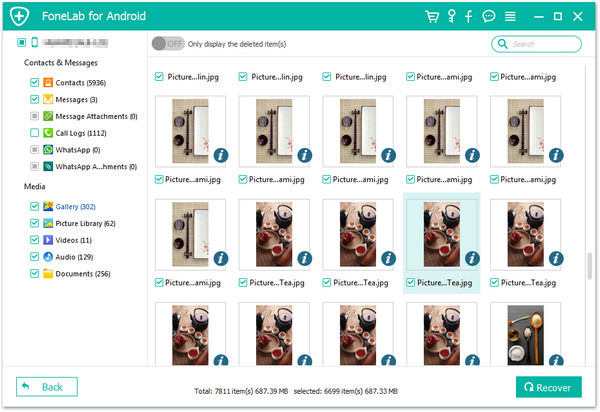
When videos are permanently deleted and no backup exists, specialized recovery software becomes essential. iDatapp Android Data Recovery is designed to scan Samsung devices at a deeper level, locating deleted video fragments that are invisible to the system. Unlike basic methods, this approach works even after Trash deletion, system crashes, or failed updates. It’s particularly effective for large video files recorded in high resolution on the Samsung S25 Ultra. This method offers the highest recovery success rate when time has passed—but overwriting hasn’t occurred.
Step-by-Step Guide
1.Download and install iDatapp Android Data Recovery on your computer.
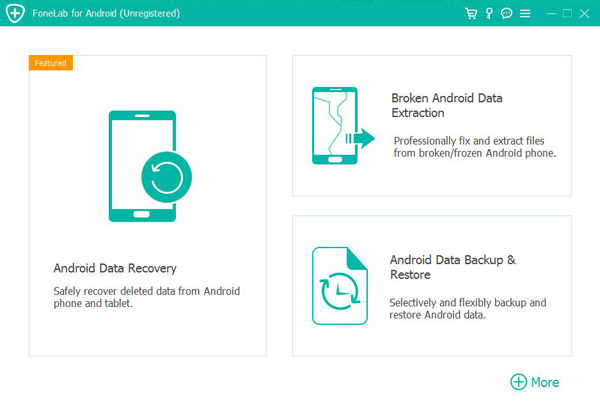
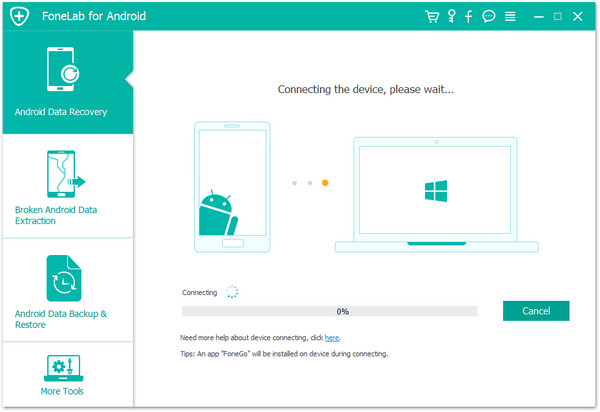
2.Connect your Samsung S25 using a USB cable.
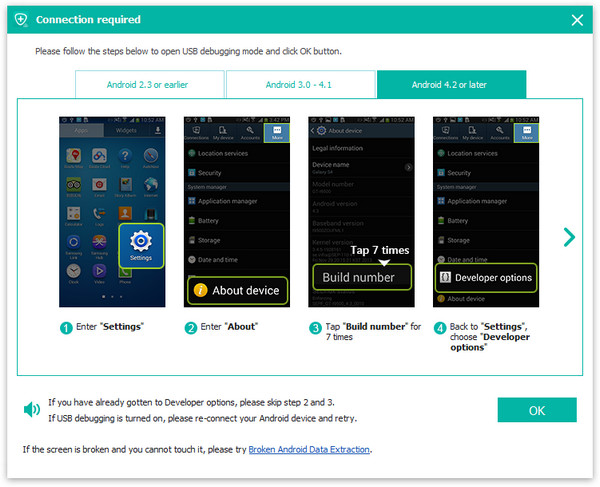
3.Enable USB Debugging on your phone.
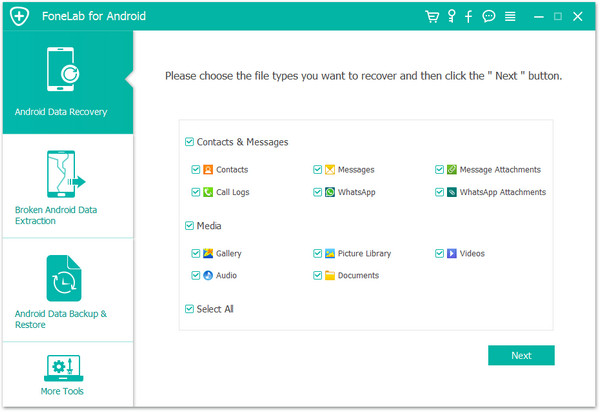
4.Select Video Recovery from the scan options.
5.Start a deep scan of the device storage.
6.Preview recoverable videos before restoring.
7.Select and recover videos to your computer safely.
Important Details
- Stop using the phone immediately after data loss.
- Root access may improve deep scan results.
- Recovery success depends on overwrite status.
Samsung S25 Data Loss After System Crash
A surprisingly common issue among Samsung S25 users isn’t accidental deletion—but system crashes during updates or beta firmware installs. Samsung’s flagship devices often receive early updates, and while exciting, these updates can sometimes cause boot loops, black screens, or storage corruption. When this happens, users often lose not just videos, but contacts, messages, and documents.
In these scenarios, the phone may still be detected by a computer, but the screen is unresponsive or the system won’t load properly. This is especially frustrating because your data technically still exists—but is inaccessible.
For this type of issue, tools available at idatapp.com offer broader solutions beyond simple video recovery. For example, Android data recovery and system repair tools can extract data directly from damaged or malfunctioning Samsung devices without requiring full system access. This is extremely useful when:
- The Samsung S25 is stuck on the logo screen
- The device keeps restarting
- Touchscreen stops responding after an update
- Storage shows as empty due to system errors
These tools work by bypassing the Android UI layer and reading data at the storage level. In many cases, users can export videos, photos, and other files to a computer before attempting risky factory resets.
This approach is ideal for Samsung users who rely on their phones for professional content creation. Instead of accepting total data loss, extracting files first gives you a safety net. Once your data is secured, you can troubleshoot or reinstall the system without fear.
The key takeaway: system-related data loss is often recoverable, but only if you act before repeated reboots or resets overwrite storage sectors. That’s why having a dedicated recovery solution ready is no longer optional—it’s a smart precaution for flagship Android users.
Frequently Asked Questions
Can I recover deleted videos from Samsung S25 without a computer?
Yes, but only if the videos are still in the Trash or backed up to Samsung Cloud.
How long do deleted videos stay on Samsung S25?
Up to 30 days in Trash, unless manually deleted earlier.
Does factory reset erase videos permanently?
Yes. Recovery becomes extremely difficult after a reset.
Can recovery software damage my phone?
No, reputable tools only read data without modifying storage.
What affects video recovery success rate the most?
Time, storage overwriting, and whether the phone is still actively used.
Conclusion
Recovering deleted videos from the Samsung S25 Series is absolutely possible if you act quickly and choose the right method. Start with Trash, move to cloud backups, and rely on professional recovery software when needed. Understanding how Android handles deleted data is your biggest advantage.
 English
 Nederlands
 Tiếng Việt
 日本
日本 Español
 Português
 Deutsche
 Français
 Italiano
 Norsk
Norsk Suomalainen
 Svenska
 Dansk
Dansk Ελληνικά
 Türk
Türk русский
 हिंदी
हिंदी தமிழ்
தமிழ் Bahasa Melayu
 ไทย
ไทย 한국어
한국어 Română
 Polskie
 қазақ
қазақ Gaeilge
 繁體中文
繁體中文