
 iPhone Data Recovery
 iOS System Recovery
 iOS Backup & Restore
 iOS WhatsApp Transfer
 iOS FoneTrans
 MobieSync
 Android Data Recovery
 Broken Android Data Extraction
 Android Data Backup & Restore
 iPhone Unlocker
 Best Samsung Phone Unlock Tool
 Android Unlocker
 Win/Mac Data Recovery
 iDATAPP Screen Recorder
 2D&3D Video Converter
 Video Repair Software Ai
 AI Video Converter
 Ai Blu-ray Player
 Recover Realme Data After Factory Reset without Backup
Accidentally factory reset your Realme phone without backup? Learn three realistic recovery methods, expert insights, and how professional tools can help retrieve lost Android data safely.
Losing data after a factory reset on a Realme phone feels brutal. One tap, one confirmation screen, and suddenly photos, messages, videos, documents, and app data are gone—no backup, no warning, no easy “undo.” Many users assume recovery is impossible once a reset is completed. That assumption is only half true.

In reality, data recovery after a factory reset on Realme devices is difficult—but not always impossible. The outcome depends on how Android stores data, what happens during a reset, and what you do immediately afterward. This article breaks down the problem from a technical and practical perspective, explains what can and cannot be recovered, and then walks you through three original, realistic recovery methods—including one solution using our own professional Android recovery software.
Along the way, we’ll also explore related Realme data-loss scenarios that users commonly face and how they can be solved with the right tools and strategy.
Guide List
- What Factory Reset Actually Does on Realme Phones?
- Method 1: Recover Realme Data Using iDatapp Android Data Recovery (Highest Success Rate)
- Method 2: Restore Lost Realme Data from Google Cloud Artifacts (Indirect Recovery)
- Method 3: Recover Realme Data from SD Card or External Storage (Often Ignored)
- Realme Data Loss After System Crash or Update Failure (In-Depth)
- Frequently Asked Questions
What Factory Reset Actually Does on Realme Phones?
A factory reset on a Realme phone (running Realme UI based on Android) doesn’t simply “hide” your data—it removes file system references and encryption keys that allow Android to access user data. Internally, your photos, videos, and files may still exist on storage sectors, but the phone no longer knows how to find or decrypt them.
Here’s why recovery is tricky but sometimes possible:
- Android uses file-based encryption (FBE) on modern Realme devices
- A factory reset deletes encryption keys tied to your lock screen
- Data may still physically exist until overwritten by new data
- The more you use the phone after reset, the lower your chances
So the golden rule is simple:
Stop using the phone immediately after the reset. No apps, no photos, no Wi-Fi syncing if possible.
Now let’s move from theory to solutions.
Method 1: Recover Realme Data Using iDatapp Android Data Recovery (Highest Success Rate)
If you’re serious about recovering data from a Realme phone after a factory reset without backup, professional-grade recovery software is the most reliable path. The key advantage is low-level scanning that bypasses Android’s user interface and directly analyzes internal storage.
The iDatapp Android Data Recovery tool is designed specifically for complex Android data-loss scenarios, including factory reset, system crashes, and accidental deletion. Unlike generic tools, it focuses on recoverable data fragments left behind after encryption keys are removed. On supported Realme models, it can retrieve photos, videos, WhatsApp data, contacts, messages, and documents—even when no backup exists.
This method is ideal if the data is valuable and you want the highest possible recovery rate.
Step-by-Step Solution
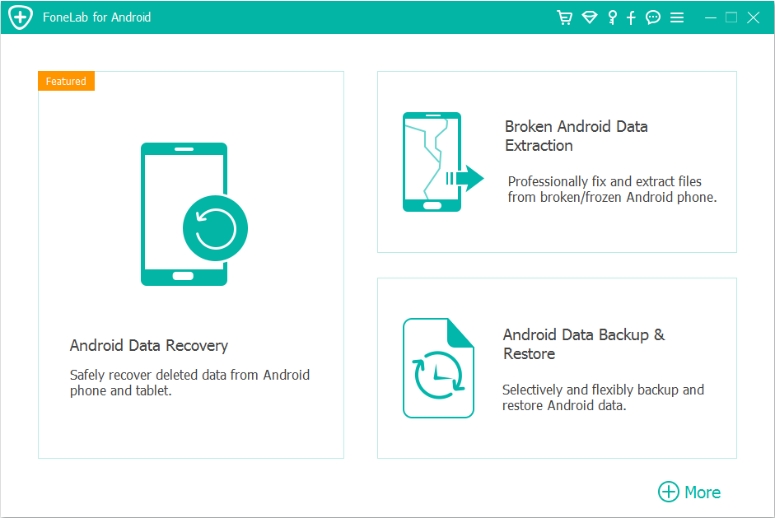
1.Install iDatapp Android Data Recovery on your computer, launch the program and select Android Data Recovery mode
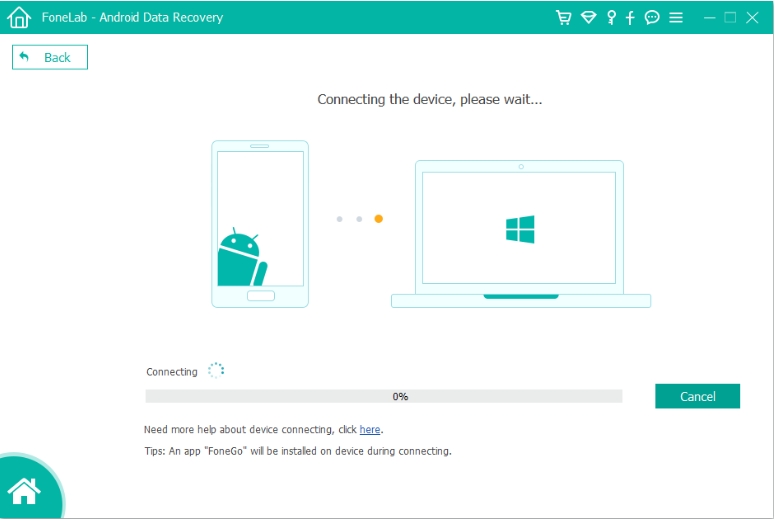
2.Connect your Realme phone via USB cable
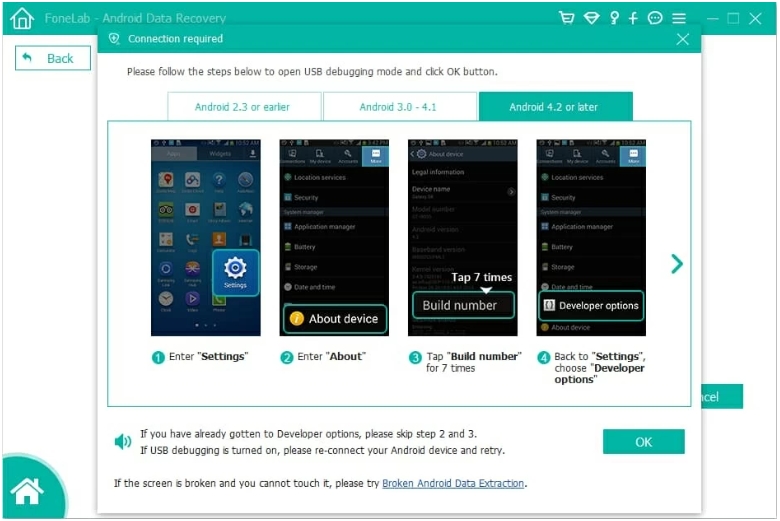
3.Enable USB debugging when prompted (on newly set-up phones)
4.Allow the software to perform a deep scan of internal storage
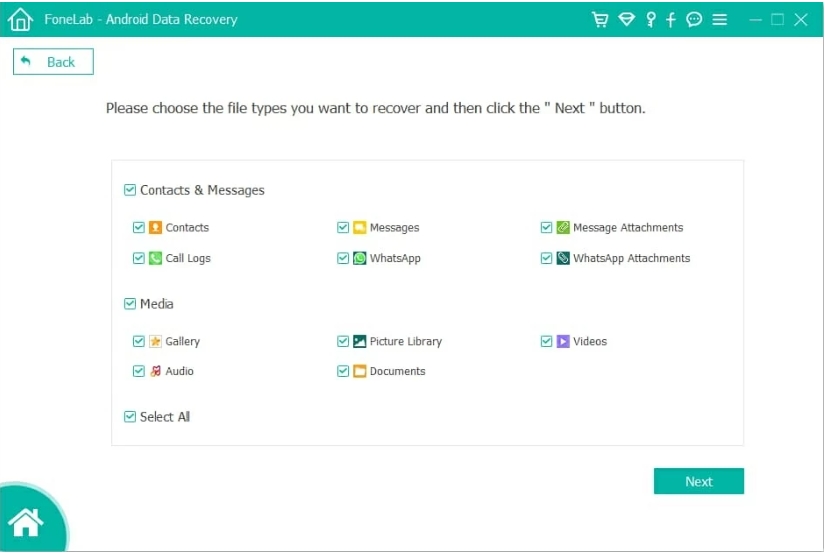
5.Preview recoverable files (photos, videos, messages, etc.)
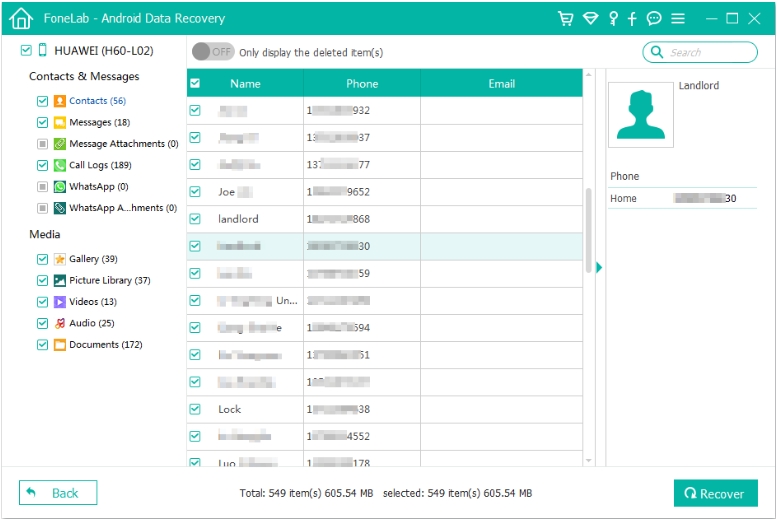
6.Select what you need and export it safely to your computer

Important Notes
- Root access may be required on some Realme models for deep scanning
- Do not install new apps on the phone before scanning
- Recovery success depends on overwrite level and device model
Method 2: Restore Lost Realme Data from Google Cloud Artifacts (Indirect Recovery)
Even when users believe they have “no backup,” many Realme phones quietly sync data in the background. Android is deeply integrated with Google services, and fragments of your data may still exist in your Google account—even after a factory reset.
This method doesn’t recover data directly from phone storage. Instead, it reconstructs lost data from Google-side remnants, which is often overlooked but surprisingly effective for contacts, messages, photos, and app data.
It’s a softer recovery approach but worth trying before deeper technical methods.
What Data Can Be Recovered This Way?
- Google Contacts sync
- Google Photos cloud-stored images
- SMS backups (on supported Android versions)
- App data linked to your Google account
Step-by-Step Solution
1.On a computer, sign in to the same Google account used on the Realme phone
2.Visit Google Photos and check the Archive and Trash folders
3.Open Google Contacts and review “Other contacts”
4.Log into Google Drive → Backups (if available)
5.Re-add your Google account to the Realme phone after reset
6.Enable sync and allow time for data to restore
Notes
- This method won’t recover local-only files
- Deleted cloud data may still be recoverable within retention periods
- Works best if Google sync was enabled before reset
Method 3: Recover Realme Data from SD Card or External Storage (Often Ignored)
Many Realme users store photos, videos, downloads, or WhatsApp media on SD cards or external storage without realizing it. A factory reset typically does not erase removable storage unless explicitly selected.
This makes SD cards one of the safest and simplest recovery paths after a reset.
Even if files were deleted from the SD card earlier, recovery is still possible because SD cards use standard file systems that are easier to scan.
Step-by-Step Solution
- Power off the Realme phone
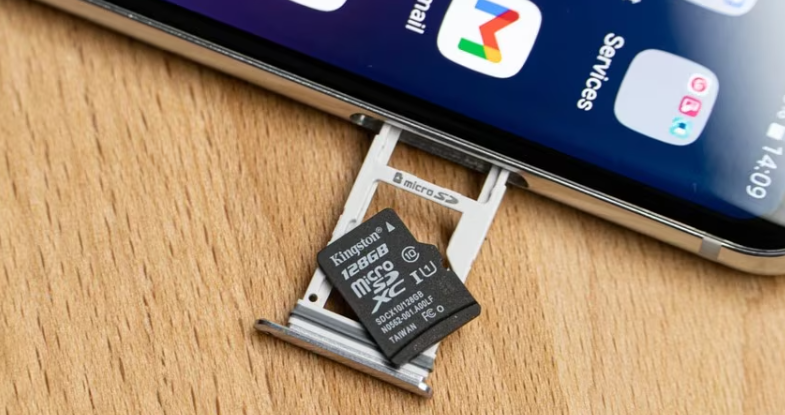
- Remove the SD card carefully
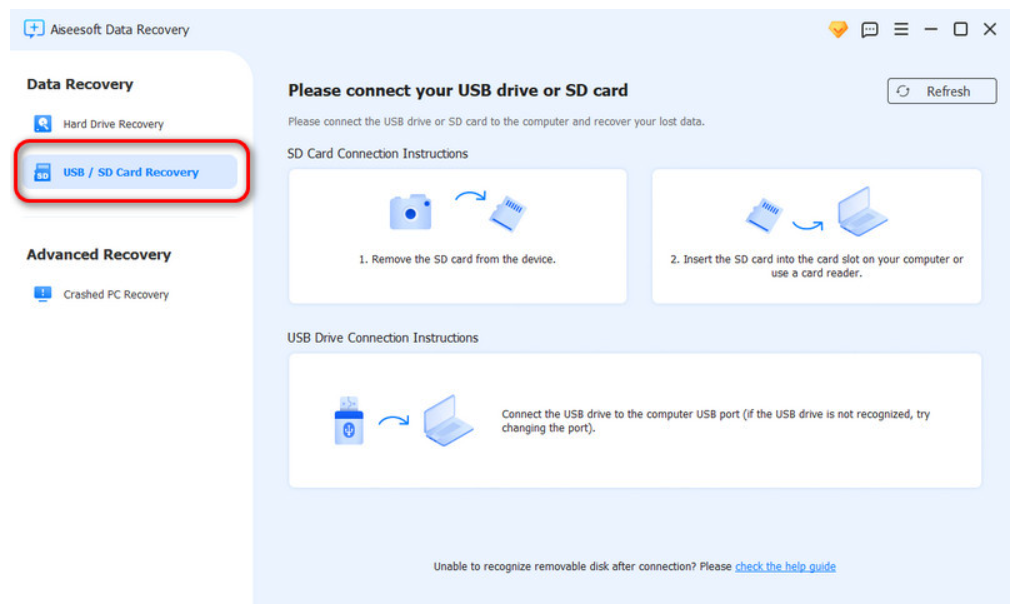
- Insert it into a computer using a card reader
- Check for existing folders like DCIM, WhatsApp, Downloads
- Copy all accessible files immediately
- If files are missing, perform a deep SD card scan using recovery software
Notes
- Do not format the SD card after reset
- Avoid writing new data to the card
- SD card recovery success rate is generally high
Realme Data Loss After System Crash or Update Failure (In-Depth)
Factory reset is not the only cause of catastrophic data loss on Realme phones. In fact, system crashes and failed Realme UI updates are among the most common triggers of sudden data disappearance.
Users often report situations like:
- Phone stuck in boot loop after update
- Forced reset due to system instability
- Data inaccessible after Realme UI upgrade
- Phone restarting repeatedly and requiring wipe
In these cases, data loss feels unavoidable—but it isn’t always permanent.
When a Realme system crash occurs, the internal storage may remain intact while Android fails to load properly. The problem isn’t the data—it’s the operating system’s inability to mount and decrypt it. This is exactly where professional Android data recovery solutions become essential.
Using specialized tools from idatapp.com, users can extract data directly from malfunctioning Realme devices without relying on the Android interface. These tools are designed to handle:
- System-level corruption
- Update-related data loss
- Devices stuck in recovery mode
- Phones that won’t boot normally
Instead of repeatedly resetting the phone and overwriting data, the correct approach is to freeze the situation, connect the device to a computer, and extract data before any further damage occurs.
This scenario highlights an important lesson:
Most Realme data loss becomes permanent only after repeated incorrect actions. Acting early and using the right tool dramatically improves recovery chances.
Frequently Asked Questions
Can Realme data really be recovered after a factory reset without backup?
Yes, in some cases. Recovery depends on whether the data has been overwritten and whether professional tools are used early.
Does factory reset permanently delete all data on Realme phones?
It removes access keys, not always the raw data itself. Some data may still exist until overwritten.
Should I keep using my phone after data loss?
No. Continued use increases the chance of permanent data overwrite.
Is rooting required for Realme data recovery?
For deep scans, yes on some models. Advanced tools guide you through safe rooting when needed.
What data types are easiest to recover?
Photos, videos, contacts, and WhatsApp media have the highest recovery success rates.
Conclusion
Recovering Realme data after a factory reset without backup is challenging but not hopeless. With quick action, correct methods, and professional tools like iDatapp Android Data Recovery, valuable data can often be saved before it’s permanently lost.
 English
 Nederlands
 Tiếng Việt
 日本
日本 Español
 Português
 Deutsche
 Français
 Italiano
 Norsk
Norsk Suomalainen
 Svenska
 Dansk
Dansk Ελληνικά
 Türk
Türk русский
 हिंदी
हिंदी தமிழ்
தமிழ் Bahasa Melayu
 ไทย
ไทย 한국어
한국어 Română
 Polskie
 қазақ
қазақ Gaeilge
 繁體中文
繁體中文