
 iPhone Data Recovery
 iOS System Recovery
 iOS Backup & Restore
 iOS WhatsApp Transfer
 iOS FoneTrans
 MobieSync
 Android Data Recovery
 Broken Android Data Extraction
 Android Data Backup & Restore
 iPhone Unlocker
 Best Samsung Phone Unlock Tool
 Android Unlocker
 Win/Mac Data Recovery
 iDATAPP Screen Recorder
 2D&3D Video Converter
 Video Repair Software Ai
 AI Video Converter
 Ai Blu-ray Player
 Broken Screen Samsung S25 Data Extraction[Official]
Learn how to recover data from a broken-screen Samsung S25 using professional extraction, Samsung DeX, or OTG methods. Includes detailed steps, expert guidance, and extended solutions for locked or crashed devices.
How to Recover Data from Broken Screen Samsung S25 Series?
A cracked or completely black screen on a Samsung S25, S25+, or S25 Ultra is one of those moments that makes your stomach drop. Even when the phone still powers on, a dead display can feel like a total lockout—your photos, work files, conversations, and everyday data suddenly trapped inside a device you can’t interact with. Many users worry that recovering data from broken screen Samsung S25 requires specialized repair labs or hundreds of dollars in service fees.

Fortunately, that isn’t the whole story. The S25 Series still stores your data safely as long as the internal components aren’t severely damaged. And even if the screen is unresponsive, there are practical ways to retrieve your files, access storage, and even view your screen. In this guide, we’ll break the problem down, explain why data is still recoverable, and explore three highly effective methods—ranging from software extraction to hardware-assisted access. One of the methods uses Broken Android Data Extraction from iDatapp, a tool created specifically for cases like this.
By the time you finish reading, you’ll understand exactly which solution fits your situation and how to carry it out successfully.
Method 1: Use Broken Android Data Extraction (Best for Completely Unresponsive Screens)
When the Samsung S25 screen is smashed, touch isn’t responding, or the display stays black, the most reliable solution is using a professional extraction tool designed for broken devices. iDatapp Broken Android Data Extraction communicates directly with the device’s internal storage, allowing you to recover photos, videos, contacts, messages, WhatsApp media, documents, and app data—even when you can’t unlock the screen. What makes this method ideal is that it bypasses the need for touch input and doesn’t require USB debugging to be enabled beforehand.
How it works:
The software scans the phone’s internal storage through a secure recovery protocol, restoring data to your computer without needing to repair the screen first. This is especially useful when the display is completely dead or the frame is bent and unsafe to handle.
Steps:
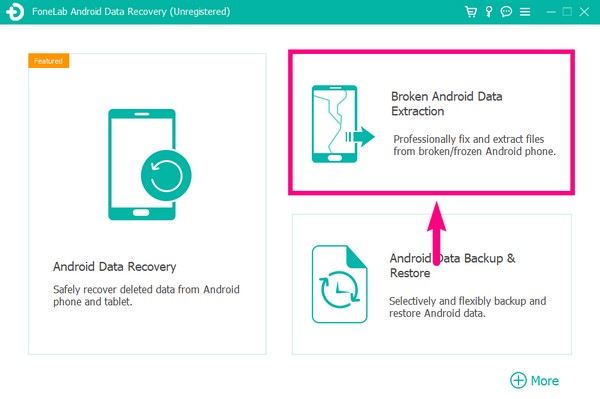
1.Install Broken Android Data Extraction, launch the program and choose “Broken Android Data Extraction.”
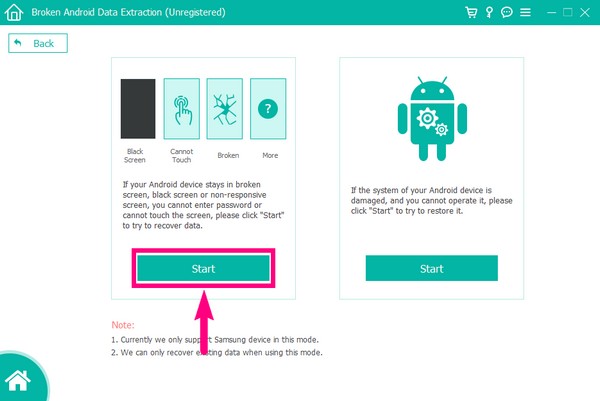
2.Connect your Samsung S25/S25+/S25 Ultra to the computer using a USB cable and click Start.
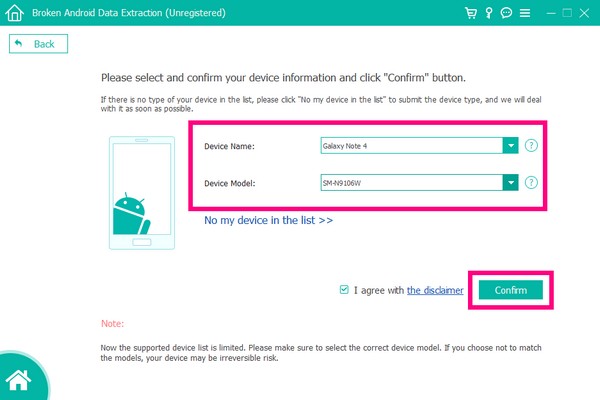
3.Select your exact Samsung model so the software can prepare compatible recovery files.
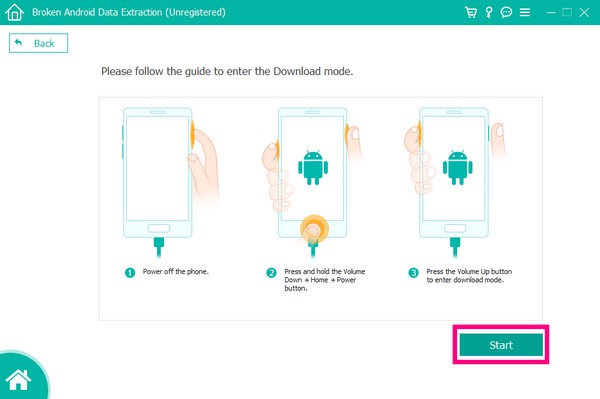
4. Enter Download Mode. The tool will analyze the device and load a preview of recoverable files.
5.Choose the categories you want to restore (photos, videos, messages, etc.).

6.Click Recover to export all selected data to your computer.
Important Notes:
- Works even when the phone’s touch screen is completely dead.
- Ideal for users who cannot unlock their device.
- Helps recover data from water-damaged and physically broken devices.
Method 2: Recover Data Using Samsung DeX (If Screen Is Broken but Touch Still Works)
Sometimes the screen is shattered but the internal digitizer is still functional—you just can’t see where you’re tapping. In that case, Samsung DeX is an underrated but powerful solution. DeX turns your phone into a desktop environment, letting you view apps, files, and notifications on a computer monitor. If the S25 is still recognized by the system and the touch panel responds, you may be able to navigate blindly or trigger DeX automatically when plugging into a compatible monitor.
This approach is great for users who want full access to the device without installing software. It also gives you a familiar desktop-style interface, allowing quick copying or exporting of data.
Steps:
- Connect your S25 Series phone to a monitor using a USB-C to HDMI cable.
- If your screen is black but touch works, DeX may launch automatically.
- Pair a Bluetooth mouse or connect a wired mouse using a USB-C hub.
- Once DeX loads, open My Files or the Gallery app.
- Copy your important files to a USB drive, SD card, cloud storage, or your computer.
- If needed, open Settings → Accounts and backup to back up all system data.
Important Notes:
- Effective only if the digitizer still functions.
- DeX provides full access to system folders and apps.
- For best results, use a wired mouse for precise control.
Method 3: Use OTG + Mouse + Smart Switch Backup (Good for Visible Display + Dead Touch)
If the Samsung S25 screen shows an image but the touch layer is dead, an OTG mouse becomes your temporary touchscreen. By connecting a USB mouse to your phone through an OTG adapter, you can navigate the device, unlock it, and back up data through Samsung Smart Switch. This method is simple, affordable, and does not require advanced tools.
This works especially well when you can still see the display, even if cracks run all over it. As long as you can view the screen content and control the cursor, you can operate the device normally.
Steps:
- Get a USB-C OTG adapter and a USB mouse.
- Connect the mouse to the Samsung S25 through the OTG adapter.
- A cursor will appear—use it to unlock the phone.
- Install Samsung Smart Switch on your computer or another Samsung device.
- Launch Smart Switch and select Backup.
- Follow on-screen instructions to export all available data.
- Save the backup to a PC or transfer it to a new device.
Important Notes:
- Requires the screen to be at least partially visible.
- Allows complete device navigation, including cloud backups.
- Smart Switch supports apps, messages, media, and settings.
What If Your Samsung S25/Ultra Is Locked or System-Corrupted?
A broken screen isn’t the only scenario that leads to data loss or device inaccessibility on the Samsung S25 Series. Many users discover that once the screen is damaged, they cannot enter their password, PIN, or pattern—to the point where their phone becomes locked and unusable. Others run into system crashes, boot loops, or firmware corruption caused by failed updates, malware, or sudden shutdowns. These issues can trap your data just as effectively as a shattered display.
In these cases, even if the screen isn’t the main problem, the underlying issue still blocks access to your files. That is why it’s important to understand that modern Samsung devices rely heavily on software stability and authentication systems. When those fail, normal backup tools stop working, USB debugging cannot be enabled, and even Smart Switch may fail to recognize the phone.
For situations like a locked Samsung S25, a forgotten screen password, or system malfunction preventing access to the home screen, the product that solves this is iDatapp Samsung Unlock App. While primarily used to unlock devices, it can also resolve the barrier that prevents users from accessing the data recovery process. By removing the Samsung lock screen barrier, you regain the ability to connect the device, create backups, or perform standard data extraction.
The Samsung Unlock App can handle various lock types—PIN, pattern, password, fingerprint, and face unlock—making it especially helpful when damage to the display prevents normal authentication. Once the lock screen is cleared, users can proceed with any of the earlier data recovery methods, such as OTG mouse navigation, Smart Switch, or screen-casting through DeX.
In short, even if your Samsung S25 is not physically broken but instead locked or system-corrupted, there is still a path to retrieving your data. Problems like firmware instability, failed updates, or lock screen errors do not permanently eliminate access. With the right unlocking or repair tool from iDatapp, many users can rescue their device and move forward without losing files.
Frequently Asked Questions
Can I recover data from a Samsung S25 with a completely black screen?
Yes. If the phone still powers on, software-based extraction such as iDatapp Broken Android Data Extraction can recover data without needing the screen to function.
Do I need USB debugging enabled?
Not for Method 1 (iDatapp extraction). The other methods require some level of screen visibility or navigation.
Will replacing the screen erase my data?
No. Screen replacement only affects hardware. Your data remains intact unless the logic board is damaged.
What if my Samsung S25 won’t turn on at all?
Severe power failure may indicate motherboard damage. You should first attempt fast-charging, forced reboot, or a USB-C diagnostic cable.
Can I recover WhatsApp and social media data?
Yes. The iDatapp tool supports recovery of app data, chat history, photos, and attachments from apps like WhatsApp.
Summary
Recovering data from a broken-screen Samsung S25 is absolutely possible. Whether your display is dead, touch is unresponsive, or you can still see the screen, the right method—software extraction, Samsung DeX, or OTG control—can safely retrieve your files.
 English
 Nederlands
 Tiếng Việt
 日本
日本 Español
 Português
 Deutsche
 Français
 Italiano
 Norsk
Norsk Suomalainen
 Svenska
 Dansk
Dansk Ελληνικά
 Türk
Türk русский
 हिंदी
हिंदी தமிழ்
தமிழ் Bahasa Melayu
 ไทย
ไทย 한국어
한국어 Română
 Polskie
 қазақ
қазақ Gaeilge
 繁體中文
繁體中文