
 iPhone Data Recovery
 iOS System Recovery
 iOS Backup & Restore
 iOS WhatsApp Transfer
 iOS FoneTrans
 MobieSync
 Android Data Recovery
 Broken Android Data Extraction
 Android Data Backup & Restore
 iPhone Unlocker
 Best Samsung Phone Unlock Tool
 Android Unlocker
 Win/Mac Data Recovery
 iDATAPP Screen Recorder
 2D&3D Video Converter
 Video Repair Software Ai
 AI Video Converter
 Ai Blu-ray Player
 Broken Samsung S26 Data Recovery|Best Ways
Recovering data from a broken Samsung S26 is possible using extraction software, backups, or ADB tools. This guide explains three effective recovery methods and practical solutions for screen-damaged devices.
Best Way to Recover Data On My Broken Samsung S26
A broken phone can feel like a digital disaster—especially when it’s a flagship device like the Samsung S26 Series holding years of photos, work files, messages, and personal memories. When the screen shatters or the phone stops responding, most users assume their data is gone forever. Fortunately, that assumption is rarely true.
Modern smartphones store data in ways that make recovery possible even when the hardware fails. In many cases, the storage chip inside the phone is still intact. The real challenge is simply finding a safe way to access that data without damaging it further.
If your Samsung S26 screen is broken, stuck on a boot loop, or partially unresponsive, you still have several reliable options. This guide explores practical, real-world recovery methods—from specialized extraction tools to manual recovery techniques that work even when the display no longer functions.
Let’s first understand why broken devices still hold recoverable data—and then walk through three proven recovery solutions.
Guide List
- Why Data Is Usually Still Recoverable From a Broken Samsung S26
- Method 1: Recover Data Using Broken Android Data Extraction Software
- Method 2: Recover Data Using Samsung Smart Switch Backup
- Method 3: Recover Data Using USB Debugging and ADB
- What If My Samsung S26 Is Locked After Screen Damage?
- Frequently Asked Questions
- Final Thoughts
Why Data Is Usually Still Recoverable From a Broken Samsung S26
When a Samsung phone breaks, the failure is typically related to the display, touch sensor, battery, or operating system, not the internal storage. Your photos, contacts, and files remain stored inside the device’s UFS storage chip.
Common damage scenarios include:
- Cracked or completely black display
- Touchscreen not responding
- System crash after an update
- Water damage affecting hardware components
- Device stuck on Samsung logo or recovery screen
In many of these cases, the phone’s storage remains readable. The key is using the right recovery approach based on the type of damage.
Below are three effective ways to recover data from a broken Samsung S26.
Method 1: Recover Data Using Broken Android Data Extraction Software
When a Samsung S26 screen is completely unusable, professional extraction software can bypass the broken interface and pull data directly from the device storage.
Tools like Broken Android Data Extraction are specifically designed for situations where the phone cannot be operated normally. The software communicates with the device in recovery mode and retrieves accessible files such as photos, contacts, messages, videos, and call history.

This approach works especially well when the device cannot unlock due to screen damage or when the operating system fails to load properly. The advantage is that the recovery process is structured and minimizes the risk of accidental data loss.
Step-by-Step Recovery Process
Step 1: Install the software
- Download the tool from the official site and Install it on a Windows computer.
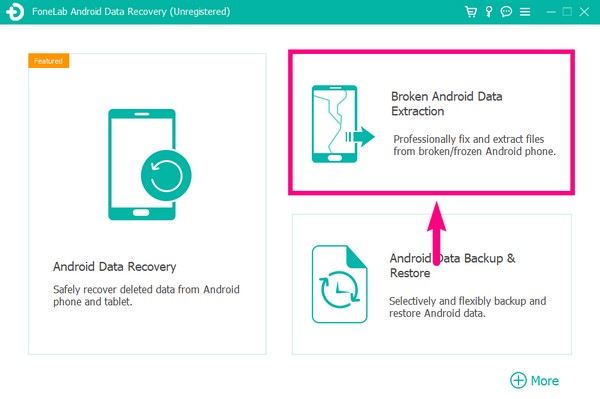
Step 2: Launch the program
- Open the software and choose Broken Android Data Extraction from the main interface.
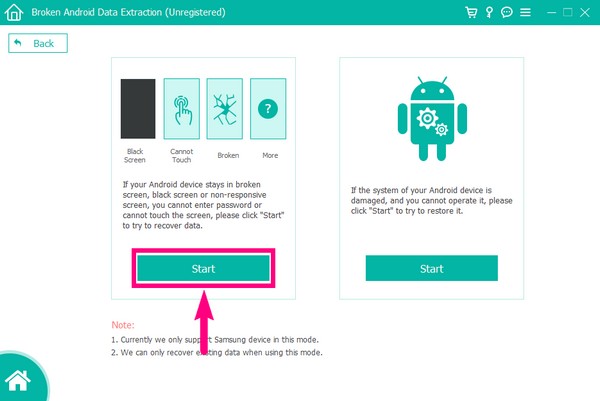
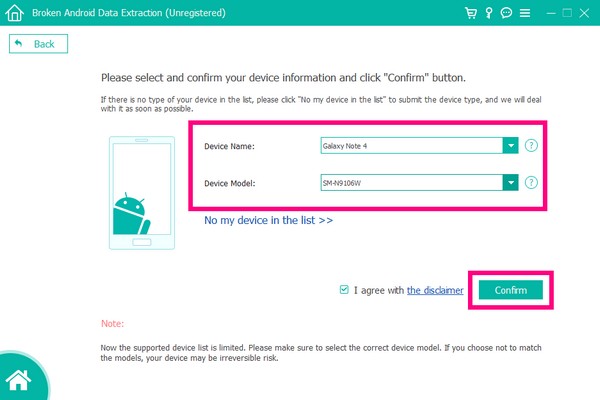
Step 3: Connect your Samsung S26
- Use a USB cable to connect the damaged phone to your computer.
- The software will detect the device model automatically.
Step 4: Select device condition
Choose the problem that best matches your situation, such as:
- Black screen
- Touchscreen not working
- System crash
- Phone stuck in boot loop
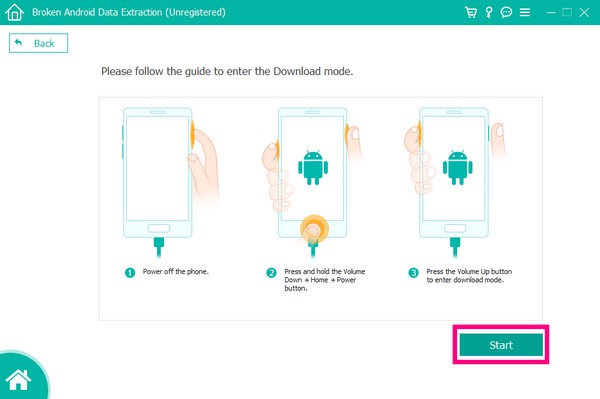
Step 5: Enter Download Mode
Follow the instructions displayed by the software:
- Turn off the phone
- Press Volume Down + Power + Volume Up
- Enter Download Mode
Step 6: Scan the device
- The software downloads a recovery package and begins scanning the device storage.
Step 7: Preview and recover data
You can preview recoverable files including:
- Photos
- Messages
- Contacts
- WhatsApp data
- Videos
Select the files you want and click Recover to save them to your computer.

Method 2: Recover Data Using Samsung Smart Switch Backup
If you previously used Samsung’s built-in backup system, recovering your data might be incredibly simple.
Samsung Smart Switch allows users to create full backups of their devices on a computer. If your Samsung S26 screen breaks later, you can restore those backups onto another Samsung device.
This method is ideal if the phone had been regularly backed up before the accident. Even if the original device becomes completely unusable, the saved backup still contains your essential files.
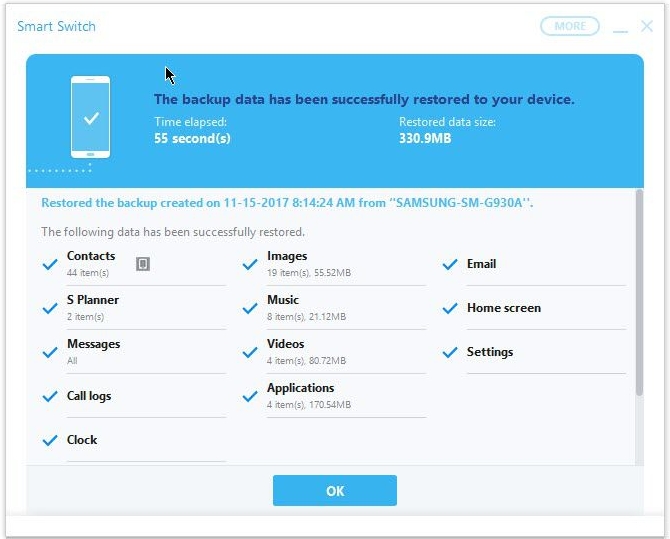
How to Restore Data Using Smart Switch
Step 1: Install Samsung Smart Switch
Download the desktop version from Samsung’s official website.
Step 2: Open the application
Launch the software on your PC or Mac.
Step 3: Connect a new Samsung device
Connect another Samsung phone that you want to restore the data to.
Step 4: Select Restore
Click Restore Backup inside the Smart Switch interface.
Step 5: Choose the backup file
Select the latest backup created from your Samsung S26.
Step 6: Start the restoration
- Click Restore Now and wait for the process to complete.
- Your contacts, photos, apps, and messages will transfer to the new device.
Method 3: Recover Data Using USB Debugging and ADB
If USB debugging was enabled before the phone broke, Android Debug Bridge (ADB) can help access files directly from the device storage.
ADB is a developer tool that allows computers to communicate with Android devices via command line. With the right commands, you can copy important files from the phone to a computer, even if the screen is partially unusable.
This method works best when:
- The phone still powers on
- USB debugging was enabled previously
- The computer has permission to access the device
ADB Recovery Steps
Step 1: Install Android SDK Platform Tools
Download the official ADB tools package.
Step 2: Connect your Samsung S26
Plug the device into your computer using a USB cable.
Step 3: Open the command prompt
Navigate to the ADB folder and open the command window.
Step 4: Check device connection
Run:
- adb devices
Your phone should appear in the device list.
Step 5: Copy data to your computer
For example, to copy photos:
- adb pull /sdcard/DCIM C:\RecoveredPhotos
This command transfers images stored on the device to your PC.
Step 6: Repeat for other folders
Important directories include:
- /sdcard/Pictures
- /sdcard/Download
- /sdcard/Movies
What If My Samsung S26 Is Locked After Screen Damage?
A very common situation happens when the screen breaks before the phone can be unlocked.
Even if the device still works internally, you cannot enter the PIN or pattern lock because the touchscreen doesn’t respond. This means your files remain trapped behind the lock screen.
For Samsung users, this situation happens frequently after:
- Dropping the phone on concrete
- Water damage affecting touch sensors
- Firmware crashes causing screen freezing
In these cases, users often believe the only solution is factory resetting the phone, which unfortunately deletes all stored data.
However, specialized Android tools can unlock the device without forcing a full data wipe.
Software available at idatapp.com offers unlocking solutions designed for situations like:
- Broken screen preventing password entry
- Forgotten PIN or pattern
- FRP (Factory Reset Protection) lock
- Disabled devices after too many unlock attempts
Unlike factory reset methods, these tools work by bypassing the lock mechanism while preserving accessible data whenever possible.
For example, Android unlocking tools available on the platform can guide users through device-specific unlocking procedures. The process typically involves connecting the device to a computer, placing it in download or recovery mode, and applying a compatible firmware unlock package.
Once the lock is removed, the device becomes accessible again. At that point, users can export photos, documents, and messages normally.
This scenario highlights an important lesson: screen damage and lock issues often occur together, so having a recovery strategy that addresses both problems can significantly improve your chances of saving your data.
Frequently Asked Questions
Can data still be recovered if my Samsung S26 screen is completely black?
Yes. As long as the phone's storage chip is not damaged, recovery tools or USB debugging methods can still access and extract your files.
Will repairing the screen delete my data?
No. Screen replacement does not normally affect the phone’s internal storage, so your data should remain intact.
What type of files can be recovered from a broken Samsung phone?
Most tools can recover photos, videos, contacts, messages, call logs, and app data depending on the device condition.
Is it safe to attempt data recovery at home?
Yes, if you follow reliable recovery methods. Avoid repeatedly restarting damaged phones or installing unknown apps, as this may overwrite data.
What if my phone does not turn on at all?
If the device shows no signs of power, the issue may be hardware-related. In that case, professional repair services may be needed before data extraction.
Final Thoughts
A broken Samsung S26 does not automatically mean your data is gone. In most cases, your photos, documents, and messages remain stored safely inside the device.
The key is choosing the right recovery method based on your situation:
- Broken Android Data Extraction works best for devices with unusable screens or system failures.
- Samsung Smart Switch is ideal if backups already exist.
- ADB commands provide manual access when USB debugging is enabled.
Understanding these options gives you the best chance of retrieving valuable files without risking further data loss.
When accidents happen, the most important thing is not to panic and not to reset the device immediately. With the right approach, recovering data from a broken Samsung S26 is often much easier than it seems.
 English
 Nederlands
 Tiếng Việt
 日本
日本 Español
 Português
 Deutsche
 Français
 Italiano
 Norsk
Norsk Suomalainen
 Svenska
 Dansk
Dansk Ελληνικά
 Türk
Türk русский
 हिंदी
हिंदी தமிழ்
தமிழ் Bahasa Melayu
 ไทย
ไทย 한국어
한국어 Română
 Polskie
 қазақ
қазақ Gaeilge
 繁體中文
繁體中文