
 iPhone Data Recovery
 iOS System Recovery
 iOS Backup & Restore
 iOS WhatsApp Transfer
 iOS FoneTrans
 MobieSync
 Android Data Recovery
 Broken Android Data Extraction
 Android Data Backup & Restore
 iPhone Unlocker
 Best Samsung Phone Unlock Tool
 Android Unlocker
 Win/Mac Data Recovery
 iDATAPP Screen Recorder
 2D&3D Video Converter
 Video Repair Software Ai
 AI Video Converter
 Ai Blu-ray Player
 [Solved]Restore Deleted Cache Data From Android Samsung
Learn how to restore deleted cache data from Samsung Android phones using practical methods, deep recovery tools, and expert insights to maximize data recovery success.
What Happens When Cache Data Is Deleted on Android Samsung?
On Samsung Android devices, cache data is designed to be temporary. Apps store cached files to speed up loading times, reduce data usage, and improve overall performance. When cache data is deleted—whether manually through Settings, automatically by the system, or accidentally during troubleshooting—many users suddenly realize something feels “off”: apps reload slowly, offline content disappears, or previously viewed media must be downloaded again.

The confusion comes from one key point: cache data is not the same as user data, yet in real-world usage, cache files can still contain valuable information such as thumbnails, app fragments, temporary downloads, or even parts of media files. On Samsung phones with large internal storage and aggressive system optimization, cache cleanup can happen more often than users expect.
Guide List
- Why Cache Data Recovery Is Challenging (But Not Impossible)
- Method 1: Restore Cache-Related Data Using iDatapp Android Data Recovery
- Method 2: Recover Deleted Cache Files from Internal Storage Using iDatapp Data Recovery
- Method 3: Restore Cache-Dependent Data via Samsung Cloud or App Re-Sync
- Method 4: Extract Residual Cache Data Using ADB (Advanced Users)
- Data Loss After System Crash or One UI Update
- FAQs
So the core question becomes:
Is it possible to restore deleted cache data on a Samsung Android phone?
The short answer: sometimes yes—but only with the right methods, timing, and tools. In this article, we’ll analyze why cache data is difficult to recover, then walk through four practical and original methods, including two solutions using iDatapp’s own recovery software, to maximize your recovery chances.
Why Cache Data Recovery Is Challenging (But Not Impossible)
Cache data usually resides in:
- App-specific cache directories
- Internal storage (often mislabeled as “internal SD card”)
- Temporary system partitions
Once deleted, Android marks this space as reusable. If new data overwrites it, recovery becomes nearly impossible. That’s why immediate action is critical:
- Stop using the phone
- Disable Wi-Fi and mobile data
- Avoid installing new apps
With that foundation clear, let’s move into real solutions—from system-level options to deep scanning recovery.
Method 1: Restore Cache-Related Data Using iDatapp Android Data Recovery (Recommended)
Best for: Recovering app cache fragments, thumbnails, temporary media, and residual data before overwrite.
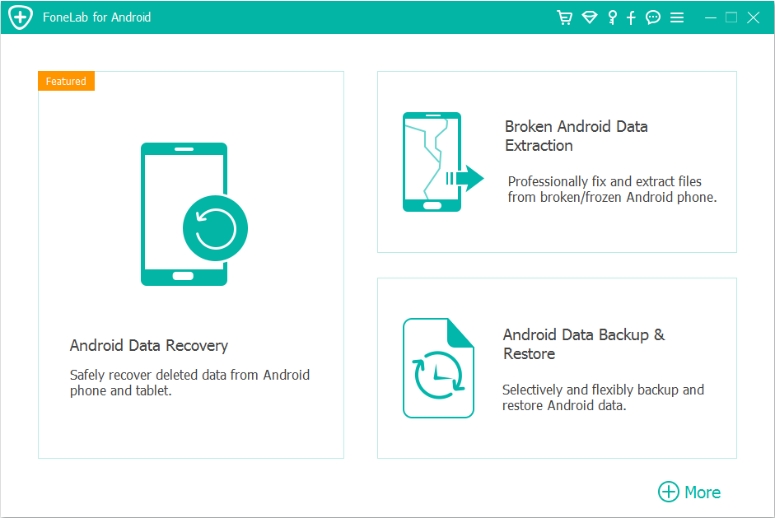
iDatapp Android Data Recovery is designed specifically for Android file structures, including Samsung’s customized One UI environment. While Android does not label cache files clearly, this software scans raw storage sectors and reconstructs recoverable fragments linked to deleted cache directories.
What makes this method effective is its Samsung compatibility and ability to detect hidden remnants left behind after cache clearing. Even if the cache was deleted from Settings, underlying data blocks may still exist—especially on newer Samsung Galaxy devices with large UFS storage.
Steps to follow:
1.Download and install iDatapp Android Data Recovery
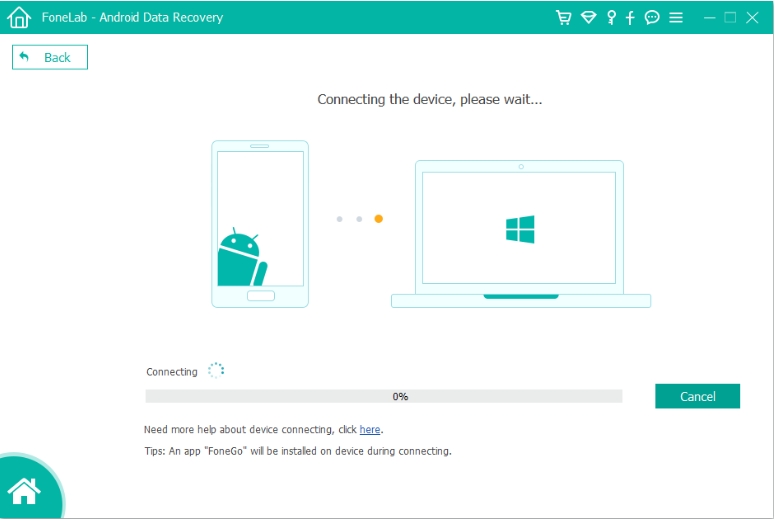
2.Connect the phone to your computer via USB.
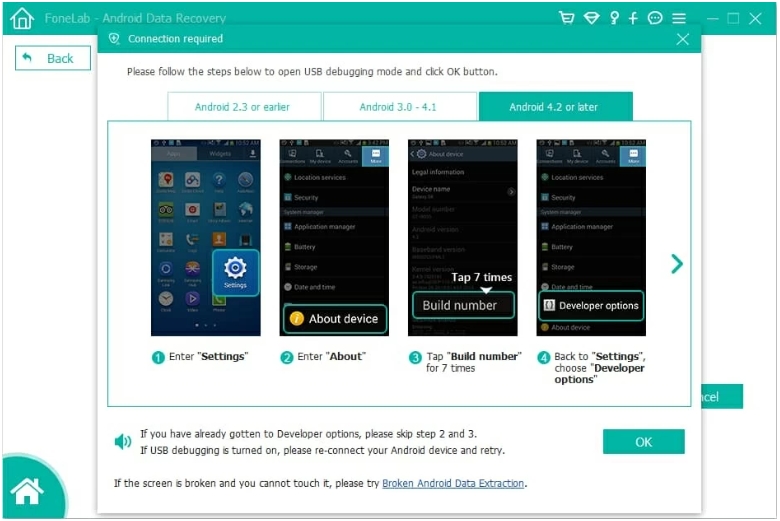
3.Enable USB Debugging on your Samsung phone.
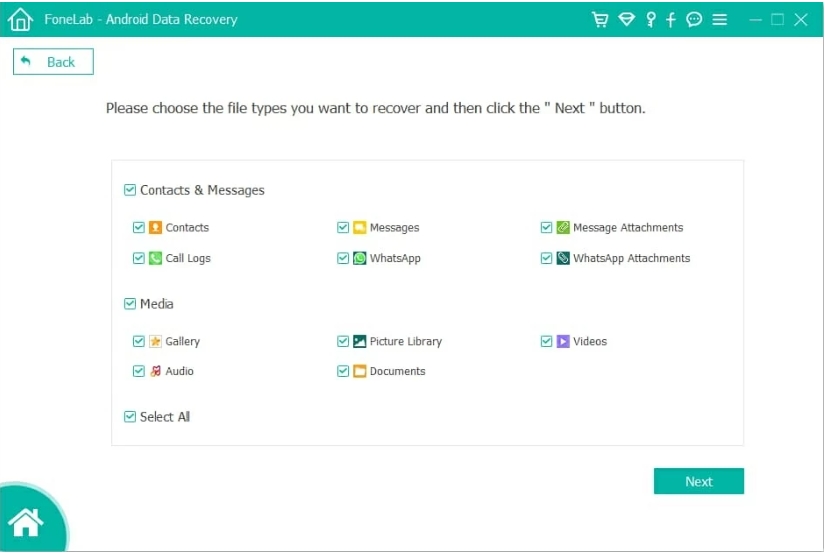
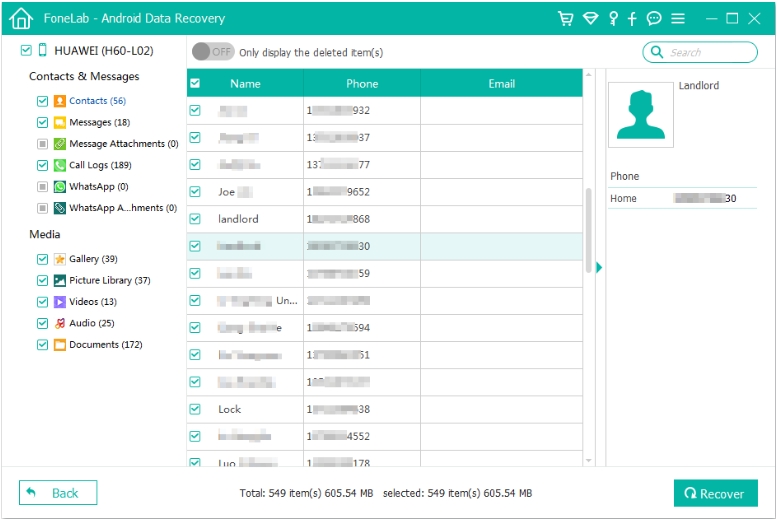
4.Select file categories related to cache (images, videos, app data).
5.Start a deep scan and preview recoverable files.
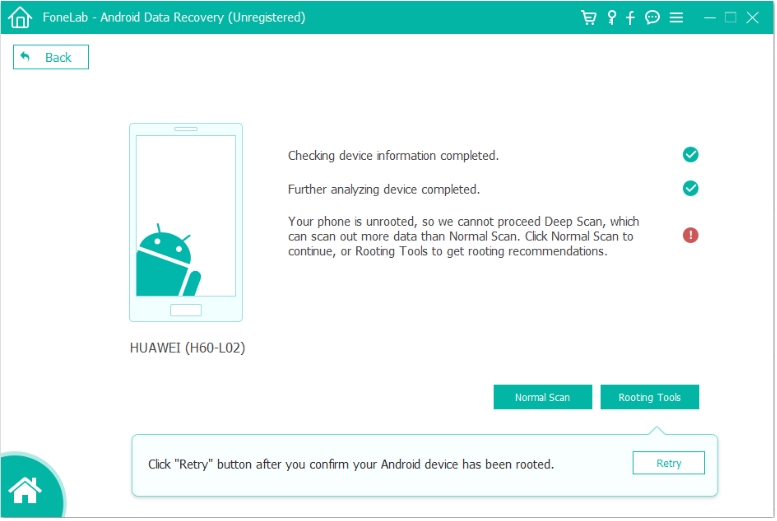
6.Export recovered cache-related data to your computer.
Note:
- Root access may improve scan depth (not always required).
- Works best when used immediately after cache deletion.
- Recovery focuses on content, not app functionality.
Method 2: Recover Deleted Cache Files from Internal Storage Using iDatapp Data Recovery
Best for: Cache data stored on Samsung’s internal storage (internal SD card).
Samsung devices no longer use physical SD cards in many models, but Android still treats internal storage as an SD-like structure. Cache files from apps like browsers, social media, and streaming platforms often reside here.
iDatapp Data Recovery specializes in storage-based recovery, making it ideal for restoring deleted cached files that were stored as temporary downloads, offline media, or thumbnails.
This method works by accessing the internal storage as a mounted drive and scanning it for deleted but un-overwritten data blocks.
Steps to follow:
1.Free Download and Install iDatapp Data Recovery on your computer.
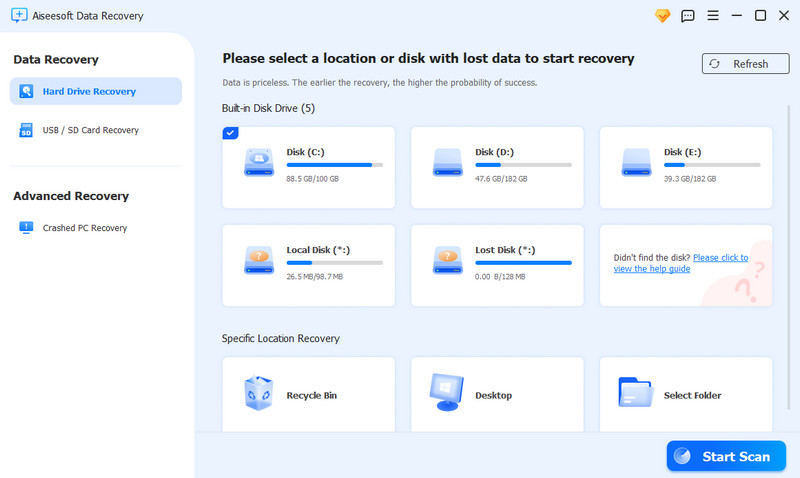
2.Connect your Samsung phone using USB (File Transfer mode).
3.Select the internal storage (shown as internal SD).
4.Run a deep scan for deleted files.
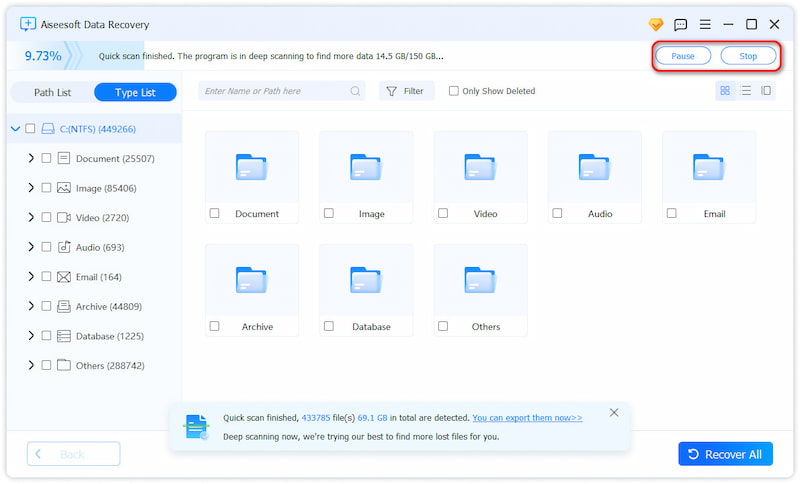
5.Filter results by file type and size.
6.Recover selected cache-related files to your computer.
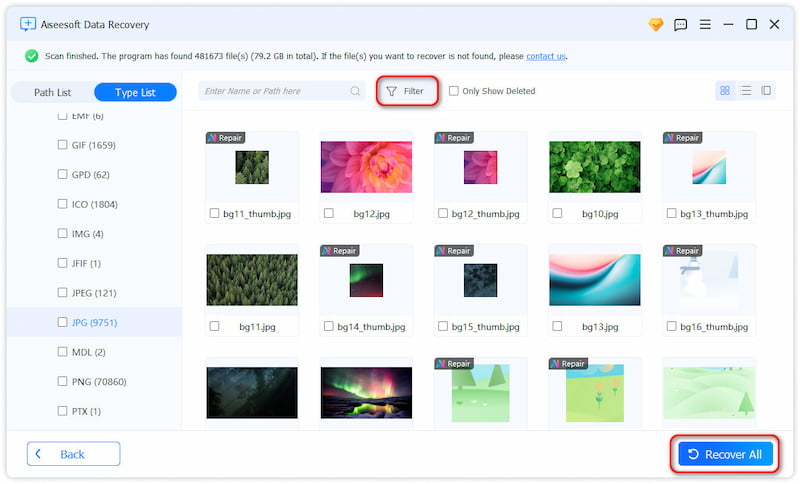
Notes:
- Effective for browser cache, video buffers, and image cache.
- Does not require rooting.
- Recovery success depends on storage overwrite status.
Method 3: Restore Cache-Dependent Data via Samsung Cloud or App Re-Sync
Best for: Cache-backed content tied to Samsung or Google accounts.
Some cache-like data isn’t truly lost—it’s re-generated when you sign back into an app. Samsung Cloud, Google Photos, Samsung Internet, and Galaxy Store all synchronize data that behaves like cache but lives in the cloud.
This method doesn’t recover deleted cache files directly, but it restores their functional equivalents, which is often what users actually need.
Steps to follow:
- Open Settings > Cloud and accounts > Samsung Cloud.
- Sign in to your Samsung and Google accounts.
- Enable sync for relevant apps.
- Reopen apps and allow data to re-download.
- Check offline content and thumbnails after sync.
Important details:
- Works only if sync was enabled before deletion.
- No technical risk.
- Ideal for casual users who cleared cache accidentally.
Method 4: Extract Residual Cache Data Using ADB (Advanced Users)
Best for: Tech-savvy users with debugging access.
ADB (Android Debug Bridge) allows access to app directories where remnants of cache data may still exist. While Android restricts cache access, some residual files remain readable—especially on older Samsung models or devices with debugging privileges.
Steps to follow:
- Install Android SDK Platform Tools.
- Enable USB Debugging.
- Connect your Samsung device via USB.
- Use ADB commands to explore /data/data/ and /storage/emulated/0/Android/data/.
- Pull accessible cache remnants to your computer.
Important details:
- Requires technical knowledge.
- Limited by Android security policies.
- Best combined with professional recovery software.
Data Loss After System Crash or One UI Update
Samsung users frequently encounter system crashes after One UI updates, leading to unexpected data loss—including app cache, user data, and even media files. This happens when system partitions are reindexed or corrupted during an update.
In these situations, users often panic because the phone still turns on, but important data seems gone. Factory resets are commonly suggested—but they permanently erase recoverable data.
This is where iDatapp’s complete Android solution ecosystem becomes valuable. On the iDatapp, users can find tools designed to:
- Recover lost data after system crashes
- Export data from malfunctioning Samsung devices
- Restore files even when the screen is damaged or unresponsive
Unlike generic fixes, iDatapp tools focus on data-first recovery, ensuring files are extracted safely before any reset or system repair. For Samsung users dealing with unstable updates, this approach prevents irreversible loss and offers a controlled recovery path.
FAQs
Can deleted cache data really be recovered on Samsung?
Sometimes, yes—if the data hasn’t been overwritten and recovery is attempted quickly.
Is cache data the same as app data?
No. Cache is temporary, but it may still contain valuable fragments.
Do I need root access to recover cache data?
Not always. Some methods work without rooting, though root can improve results.
Will recovery restore app functionality?
No. Recovery restores files, not app logic.
Is it safe to use recovery software on Samsung phones?
Yes, if you use trusted tools like those from iDatapp and follow instructions carefully.
Conclusion
Restoring deleted cache data from a Samsung Android phone is challenging but achievable with the right approach. By acting quickly and using proven methods—especially specialized iDatapp recovery tools—you can recover valuable cache-related data before it’s permanently lost.
 English
 Nederlands
 Tiếng Việt
 日本
日本 Español
 Português
 Deutsche
 Français
 Italiano
 Norsk
Norsk Suomalainen
 Svenska
 Dansk
Dansk Ελληνικά
 Türk
Türk русский
 हिंदी
हिंदी தமிழ்
தமிழ் Bahasa Melayu
 ไทย
ไทย 한국어
한국어 Română
 Polskie
 қазақ
қазақ Gaeilge
 繁體中文
繁體中文