
 iPhone Data Recovery
 iOS System Recovery
 iOS Backup & Restore
 iOS WhatsApp Transfer
 iOS FoneTrans
 MobieSync
 Android Data Recovery
 Broken Android Data Extraction
 Android Data Backup & Restore
 iPhone Unlocker
 Best Samsung Phone Unlock Tool
 Android Unlocker
 Win/Mac Data Recovery
 iDATAPP Screen Recorder
 2D&3D Video Converter
 Video Repair Software Ai
 AI Video Converter
 Ai Blu-ray Player
 How to See Deleted Text Messages On iPhone? [Solved]
Recently deleted iPhone text messages can often be recovered using the Recently Deleted folder, iCloud backups, or professional iOS data recovery tools before the data is permanently overwritten.
How to See Recently Deleted Text Messages on an iPhone?
Text messages still play a surprisingly important role in everyday communication. Even in the era of messaging apps, many critical interactions—bank alerts, authentication codes, family conversations, or work instructions—still happen through SMS or iMessage on an iPhone. But what happens when those messages are accidentally deleted?
If you've ever searched how to see recently deleted text messages on iPhone, you're definitely not alone. Many users delete messages by mistake while cleaning up storage, tapping the wrong button, or resetting a device. The good news is that iOS doesn’t always erase messages immediately, and Apple has built several mechanisms that allow users to retrieve them.
In fact, depending on your situation, there are multiple ways to recover recently deleted messages:
- Viewing messages in the Recently Deleted folder
- Restoring them through iCloud backups
- Recovering them using professional iPhone data recovery tools
In this guide, we’ll break down three practical solutions you can use right now to see recently deleted text messages on an iPhone. We’ll also explain how message deletion actually works behind the scenes in iOS, which can help you recover messages more successfully.
Guide List
- Why Deleted Messages May Still Be Recoverable on iPhone?
- Method 1: Check the iPhone “Recently Deleted” Messages Folder
- Method 2: Restore Deleted Messages from an iCloud Backup
- Method 3: Recover Deleted Messages with iOS Data Recovery Software
- Recovering iPhone Data After System Crashes or iOS Errors
- Frequently Asked Questions
- Final Thoughts
Why Deleted Messages May Still Be Recoverable on iPhone?
Before jumping into the solutions, it helps to understand what happens when you delete a text message on an iPhone.
When a message is removed from the Messages app, iOS typically does not immediately erase the data from storage. Instead, it marks the space as available for new data. Until that space is overwritten, the deleted message may still exist in the system.
Apple also introduced a Recently Deleted section in iOS 16, where messages are stored temporarily for up to 30–40 days before being permanently erased.
This means recovery depends on three main factors:
- Whether the message still exists in Recently Deleted
- Whether a backup contains the message
- Whether the message data still exists in the phone’s storage
Now let's explore the solutions that can help you view and recover deleted messages.
Method 1: Check the iPhone “Recently Deleted” Messages Folder
The fastest way to see recently deleted text messages on an iPhone is through the Recently Deleted folder inside the Messages app. Apple added this feature starting with iOS 16 to give users a recovery window before permanent deletion.
When messages are deleted, they are moved to this folder instead of being removed instantly. They remain there for 30 days, allowing you to restore them quickly without backups or external tools.
This method works best if the messages were deleted recently and the phone hasn’t automatically cleared them yet.
Steps to View Recently Deleted Messages
- Open the Messages app on your iPhone.
- Tap Edit in the top-left corner.
- Select Show Recently Deleted.
- Browse the list of deleted conversations.
- Tap the conversation you want to recover.
- Select Recover.
- Confirm by tapping Recover Message.

Important Notes
- Messages stay in this folder for 30–40 days depending on iOS version.
- Once removed from Recently Deleted, they cannot be restored using this method.
- Group conversations and SMS messages both appear here.
If you can find your messages in this folder, recovery takes only seconds.
Method 2: Restore Deleted Messages from an iCloud Backup
If the message is no longer in the Recently Deleted folder, another option is restoring it from an iCloud backup.
iPhones automatically create backups when connected to Wi-Fi and charging, provided that iCloud Backup is enabled. These backups often contain SMS and iMessage history.
By restoring the device from an earlier backup, you may recover the deleted messages that existed at that time.
However, this method replaces current data with the backup version, which means recently added content might be overwritten.
Steps to Restore Messages from iCloud Backup
- Open Settings.
- Tap General.
- Scroll down and select Transfer or Reset iPhone.
- Tap Erase All Content and Settings.
- Follow the setup process until you reach Apps & Data.
- Choose Restore from iCloud Backup
- Sign in with your Apple ID.
- Select a backup created before the messages were deleted.
Important Considerations
- All current data will be replaced by the backup.
- Make sure the backup date includes the deleted messages.
- The process requires stable internet and sufficient battery.
Because of these limitations, many users prefer a more flexible recovery method.
Method 3: Recover Deleted Messages with iOS Data Recovery Software
When the message isn’t in Recently Deleted and restoring a full backup isn’t practical, specialized recovery tools can provide another solution.
One effective option is iPhone data recovery software designed to scan iOS storage and extract deleted messages that have not yet been overwritten.
This type of software works by scanning the iPhone, iTunes backup, or iCloud backup to locate deleted message fragments and reconstruct them.
Unlike full backup restoration, it allows selective recovery, meaning you can retrieve only the messages you need.
Steps to Recover Deleted Messages Using iOS Data Recovery
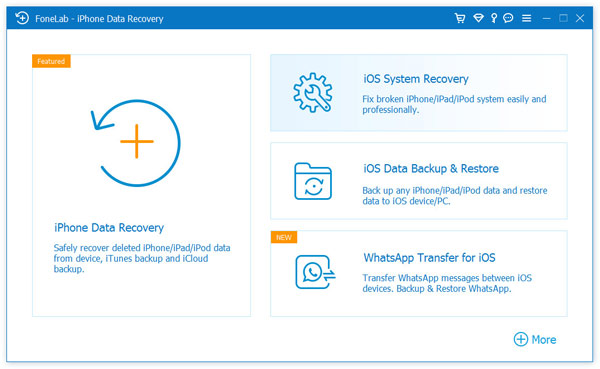
1.Download and install the iPhone Data Recovery software from the official website, launch the program on your computer.
2.Connect your iPhone using a USB cable.
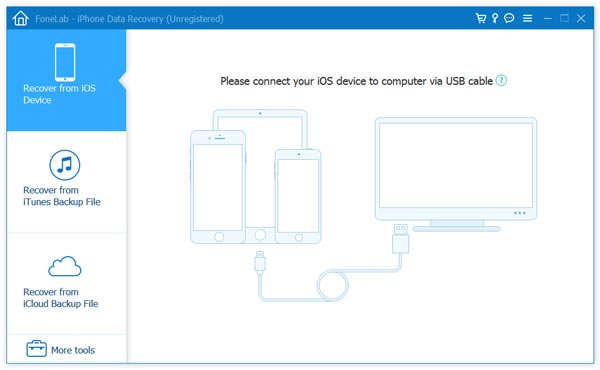
3.Select Recover from iOS Device.
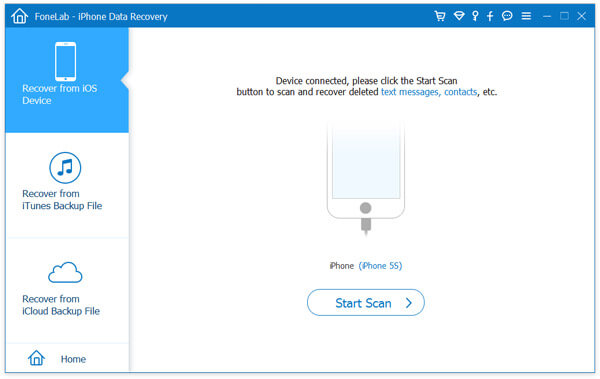
4.Start the deep scan process.
5.Preview the detected deleted messages.
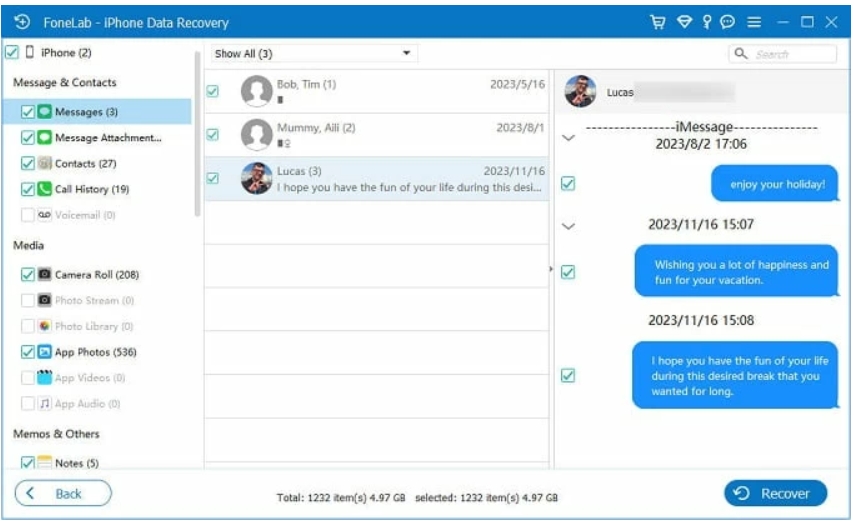
6.Select the messages you want to restore.
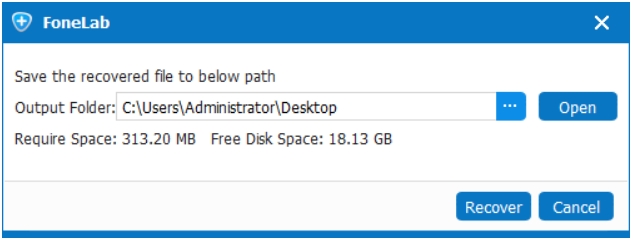
7.Click Recover to save them to your computer.
Why This Method Is Useful
- No need to erase the iPhone
- Can recover messages selectively
- Works even without backups
- Supports recovery of other data like contacts, photos, and WhatsApp
For many users, this approach offers the highest recovery success rate.
Recovering iPhone Data After System Crashes or iOS Errors
Deleted messages are not the only situation where users lose data. A common problem occurs when an iPhone system update fails, the device gets stuck on the Apple logo, or the phone enters a boot loop.
When this happens, users may lose:
- Text messages
- Contacts
- Photos and videos
- Call history
- App data
In severe cases, the phone may become temporarily inaccessible, preventing users from retrieving important information.
These problems often occur after:
- iOS updates
- System crashes
- Factory resets
- Storage corruption
- Software glitches
When an iPhone cannot boot properly or important data disappears after a system issue, a specialized recovery tool can help restore files before further damage occurs.
One helpful solution available through idatapp.com is their iOS Data Recovery software, which is designed specifically for situations like this.
Unlike basic recovery methods, this software can:
- Extract data from damaged iPhones
- Recover files from iTunes or iCloud backups
- Retrieve lost SMS, iMessages, photos, videos, contacts, and notes
- Allow preview before recovery
For example, imagine an iPhone user installs a new iOS update and the phone becomes stuck in recovery mode. After fixing the system, they discover that many text messages and contacts are missing. Using the recovery software, they can scan the device or backup files to retrieve those lost conversations without manually rebuilding everything.
Another common scenario involves factory resetting an iPhone to fix performance issues, only to realize that certain messages were never backed up. In this case, recovery software may still locate deleted message records if they haven’t been overwritten yet.
What makes tools like this valuable is their flexibility. Instead of restoring the entire phone or relying on Apple’s limited recovery windows, users can selectively retrieve the exact data they need.
While prevention is always best—such as enabling iCloud backups—having a reliable recovery option available can make a major difference when unexpected data loss happens.
Frequently Asked Questions
How long do deleted text messages stay in Recently Deleted on iPhone?
Deleted messages remain in the Recently Deleted folder for about 30 days before being permanently erased. After that period, they cannot be restored from that folder.
Can I recover deleted messages without a backup?
Yes. If the data has not been overwritten, specialized iPhone data recovery tools can scan the device storage and retrieve deleted messages even without backups.
Does restoring an iCloud backup delete my current data?
Yes. Restoring from iCloud replaces the current phone data with the contents of the backup. You may lose new files created after the backup date.
Why can't I see the Recently Deleted folder on my iPhone?
The feature is available only on iOS 16 or later. If your iPhone runs an older version of iOS, deleted messages are removed immediately.
Are iMessages and SMS recovered the same way?
Yes. Both SMS and iMessages are stored in the same message database, so recovery methods usually retrieve both types simultaneously.
Final Thoughts
Accidentally deleting important text messages can be frustrating, but in many cases they are not permanently lost. Apple provides a built-in recovery window through the Recently Deleted folder, and backups can restore messages from earlier points in time.
When those options aren’t available, specialized recovery tools offer a deeper solution by scanning the device for remaining data fragments.
The key is acting quickly—because once new data overwrites deleted messages, recovery becomes far more difficult.
 English
 Nederlands
 Tiếng Việt
 日本
日本 Español
 Português
 Deutsche
 Français
 Italiano
 Norsk
Norsk Suomalainen
 Svenska
 Dansk
Dansk Ελληνικά
 Türk
Türk русский
 हिंदी
हिंदी தமிழ்
தமிழ் Bahasa Melayu
 ไทย
ไทย 한국어
한국어 Română
 Polskie
 қазақ
қазақ Gaeilge
 繁體中文
繁體中文