
 iPhone Data Recovery
 iOS System Recovery
 iOS Backup & Restore
 iOS WhatsApp Transfer
 iOS FoneTrans
 MobieSync
 Android Data Recovery
 Broken Android Data Extraction
 Android Data Backup & Restore
 iPhone Unlocker
 Best Samsung Phone Unlock Tool
 Android Unlocker
 Win/Mac Data Recovery
 iDATAPP Screen Recorder
 2D&3D Video Converter
 Video Repair Software Ai
 AI Video Converter
 Ai Blu-ray Player
 Unlock Samsung S22/S22 Ultra for Free Download[Solved]
Forgot the password on your Samsung Galaxy S22 or S22 Ultra? This guide explains three effective unlocking methods, including a free official solution and a professional Samsung unlocking tool, plus bonus recovery tips.

Locked Out of Your Samsung S22 Ultra? Here’s What You Need to Know
The Samsung Galaxy S22 Ultra is one of Samsung’s most advanced smartphones, featuring high-end security options such as PINs, patterns, passwords, fingerprint authentication, and facial recognition.
These protections are excellent—until you forget your lock screen credentials.
This is a surprisingly common issue. Many users search online for terms such as:
- Samsung S22 unlock tool free download
- Unlock Samsung S22 Ultra forgot password
- Samsung phone unlock without factory reset
- Remove Samsung screen lock free
The problem is that many websites promise “free downloads” but provide outdated software, malware, or tools that simply do not work.
This article cuts through the noise and introduces three legitimate ways to unlock your Samsung S22 or S22 Ultra:
- Use Samsung’s SmartThings Find (official method)
- Use iDatapp Samsung Unlocker
- Perform a manual recovery mode reset
We’ll also cover what to do if you lose data during the process and how to recover it.
Guide List
- Method 1: Unlock Samsung S22/S22 Ultra for Free Using Samsung SmartThings Find
- Method 2: Unlock Samsung S22/S22 Ultra with iDatapp Samsung Unlocker
- Method 3: Unlock Samsung S22/S22 Ultra Using Recovery Mode (Free)
- Lost Data After Unlocking? Recover It from Your Samsung S22
- Which Samsung S22 Unlock Method Should You Choose?
- 5 Frequently Asked Questions
Method 1: Unlock Samsung S22/S22 Ultra for Free Using Samsung SmartThings Find
Samsung SmartThings Find is Samsung’s official remote management platform. If your Samsung account is linked to your device and remote controls are enabled, this is the cleanest solution.
Why This Method Works
Your Samsung account can send a command to your device over the internet, allowing you to remove the existing screen lock.
Best For
- You know your Samsung account credentials.
- Your phone is online.
- Remote controls were previously enabled.
Step-by-Step Guide
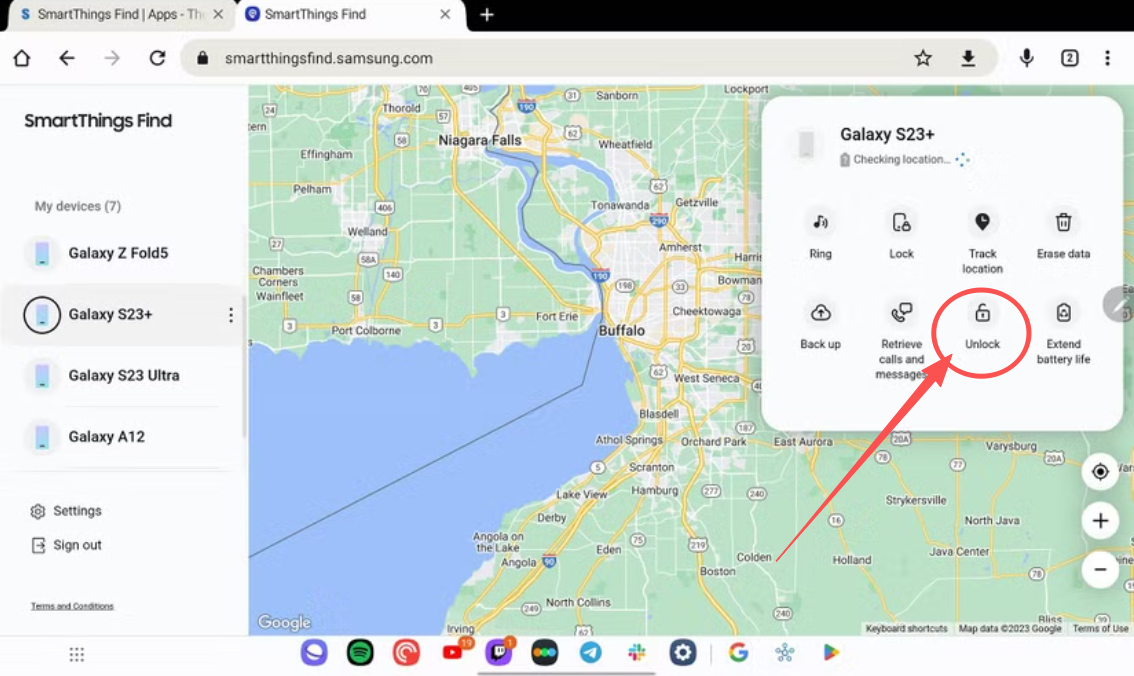
- Open Samsung SmartThings Find
- Sign in with the Samsung account used on the locked device.
- Select your Galaxy S22 or S22 Ultra.
- Choose available device management options.
- Follow the prompts to remove or reset the screen lock if supported.
- Wait for the process to complete.
- Unlock your phone.
Important Notes
- Availability of remote unlock features varies by region and software version.
- Two-factor authentication may be required.
- The phone must be connected to Wi-Fi or mobile data.
Method 2: Unlock Samsung S22/S22 Ultra with iDatapp Samsung Unlocker
If the Samsung account method is unavailable, iDatapp Samsung Unlocker offers a practical alternative.
This tool is designed to remove:
- PIN
- Pattern
- Password
- Fingerprint lock
- Face lock
- FRP (Google account verification) on supported devices
Why Many Users Prefer This Tool
Unlike manual reset methods, the software provides an intuitive interface and guided instructions, reducing the chance of mistakes.
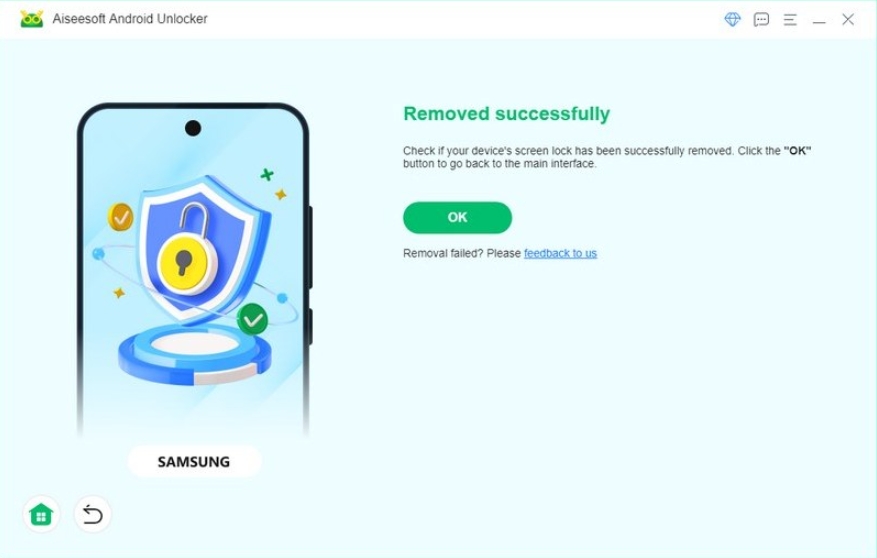
iDatapp Samsung Unlocker is ideal for users who need a straightforward unlocking solution without searching through complicated Android menus. After connecting your Samsung S22 or S22 Ultra to a computer, the program detects the device model and downloads the required package. It then removes the lock screen automatically. This method is particularly useful if the touchscreen is partially damaged or if the phone is stuck at the lock screen and recovery mode is inaccessible.
Step-by-Step Instructions
1.Download and install the software from the official website.

2.Select Remove Screen Password.
3.Connect your Galaxy S22 via USB.
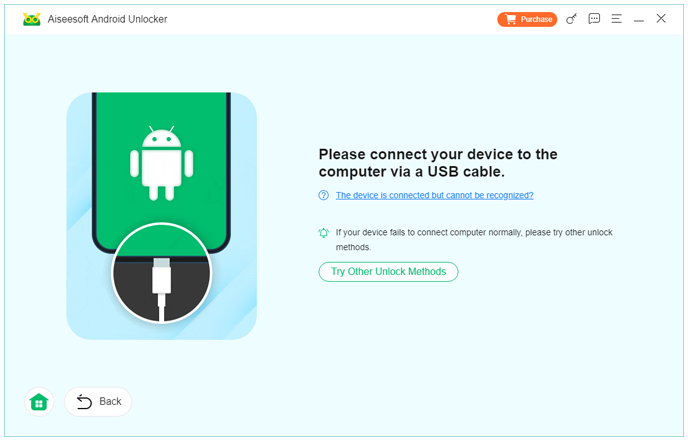
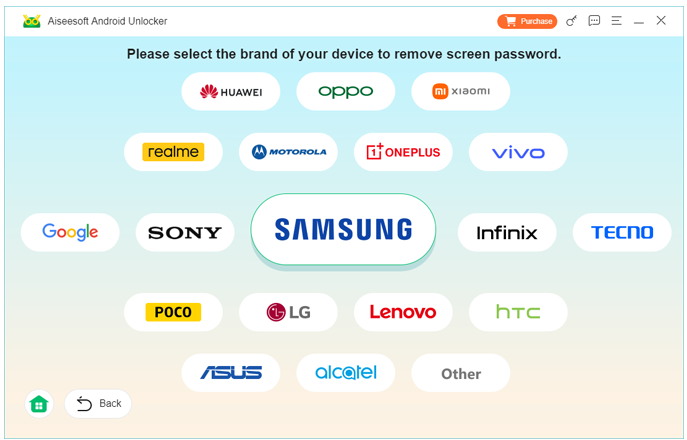
4.Confirm device information.
5.Click Remove Now.
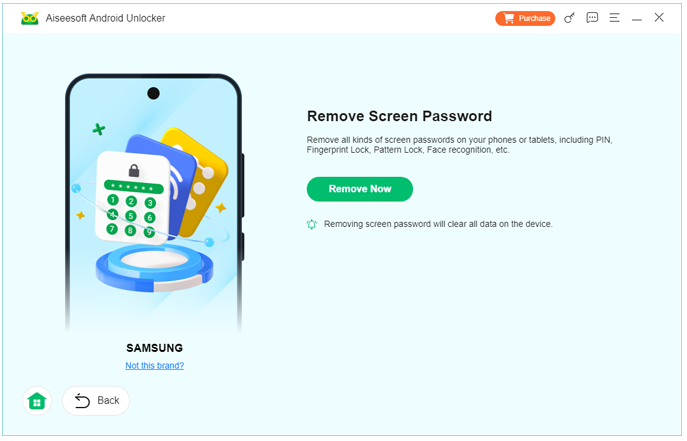
6.Wait until the lock is removed.
Pros
- Easy for beginners
- Supports multiple lock types
- Guided instructions
Cons
- Full version required for complete unlock functionality
- Data retention depends on device state and Android version
Method 3: Unlock Samsung S22/S22 Ultra Using Recovery Mode (Free)
This is the universal free method when other options fail.
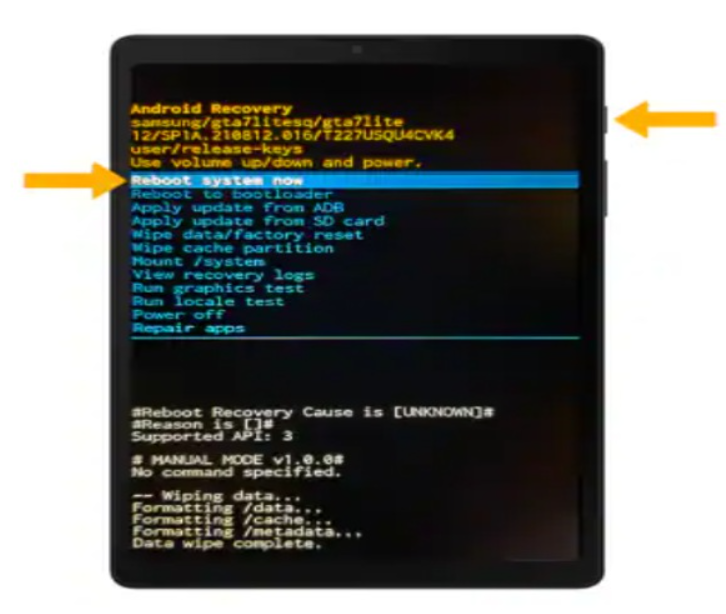
Android recovery mode allows you to perform a factory reset directly from the device. This removes all user data, including the screen lock credentials. It is the most reliable free method, but it should be considered a last resort because everything stored on internal memory will be erased unless previously backed up.
Step-by-Step Guide
- Turn off the device.
- Connect it to a computer using a USB cable.
- Press and hold: Volume Up + Side button
- Release the buttons when the Samsung logo appears.
- In recovery mode, use volume keys to select Wipe data/factory reset.
- Press the Side button to confirm.
- Select Factory data reset.
- After completion, choose Reboot system now.
After the Reset
During setup, the device may request the previously synced Google account credentials because of Factory Reset Protection (FRP).
Pros
- Completely free
- Works in most cases
Cons
- Deletes all internal data
- May trigger FRP verification
Lost Data After Unlocking? Recover It from Your Samsung S22
Unlocking a phone often leads to an even bigger concern: data loss.
Many Samsung users accidentally erase:
- Photos and videos
- Contacts
- WhatsApp messages
- Samsung Notes
- Documents
- Call history
This is especially common after:
- Factory resets
- Failed updates
- System crashes
- Boot loops
- Forgotten passwords
Recover Lost Files with iDatapp Android Data Recovery
iDatapp Android Data Recovery is designed to restore deleted and inaccessible data from Samsung devices.
Common Scenario
A Galaxy S22 owner performs a recovery mode reset to remove the lock screen, then realizes family photos and important contacts were never backed up. The phone is now accessible, but the files appear to be gone.
How the Software Helps
The program scans internal storage and identifies recoverable items, allowing you to preview and selectively restore them.
Recoverable Data Types
- Photos
- Videos
- Contacts
- SMS
- Audio
- Documents
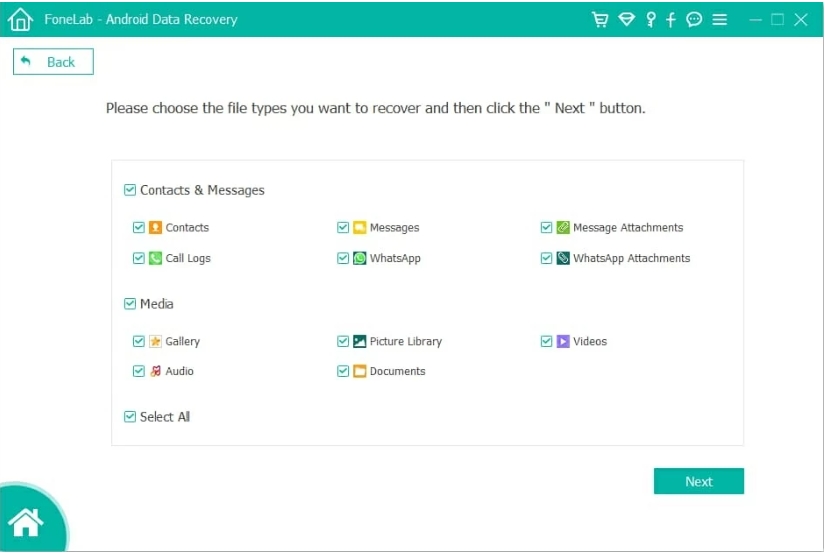
Recovery Steps
- Install the software on your computer.
- Connect the unlocked phone.
- Enable USB debugging if prompted.
- Choose the file categories to scan.
- Preview results.
- Select the items you need.
- Click Recover.
Why This Matters
Users often focus on unlocking the device but overlook the possibility of recovering lost content afterward. Having a recovery option significantly reduces the risk of permanent data loss.
Which Samsung S22 Unlock Method Should You Choose?
| Situation | Recommended Method |
|---|---|
| Samsung account configured | SmartThings Find |
| Need a guided computer solution | iDatapp Samsung Unlocker |
| Need a completely free offline option | Recovery Mode Reset |
| Data was lost after reset | iDatapp Android Data Recovery |
5 Frequently Asked Questions
Can I unlock Samsung S22 Ultra for free?
Yes. Samsung SmartThings Find and Recovery Mode are free options.
Will unlocking erase my data?
SmartThings Find may preserve data. Recovery Mode erases everything. Software tools may or may not preserve data depending on the device and Android version.
Is downloading Samsung unlock software safe?
Only download tools from official websites, such as iDatapp.
What if my phone asks for the Google account after reset?
That is Factory Reset Protection (FRP). You must sign in with the previously used Google account.
Can I unlock the phone if the screen is broken?
Yes. Computer-based tools like iDatapp Samsung Unlocker can still work if the device is recognized by the computer.
Conclusion
If you forgot the lock screen credentials on your Samsung Galaxy S22 or S22 Ultra, there are several effective solutions.
- SmartThings Find is the best free official method and may preserve your data.
- iDatapp Samsung Unlocker offers a simple guided approach for users who want a more convenient solution.
- Recovery Mode Reset is the universal free option when nothing else works.
If your files are lost during the process, iDatapp Android Data Recovery can help restore important photos, messages, and contacts.
With the right approach, you can regain access to your Samsung device and minimize the risk of permanent data loss.
 English
 Nederlands
 Tiếng Việt
 日本
日本 Español
 Português
 Deutsche
 Français
 Italiano
 Norsk
Norsk Suomalainen
 Svenska
 Dansk
Dansk Ελληνικά
 Türk
Türk русский
 हिंदी
हिंदी தமிழ்
தமிழ் Bahasa Melayu
 ไทย
ไทย 한국어
한국어 Română
 Polskie
 қазақ
қазақ Gaeilge
 繁體中文
繁體中文