
 iPhone Data Recovery
 iOS System Recovery
 iOS Backup & Restore
 iOS WhatsApp Transfer
 iOS FoneTrans
 MobieSync
 Android Data Recovery
 Broken Android Data Extraction
 Android Data Backup & Restore
 iPhone Unlocker
 Best Samsung Phone Unlock Tool
 Android Unlocker
 Win/Mac Data Recovery
 iDATAPP Screen Recorder
 2D&3D Video Converter
 Video Repair Software Ai
 AI Video Converter
 Ai Blu-ray Player
 How to Unlock Redmi K90 Locked Screen Without Password?
Forgot your Redmi K90 password? Learn two reliable unlocking methods, understand Xiaomi security requirements, and discover how to recover important data after unlocking with practical solutions from iDATAPP.

Forgetting your Redmi K90 lock screen password can quickly turn an ordinary day into a frustrating experience. Whether you changed your PIN recently, haven't used the device for a long time, or purchased a second-hand Redmi K90 with the screen still locked, the result is the same—you can't access your phone, your apps, or your important files.
The good news is that a locked Redmi K90 doesn't always mean the phone is unusable. Depending on your situation, there are safe and effective ways to remove the screen lock and regain access. The key is choosing a solution that matches your circumstances while minimizing unnecessary risks.
In this guide, we'll explore two practical methods to unlock a Redmi K90 without the password. One method uses iDATAPP Android Unlocker, designed specifically for Android lock screen removal, while the other relies on Xiaomi's official recovery options. We'll also discuss another common Redmi issue—recovering lost phone data after unlocking—and introduce a related solution available on iDATAPP.
Why Does a Redmi K90 Become Locked?
Several situations can lead to a locked Redmi K90:
- You forgot the PIN, password, or pattern.
- Someone changed the lock screen settings without informing you.
- The fingerprint sensor no longer works after a software update.
- You purchased a used Redmi K90 that wasn't reset properly.
- Multiple incorrect password attempts temporarily disabled access.
Although Android security is designed to protect user privacy, it also means there is no simple "bypass" button. Instead, you'll need to use legitimate unlocking methods.
Method 1: Unlock Redmi K90 with iDATAPP Android Unlocker
If you're looking for a fast and beginner-friendly solution, iDATAPP Android Unlocker is one of the easiest ways to remove the lock screen from a Redmi K90. The software is designed for users who cannot remember their password, PIN, pattern, or fingerprint lock and need access to their device again. Unlike complicated manual procedures, the interface guides you through every stage with clear instructions. This greatly reduces the possibility of making mistakes during the unlocking process. Before starting, ensure your computer has a stable USB connection and sufficient battery power on the phone.
Detailed Steps
Step 1. Download and install iDATAPP Android Unlocker, Launch the software on your Windows or Mac computer.
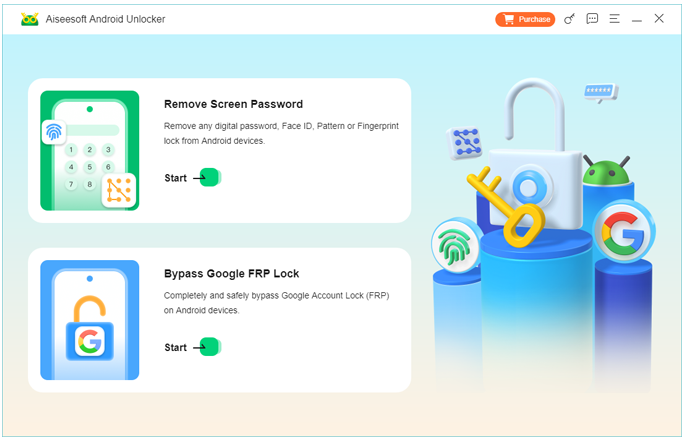
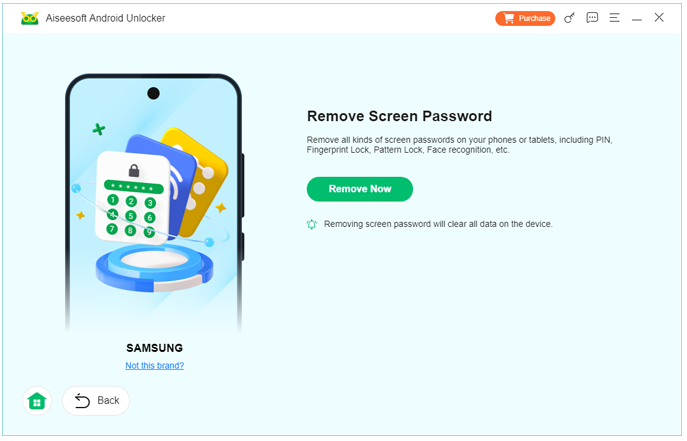
Step 2. Select Remove Screen Password from the main interface.
Step 3. Connect your Redmi K90 using a certified USB cable.
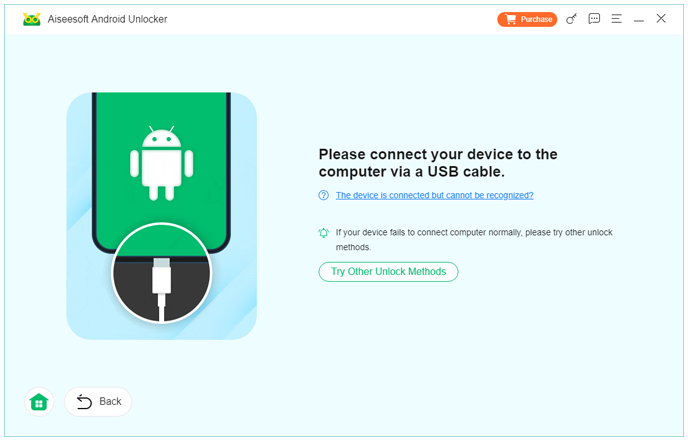
Step 4. Follow the on-screen instructions to place the device into the required recovery or download mode if prompted.
Step 5. Confirm your device information before beginning the unlocking process.
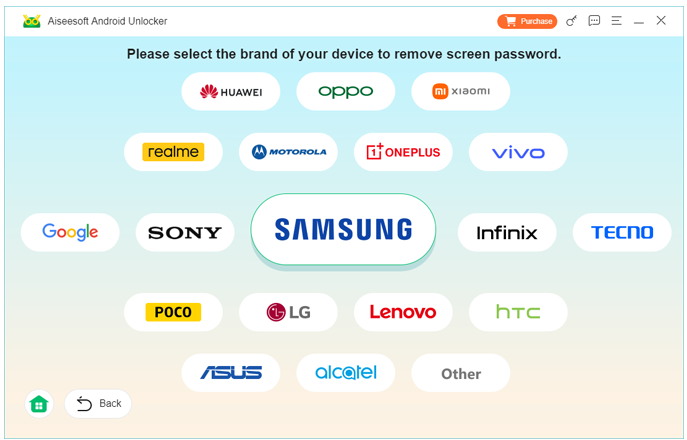
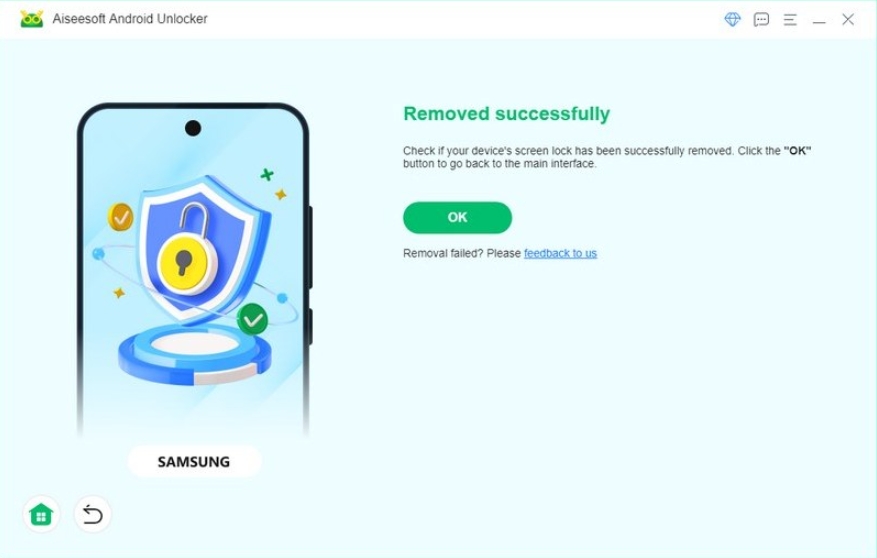
Step 6. Click Remove Now and wait while the software removes the lock screen.
Step 7. After completion, restart the Redmi K90 and complete the initial setup process.
Important Notes
- Charge the battery above 50% before unlocking.
- Do not disconnect the USB cable during the process.
- Some security configurations may result in factory reset requirements.
- Always verify your Google account credentials after resetting if Factory Reset Protection (FRP) is enabled.
Method 2: Unlock Redmi K90 Using Xiaomi Official Recovery Options
If you prefer using official tools instead of third-party software, Xiaomi provides recovery options through its security ecosystem. This approach is most suitable when you still remember your Mi Account credentials and the device is linked correctly. In certain situations, performing an official factory reset through Recovery Mode can restore access to the phone. Although this method may erase local data, it remains one of the safest manufacturer-supported procedures. Make sure you understand that Factory Reset Protection and Mi Account verification may still require your original login information after the reset.
Detailed Steps
Step 1. Power off the Redmi K90 completely.
Step 2. Press and hold the Power and Volume Up buttons simultaneously until Recovery Mode appears.
Step 3. Navigate using the volume keys and select Wipe Data.
Step 4. Confirm the factory reset operation.
Step 5. Wait until the process finishes.
Step 6. Select Reboot System Now.
Step 7. Complete the initial Android setup and sign in using the Google account or Mi Account previously associated with the phone if requested.
Important Notes
- This method erases locally stored data.
- Internet access may be required during activation.
- Factory Reset Protection cannot be bypassed without valid account credentials.
- Backing up important files regularly can help avoid permanent data loss.
How to Recover Lost Redmi K90 Data After Unlocking
Successfully unlocking a Redmi K90 is often only part of the recovery process. A much more common concern appears immediately afterward: Where did all my files go?
Many Redmi users perform a factory reset because they forgot their screen password. While this restores access to the phone, it can also remove locally stored photos, videos, contacts, WhatsApp conversations, call history, documents, and downloaded files. Unless these items were previously synchronized with Xiaomi Cloud or Google services, recovering them afterward becomes much more difficult.
This situation is surprisingly common after unlocking Android devices. Users often focus entirely on regaining access to the phone and only realize later that years of personal memories or important work documents have disappeared. Fortunately, recovery may still be possible if the storage hasn't been heavily overwritten.
iDATAPP provides dedicated Android data recovery solutions through its website that are designed specifically for recovering deleted or inaccessible mobile data. These tools can scan supported Android devices for recoverable files and allow users to preview recoverable content before restoring selected items. Rather than restoring everything blindly, users can choose only the files they actually need.
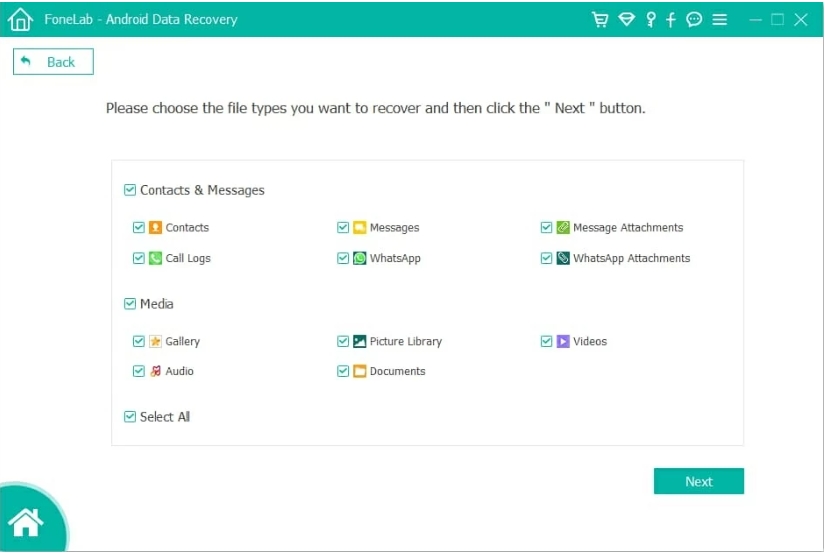
This type of recovery is especially valuable for Redmi users who accidentally reset their devices while removing a forgotten screen password. Whether the missing files include family photos, business documents, chat records, or contact information, using a professional recovery solution as early as possible generally provides the highest chance of successful recovery.
If recovering important files is your next priority after unlocking the Redmi K90, exploring the Android recovery solutions available on https://idatapp.com is a logical next step before continuing to use the device extensively, since writing new data can reduce the likelihood of recovering deleted files.
Frequently Asked Questions
1. Can I unlock a Redmi K90 without losing data?
It depends on the security configuration of your device. Some unlocking scenarios preserve data, while factory reset methods erase local files.
2. Will unlocking remove my Mi Account?
No. Removing the screen password does not remove your Mi Account. You may still need to verify your account during activation.
3. What if I forgot both my screen password and Mi Account password?
You should first recover your Mi Account credentials through Xiaomi's official account recovery process before resetting the device.
Conclusion
Unlocking a Redmi K90 without a password is entirely possible when you use legitimate methods. Whether you choose iDATAPP Android Unlocker for a guided experience or Xiaomi's official recovery process, understanding each method's requirements helps you regain access safely. After unlocking, don't overlook the importance of protecting and recovering your valuable data if necessary.
 English
 Nederlands
 Tiếng Việt
 日本
日本 Español
 Português
 Deutsche
 Français
 Italiano
 Norsk
Norsk Suomalainen
 Svenska
 Dansk
Dansk Ελληνικά
 Türk
Türk русский
 हिंदी
हिंदी தமிழ்
தமிழ் Bahasa Melayu
 ไทย
ไทย 한국어
한국어 Română
 Polskie
 қазақ
қазақ Gaeilge
 繁體中文
繁體中文