
 iPhone Data Recovery
 iOS System Recovery
 iOS Backup & Restore
 iOS WhatsApp Transfer
 iOS FoneTrans
 MobieSync
 Android Data Recovery
 Broken Android Data Extraction
 Android Data Backup & Restore
 iPhone Unlocker
 Best Samsung Phone Unlock Tool
 Android Unlocker
 Win/Mac Data Recovery
 iDATAPP Screen Recorder
 2D&3D Video Converter
 Video Repair Software Ai
 AI Video Converter
 Ai Blu-ray Player
 How to Unlock Google Pixel 6 Without Password?
Best guide to unlock a Google Pixel 6 without a password, covering official Google methods, professional unlocking software, and related data recovery solutions in depth.
For many Google Pixel 6 users, security is a double-edged sword. The same PIN, pattern, or password that protects private photos, work emails, and payment apps can instantly become a barrier when it’s forgotten. Unlike older Android phones, the Pixel 6 is deeply integrated with Google’s Tensor security architecture, verified boot, and factory reset protection (FRP). That means unlocking it without a password is not just about “bypassing a lock screen,” but about understanding how Google designed the device to balance security and recovery.

This article takes a realistic, technical, and user-focused look at how to unlock a Google Pixel 6 without a password. We’ll first analyze why this problem happens so often, then walk through three practical solutions—from official Google methods to a dedicated unlocking tool—each explained clearly and responsibly. Finally, we’ll extend the discussion to a common Pixel-related issue that often appears after unlocking attempts, and how it can be resolved with professional software from the same ecosystem.
Guide List
- Why Do Pixel 6 Users Get Locked Out?
- Method 1: Unlock Google Pixel 6 Without Password Using Android Unlocker (Recommended)
- Method 2: Unlock Google Pixel 6 Using Google’s Official “Find My Device”
- Method 3: Unlock Pixel 6 via Recovery Mode Factory Reset
- Pixel 6 Data Loss After Unlocking – A Common but Overlooked Problem
- FAQ
Why Do Pixel 6 Users Get Locked Out?
Pixel 6 users are often more security-conscious than average Android users. Many enable long PINs, complex patterns, or biometric locks combined with auto-lock timers. Over time, common scenarios occur:
- The password hasn’t been used for weeks due to fingerprint unlock
- A child or friend enters the wrong PIN too many times
- A system update forces password verification after reboot
- The phone was purchased second-hand with an unknown lock
Once locked, the Pixel 6 offers very limited on-device recovery options. Google intentionally removed insecure bypasses from older Android versions. As a result, users must rely on structured solutions rather than “tricks.”
Let’s break down the most effective ways to unlock a Google Pixel 6 without the original password.
Method 1: Unlock Google Pixel 6 Without Password Using Android Unlocker (Recommended)
Best for users who want a guided, professional solution
When official methods are inconvenient or confusing, a dedicated unlocking tool can significantly reduce complexity. One such solution is Android Unlocker from iDATAPP, designed specifically for Android lock removal scenarios.
How It Works?
Android Unlocker is designed to remove Android screen locks—including PIN, pattern, and password—through a structured desktop process. For Pixel 6 users, the software provides guided steps that minimize user error and technical confusion. Unlike manual resets, this method focuses on lock removal workflows rather than generic system wipes. It’s particularly useful for users who are not comfortable navigating recovery menus or who want a clearer success path. The interface walks you through each stage, reducing the risk of incorrect operations.
Step-by-Step Instructions:
1.Download and install Android Unlocker on your computer, launch the software and select Remove Screen Password

2.Connect your Pixel 6 using a USB cable
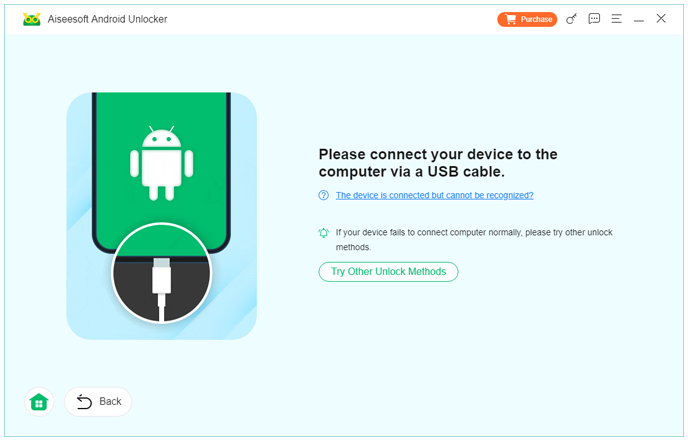
3.Follow on-screen instructions to enter the required mode
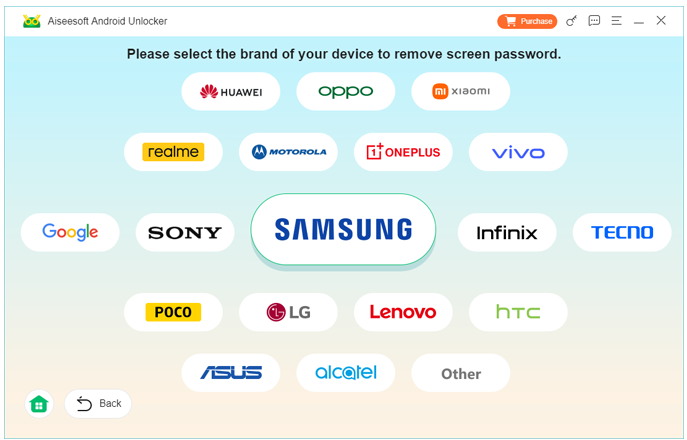
4.Confirm device information when prompted and click Remove Now
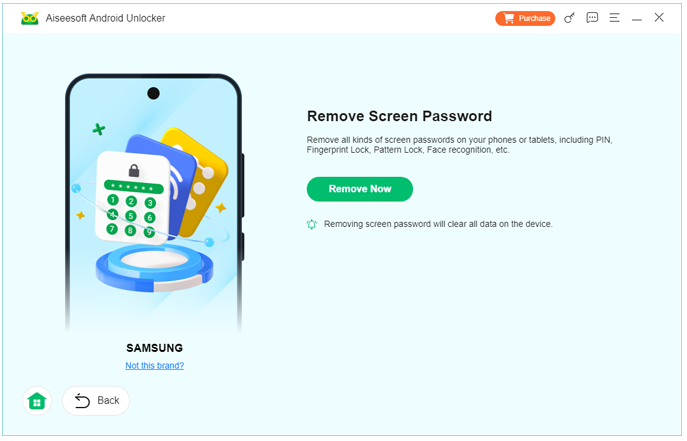
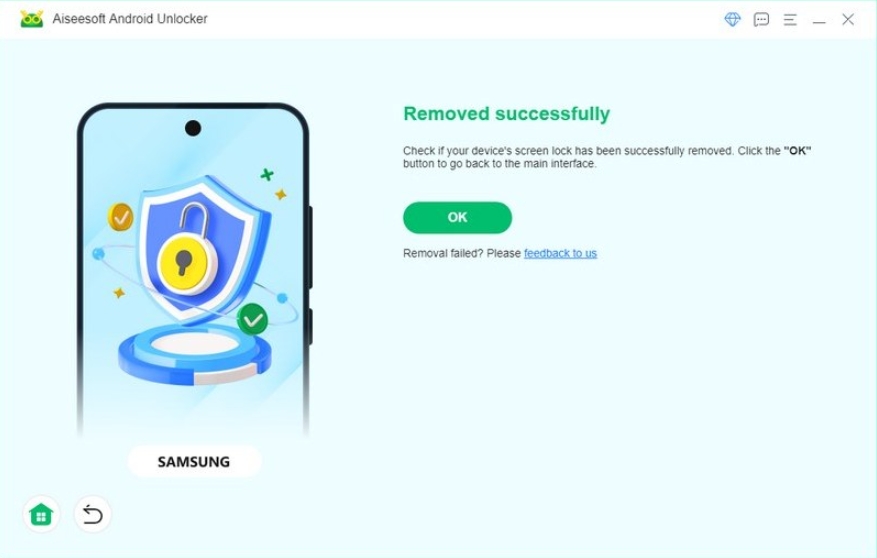
5.Start the unlocking process and wait for completion
6.Set up your Pixel 6 with a new lock
Notes
- Designed for ease of use
- Requires a computer and USB cable
- Ideal for users seeking a guided unlocking experience
Method 2: Unlock Google Pixel 6 Using Google’s Official “Find My Device”
Best for users who remember their Google account credentials and accept data loss
Google’s Find My Device is the most official way to regain access to a locked Pixel 6. It works remotely through your Google account and is designed primarily for lost or stolen phones—but it also applies when you’re locked out.
How It Works?
Find My Device doesn’t remove the screen lock directly. Instead, it erases the Pixel 6 remotely, removing the password along with all local data. After the reset, you can set up the phone again using the same Google account. Because Pixel 6 enforces FRP, you must log in with the original Google account after reset, or the device remains locked. This method is secure, official, and reliable, but irreversible in terms of local data.
Step-by-Step Instructions
- On another device, visit Find My Device and sign in
- Log in using the Google account linked to the Pixel 6
- Select your Pixel 6 from the device list
- Choose Factory reset device
- Confirm the action and wait for the phone to reset
- After reboot, sign in with the same Google account and set a new lock
Notes
- Internet connection is required on the Pixel 6
- All local data will be deleted
- FRP will still require the original Google account
Method 3: Unlock Pixel 6 via Recovery Mode Factory Reset
Best when the device is offline but Google account credentials are known
Recovery Mode is built into Android and allows users to reset the system without accessing the lock screen. This is often used when the phone is frozen or unresponsive, but it also applies to forgotten passwords.
How It Works
A factory reset through Recovery Mode wipes the Pixel 6 at the system level, removing the lock screen password entirely. However, just like Find My Device, Google’s FRP system activates after reset. That means the phone will still ask for the previously synced Google account during setup. This method is hardware-based, doesn’t require another device, and works even if the Pixel 6 has no internet connection at the time of reset.
Step-by-Step Instructions
1.Power off the Pixel 6 completely
2.Press and hold Power + Volume Down until Fastboot appears
3.Use volume keys to select Recovery Mode, confirm with Power
4.When the Android robot appears, hold Power, then press Volume Up
5.Select Wipe data/factory reset
6.Confirm and wait for the reset to finish
7.Reboot and sign in with the original Google account
Important Notes
- Data loss is unavoidable
- Google account verification is mandatory after reset
- This does not bypass FRP
Pixel 6 Data Loss After Unlocking – A Common but Overlooked Problem
Unlocking a Google Pixel 6 is often just the beginning of another issue: unexpected data loss. Many users only realize the consequences after the phone reboots clean—photos missing, messages gone, or app data erased. This is especially common after factory resets or failed unlocking attempts.
Pixel devices rely heavily on file-based encryption. Once a reset or system-level unlock occurs, encrypted data partitions are cleared. If backups were not enabled—or were incomplete—important information may appear permanently lost. Typical data loss scenarios on Pixel phones include:
- Photos not synced to Google Photos
- WhatsApp or messaging data without cloud backup
- App documents stored locally
- Files lost after system crashes or update failures
In these situations, a dedicated Android Data Recovery solution from the same ecosystem can help analyze the device storage or backups more effectively. iDATAPP offers recovery and data management tools through its main platform (idatapp.com) designed to handle Android-specific loss scenarios, including accidental deletion, system errors, and update failures.
Related: Guide to Recover Data from Google Pixel Phone.
Instead of relying on fragmented apps or manual guesswork, professional recovery tools focus on structured scanning and controlled extraction. For Pixel users who value both data integrity and efficiency, pairing an unlocking solution with a recovery strategy is often the smartest long-term approach—especially when dealing with high-value personal or work data.
FAQ
Can I unlock Google Pixel 6 without losing data?
In most cases, no. Pixel 6 encryption prevents password removal without data reset unless a backup exists.
Does factory reset remove Google account verification?
No. FRP remains active and requires the original Google account.
Is it legal to unlock my own Pixel 6?
Yes, as long as you own the device or have permission from the owner.
Will unlocking affect system updates or warranty?
Official methods do not. Improper tools or rooting may affect warranty.
What if I bought a used Pixel 6 with a lock?
You’ll need the previous owner’s Google account or a professional unlocking solution.
Conclusion
Forgetting the password on a Google Pixel 6 is frustrating, but not hopeless. Whether you choose Google’s official reset methods or a guided Android unlocking tool, the key is understanding Pixel security and choosing the right solution for your situation. Acting carefully protects both your device and your data.
 English
 Nederlands
 Tiếng Việt
 日本
日本 Español
 Português
 Deutsche
 Français
 Italiano
 Norsk
Norsk Suomalainen
 Svenska
 Dansk
Dansk Ελληνικά
 Türk
Türk русский
 हिंदी
हिंदी தமிழ்
தமிழ் Bahasa Melayu
 ไทย
ไทย 한국어
한국어 Română
 Polskie
 қазақ
қазақ Gaeilge
 繁體中文
繁體中文