
 iPhone Data Recovery
 iOS System Recovery
 iOS Backup & Restore
 iOS WhatsApp Transfer
 iOS FoneTrans
 MobieSync
 Android Data Recovery
 Broken Android Data Extraction
 Android Data Backup & Restore
 iPhone Unlocker
 Best Samsung Phone Unlock Tool
 Android Unlocker
 Win/Mac Data Recovery
 iDATAPP Screen Recorder
 2D&3D Video Converter
 Video Repair Software Ai
 AI Video Converter
 Ai Blu-ray Player
 Oneplus FRP Unlock Tool|Official to Bypass FRP Lock On Oneplus
OnePlus FRP lock can prevent access after a factory reset. This guide explains two practical solutions—Google account recovery and iDATAPP Android Unlocker—while also covering data recovery strategies for system-related issues.
How to Unlock FRP On OnePlus Phone?
Factory Reset Protection (FRP) is one of Android's most important security features. It was designed to prevent unauthorized access after a factory reset. On OnePlus phones, FRP automatically activates when a Google account is linked to the device. If the phone is reset without first removing that account, Android will require the original Google credentials during setup.
While FRP is effective against theft and unauthorized use, it often creates problems for legitimate owners. Many users forget their Google account password, purchase a second-hand OnePlus device with FRP enabled, or become locked out after performing a system reset. In these situations, the phone becomes inaccessible despite being legally owned.
The good news is that there are practical ways to unlock FRP on a OnePlus phone. In this guide, we'll explore two effective methods. The first uses a dedicated FRP removal tool designed specifically for Android devices, while the second relies on Google's official account recovery process. Both methods serve different situations, allowing users to regain access safely and efficiently.
Understanding FRP Lock on OnePlus Devices
Before attempting any FRP bypass procedure, it's important to understand how the protection works.
When you sign in with a Google account on a OnePlus smartphone, Android records that account as the device owner. If someone performs a factory reset through Recovery Mode or system settings without first removing the Google account, Android triggers FRP during setup.
You'll typically encounter messages such as:
- "This device was reset."
- "Sign in with a Google Account previously synced on this device."
- "Verify your account."
At this stage, the device cannot proceed until verification is completed or the FRP lock is removed.
Common causes include:
- Forgotten Google account credentials
- Purchased used OnePlus phones
- Factory reset after software troubleshooting
- Account synchronization issues
- Long-term device inactivity
Fortunately, there are solutions available.
Method 1: Remove OnePlus FRP Lock with iDATAPP Android Unlocker
For users who cannot remember their Google account information or need a faster solution, iDATAPP Android Unlocker offers a practical approach to FRP removal.
Unlike many complicated manual procedures that depend on Android version loopholes, iDATAPP Android Unlocker is designed to simplify the process. The software supports FRP removal on a wide range of Android devices, including many OnePlus models. It guides users through the unlocking process with clear instructions, reducing the technical knowledge required.

One advantage of using a dedicated FRP removal tool is consistency. Manual bypass methods often stop working after security updates, whereas specialized software is updated to maintain compatibility with newer Android systems.
Steps to Unlock FRP on OnePlus Using iDATAPP Android Unlocker
Step 1: Download and install iDATAPP Android Unlocker on your computer.
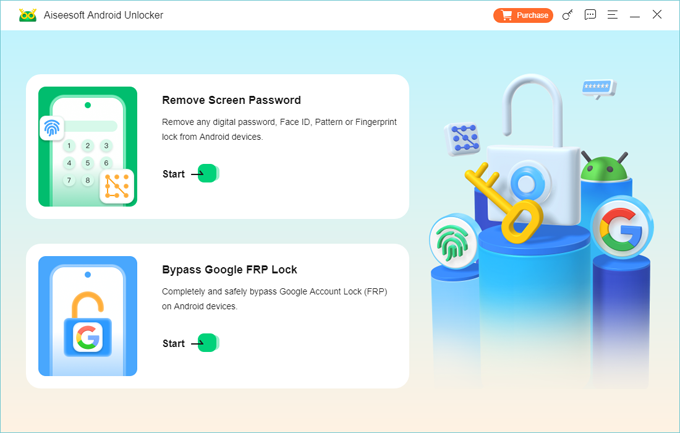
Step 2: Launch the program and choose the Bypass Google FRP Lock option from the main interface.
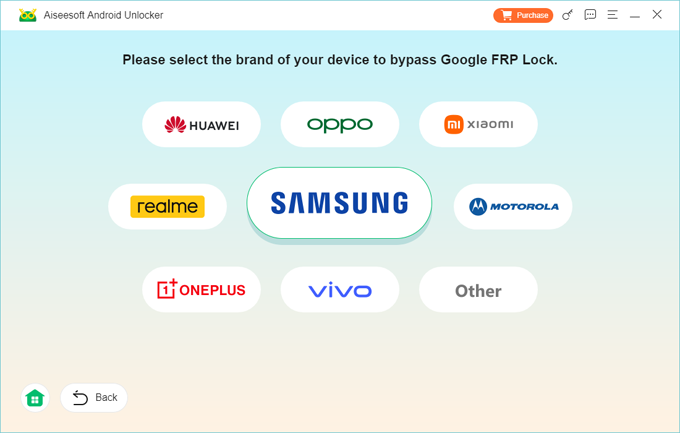
Step 3: Connect your OnePlus phone to the computer using a reliable USB cable.
Step 4: Select the correct device information when prompted and click Bypass Now.
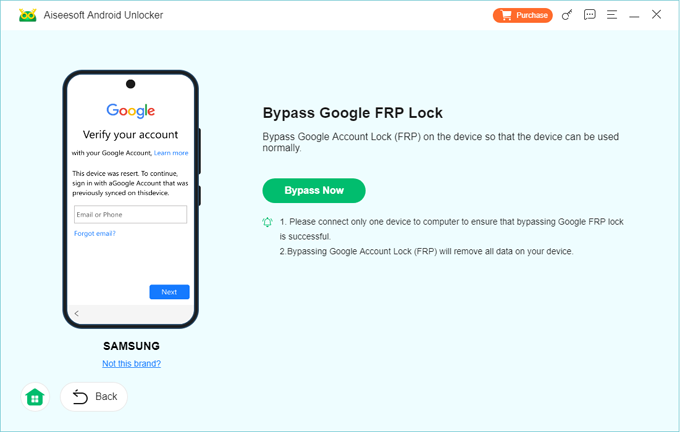
Step 5: Follow the on-screen instructions provided by the software.
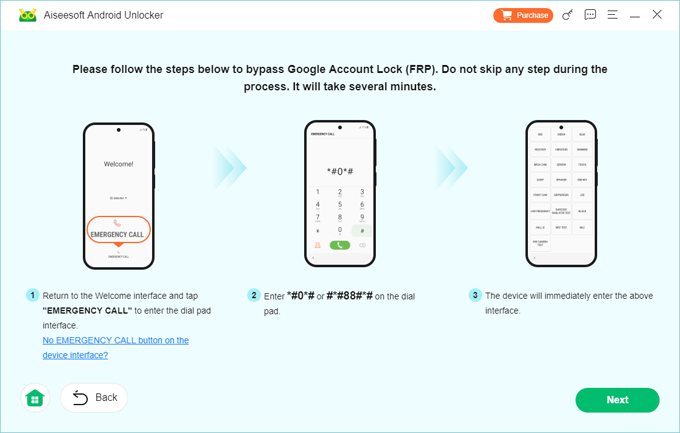
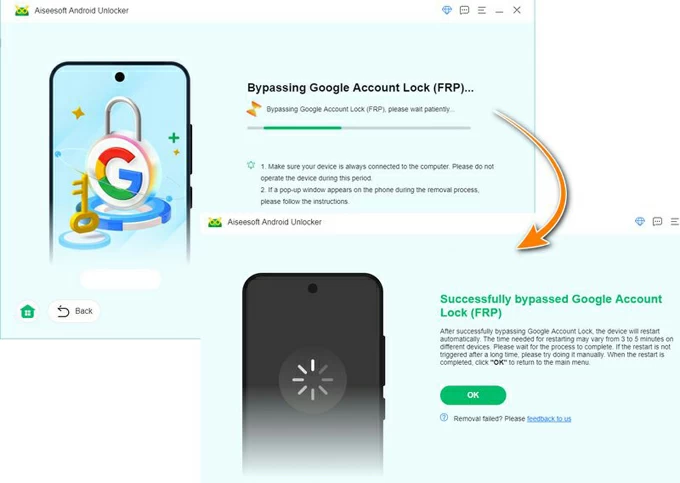
Step 6: Allow the tool to process the FRP removal operation.
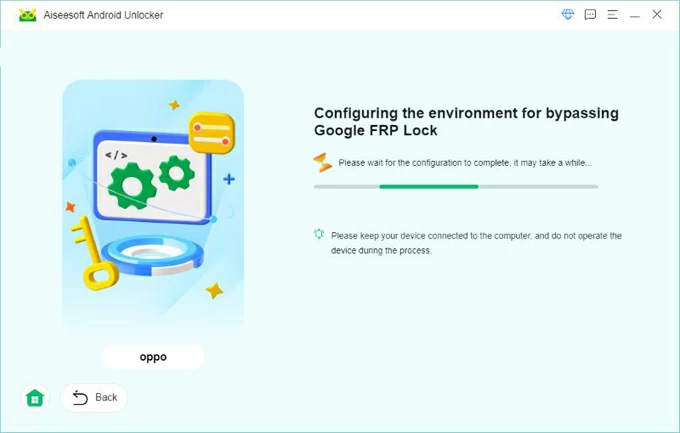
Step 7: Restart the device after completion and continue through Android setup.
Tips:
- Ensure the battery level is above 50%.
- Use the original USB cable whenever possible.
- Avoid disconnecting the device during processing.
- Follow the software prompts carefully for your specific OnePlus model.
This method is often preferred by users who need a straightforward solution without navigating complex Android settings.
Method 2: Recover the Original Google Account
If you are the original owner of the OnePlus phone, Google's official recovery system remains the safest and most legitimate method.
FRP exists to verify ownership. Therefore, if you still have access to recovery email addresses, backup phone numbers, or other account verification information, Google may help restore account access.
This method takes longer than dedicated FRP tools because Google's security review process can require verification steps. However, it preserves the intended security structure of Android and is particularly useful when sensitive personal information is connected to the account.
Steps to Recover Your Google Account
Step 1: On another device, visit Google's account recovery page.
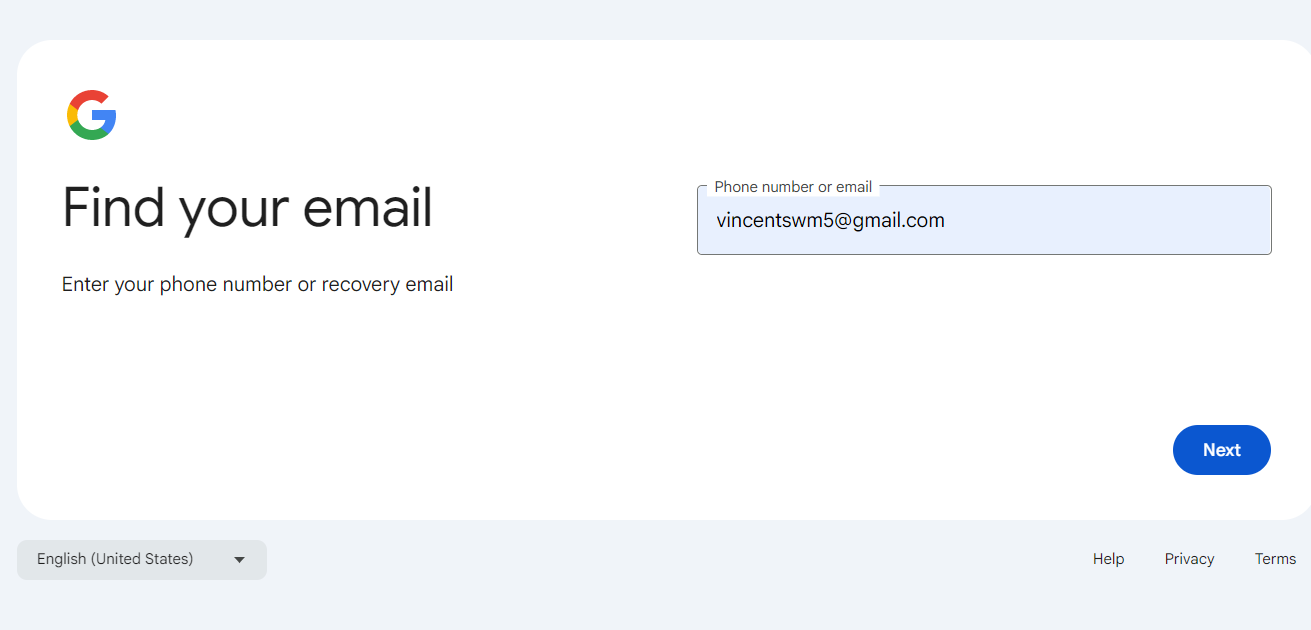
Step 2: Enter the email address previously used on the OnePlus device.
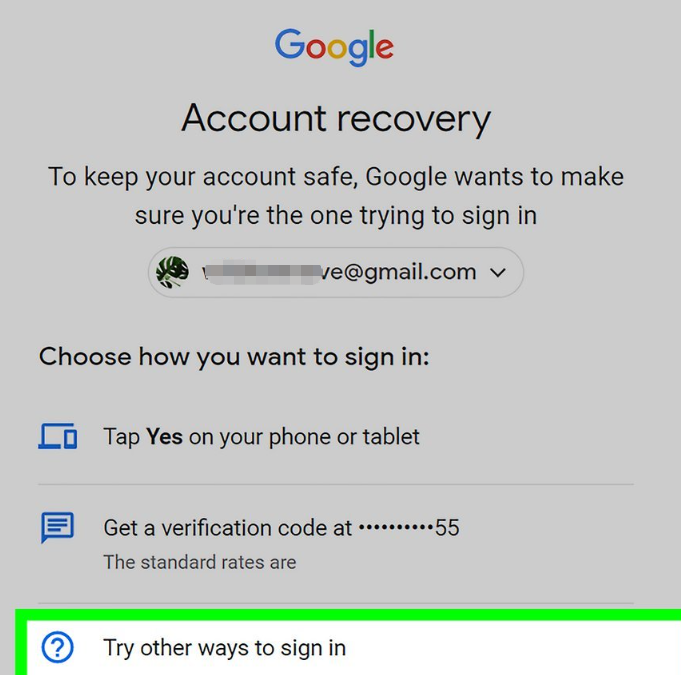
Step 3: Follow the identity verification instructions.
Step 4: Reset the account password if necessary.
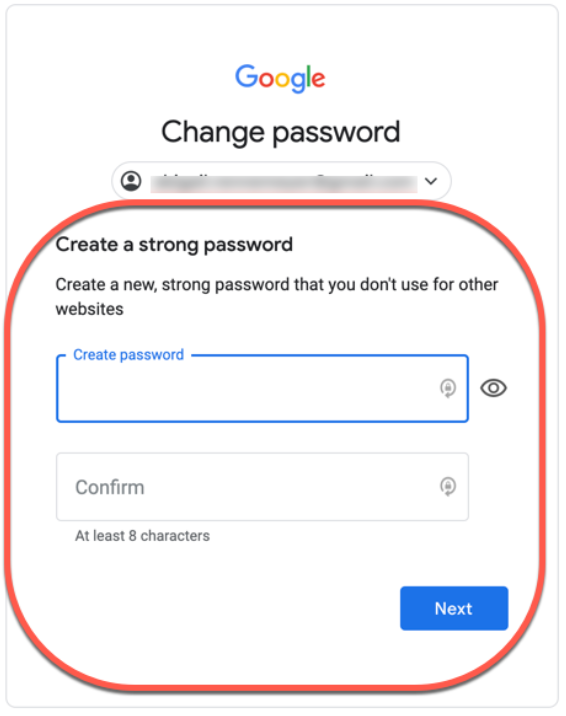
Step 5: Wait for Google's security synchronization period if prompted.
Step 6: Return to the OnePlus phone.
Step 7: Sign in using the recovered Google account credentials.
Important Notes
- Google's security system may require 24–72 hours after a password reset before FRP verification succeeds.
- Use the strongest account information available during recovery.
- Recovery success rates improve when using familiar devices and locations associated with the account.
For original device owners, this remains the most secure and officially supported solution.
Which FRP Removal Method Is Better?
The answer depends on your situation.
If you still own the Google account and can recover it, Google's account recovery process is the preferred option because it maintains account security and device integrity.
However, if account access is permanently lost or recovery attempts fail, iDATAPP Android Unlocker can provide an alternative route to regain access to your OnePlus device.
Many users start with Google's recovery process and then consider specialized software if recovery proves unsuccessful.
How to Recover Important Data After a OnePlus System Failure
FRP lock is not the only issue faced by OnePlus users. Another common problem occurs when a device experiences a boot loop, system crash, failed update, or software corruption. In these situations, users often worry less about accessing the phone and more about recovering valuable data.
Photos, videos, work documents, WhatsApp messages, contacts, and personal files can quickly become inaccessible when Android refuses to boot normally.
This is where professional data recovery solutions become important.
The iDATAPP platform provides multiple Android-focused solutions that address data-related emergencies beyond FRP removal. When a OnePlus device becomes unstable due to firmware corruption, accidental system modifications, rooting failures, or unexpected crashes, users often need a recovery solution capable of extracting data before additional damage occurs.
One of the biggest mistakes users make is repeatedly factory resetting a malfunctioning phone. While this may occasionally solve startup issues, it can significantly increase the risk of permanent data loss. Before performing any destructive troubleshooting procedures, creating a backup or attempting data recovery is often the smarter approach.
Modern Android recovery tools can scan device storage, identify recoverable files, and export important information to a computer. This process can be particularly useful when:
- A OnePlus phone is stuck on the boot screen.
- Android updates fail repeatedly.
- Rooting attempts cause system instability.
- Important files were deleted accidentally.
- The phone experiences software-related crashes.
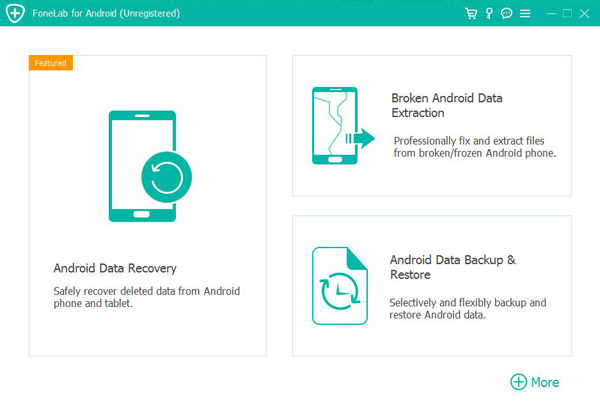
Another advantage of dedicated recovery software is selective restoration. Rather than restoring an entire backup, users can often retrieve specific file types such as photos, contacts, videos, messages, or documents.
For business users, this capability can prevent the loss of critical work materials. For personal users, it can preserve years of memories stored on the device.
The broader lesson is that FRP removal and data protection should be viewed together. Many users focus solely on unlocking their devices but overlook the importance of safeguarding their information. Maintaining regular backups and using trusted recovery solutions can significantly reduce stress when unexpected Android problems occur.
As Android security continues to evolve, combining proper account management, reliable backup habits, and professional recovery tools creates the best long-term strategy for OnePlus device owners.
Frequently Asked Questions
1. What is FRP on a OnePlus phone?
FRP (Factory Reset Protection) is an Android security feature that requires the previously synchronized Google account after a factory reset. It helps prevent unauthorized device access.
2. Can I bypass FRP without the original Google account?
Yes. If account recovery is not possible, specialized FRP removal software such as iDATAPP Android Unlocker may help remove the lock depending on the device model and Android version.
3. Will unlocking FRP erase my data?
In most cases, FRP appears after a factory reset has already occurred. Therefore, existing user data is generally no longer available. The unlocking process itself usually focuses on restoring device access.
4. How long does Google account recovery take?
The process can range from a few minutes to several days depending on account verification requirements and security checks.
5. Is FRP removal legal?
Removing FRP from a device you legally own is generally acceptable. However, bypassing security protections on devices that do not belong to you may violate laws or regulations.
Summary
OnePlus FRP lock can occur after a factory reset when Google account verification is required. Users can either recover their Google account through official channels or use iDATAPP Android Unlocker to regain access. Combining proper account management with reliable data recovery and backup practices helps prevent future device access problems.
 English
 Nederlands
 Tiếng Việt
 日本
日本 Español
 Português
 Deutsche
 Français
 Italiano
 Norsk
Norsk Suomalainen
 Svenska
 Dansk
Dansk Ελληνικά
 Türk
Türk русский
 हिंदी
हिंदी தமிழ்
தமிழ் Bahasa Melayu
 ไทย
ไทย 한국어
한국어 Română
 Polskie
 қазақ
қазақ Gaeilge
 繁體中文
繁體中文