
 iPhone Data Recovery
 iOS System Recovery
 iOS Backup & Restore
 iOS WhatsApp Transfer
 iOS FoneTrans
 MobieSync
 Android Data Recovery
 Broken Android Data Extraction
 Android Data Backup & Restore
 iPhone Unlocker
 Best Samsung Phone Unlock Tool
 Android Unlocker
 Win/Mac Data Recovery
 iDATAPP Screen Recorder
 2D&3D Video Converter
 Video Repair Software Ai
 AI Video Converter
 Ai Blu-ray Player
 How to Unlock Huawei Tablet Without Password?
Forgot your Huawei tablet password? This guide explains three practical unlocking methods, including a professional Huawei unlocking solution, while helping you avoid data loss and common recovery mistakes.
Locked Out of Your Huawei Tablet? Here's What You Need to Know First
Huawei tablets have become increasingly popular thanks to their reliable performance, large displays, and strong security features. Whether you use a Huawei MatePad for work, entertainment, or education, the lock screen is designed to protect your private information from unauthorized access.
However, security can become a problem when the owner forgets the password, PIN, pattern, or screen lock credentials. Many users discover that after changing a password, leaving a device unused for months, or allowing a child to set a new lock screen, they can no longer access their own tablet.
At this point, most people start searching for ways to unlock a Huawei tablet without a password. Unfortunately, many online tutorials either recommend risky software, provide outdated instructions, or fail to explain the consequences of certain methods.
The good news is that there are several legitimate ways to regain access. The right solution depends on your situation:
- Do you need immediate access?
- Is your Huawei ID still available?
- Do you care about preserving data?
- Is USB debugging enabled?
- Can you access recovery mode?
This guide analyzes the most practical solutions and explains how to perform each one correctly.
Guide List
- Method 1: Unlock Huawei Tablet with iDATAPP Android Unlocker (Recommended)
- Method 2: Unlock Huawei Tablet Through Recovery Mode Reset
- Method 3: Use Huawei Find Device Services
- Which Huawei Tablet Unlock Method Is Best?
- Related Huawei Problem: Recovering Lost Data After a Failed System Update
- Tips to Prevent Huawei Tablet Lockouts in the Future
- Frequently Asked Questions
Method 1: Unlock Huawei Tablet with iDATAPP Android Unlocker (Recommended)
When you need a fast and straightforward solution, using a professional unlocking tool is often the most efficient option. iDATAPP Android Unlocker is specifically designed to remove screen locks from Android devices, including many Huawei tablet models.
Unlike manual troubleshooting methods that require technical knowledge, this solution provides a guided process that simplifies the unlocking procedure. It supports various screen lock types such as PINs, passwords, patterns, and fingerprints. This makes it particularly useful when you have no idea what the current lock screen credential is.

Another advantage is that the software is continuously updated to improve compatibility with newer Android devices.
Detailed Steps
Step 1: Download and install iDATAPP Android Unlocker on your computer.

Step 2: Launch the software and choose the Android unlocking function.
Step 3: Connect your Huawei tablet using a USB cable.
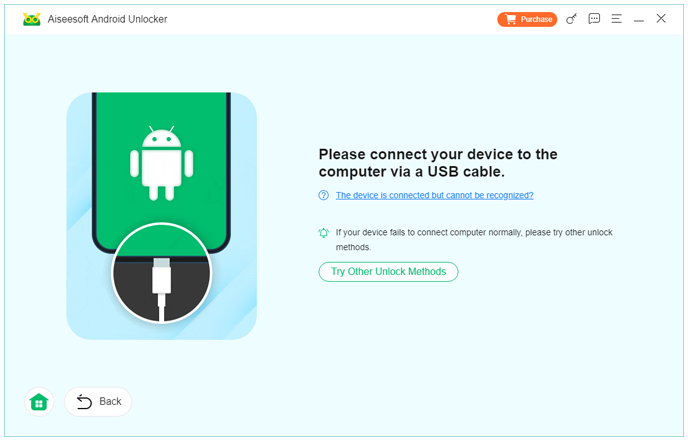
Step 4: Select your Huawei device information if prompted.
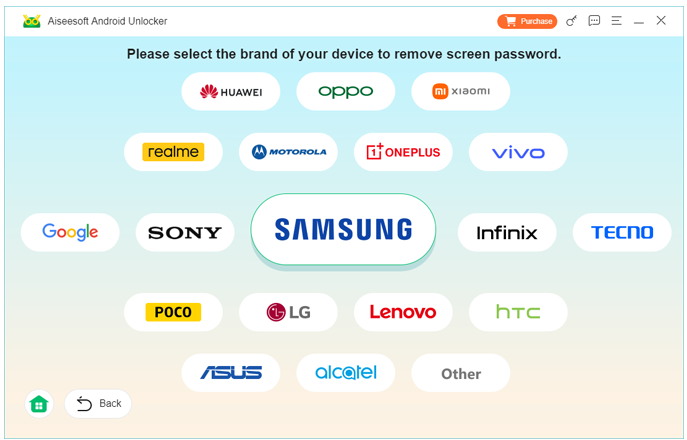
Step 5: Follow the on-screen instructions to enter the required mode.
Step 6: Allow the software to analyze the device.
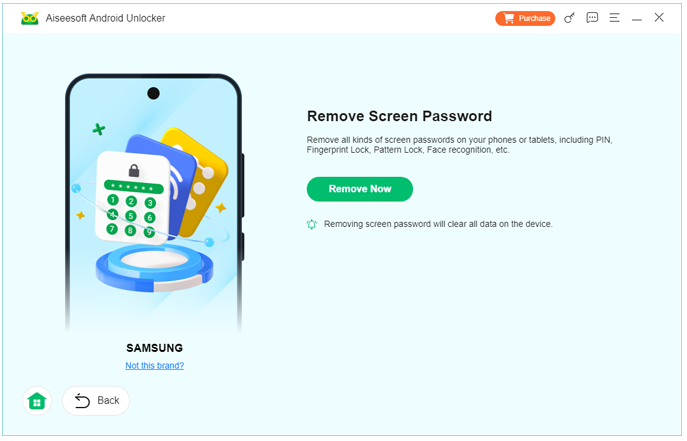
Step 7: Start the unlocking process.
Step 8: Wait until the software confirms successful screen lock removal.
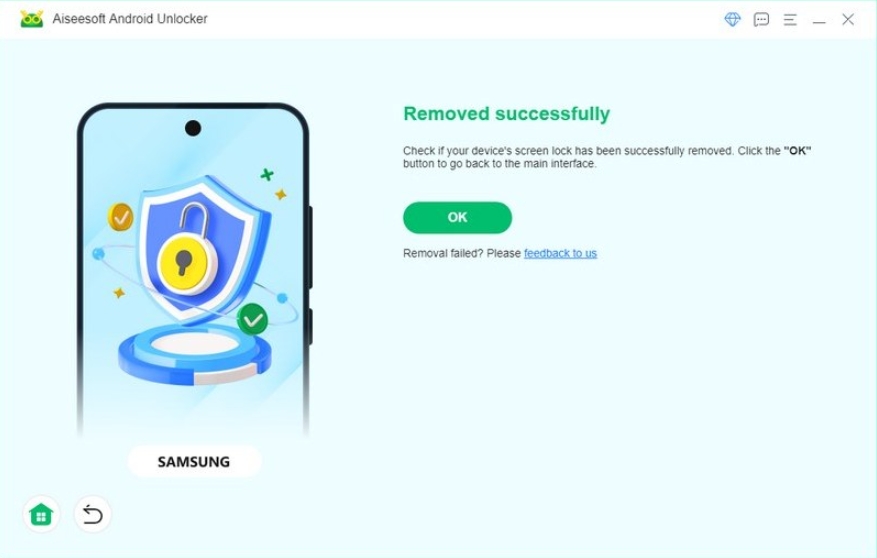
Notes
- Keep the tablet battery above 50%.
- Use the original USB cable whenever possible.
- Do not disconnect the device during the process.
- Follow all instructions shown by the software carefully.
Method 2: Unlock Huawei Tablet Through Recovery Mode Reset
Recovery Mode is built into Huawei tablets and can be useful when you cannot access the operating system normally. This method is often recommended when users have completely forgotten their password and do not have access to any account recovery options.
The main drawback is that a factory reset usually removes locally stored data. Therefore, it should be considered when recovering access is more important than preserving files currently stored on the tablet.
Even though it sounds technical, Huawei's Recovery Mode interface is relatively simple and can usually be accessed using hardware buttons.
Detailed Steps
Step 1: Power off the Huawei tablet completely.
Step 2: Press and hold: Volume Up Power Button simultaneously.
Step 3: Release the buttons when the Huawei logo appears.
Step 4: Enter Recovery Mode.
Step 5: Choose: Wipe Data/Factory Reset
Step 6: Confirm the operation.
Step 7: Wait for the reset process to finish.
Step 8: Select: Reboot System Now
Step 9: Complete the initial device setup.
Notes
- All local data may be erased.
- You may need the original Huawei account after the reset.
- Ensure the device has sufficient battery power before beginning.
Method 3: Use Huawei Find Device Services
Some Huawei users have linked their tablets to a Huawei account before the device became locked. In such cases, remote device management features may provide another recovery option.
This method works best when the tablet is connected to the internet and associated with an active Huawei account. It allows owners to manage certain device functions remotely and may help regain control depending on the device configuration and software version.
Many users overlook this option because they immediately focus on factory reset procedures. Checking account-related recovery features first can sometimes save significant time.
Detailed Steps
Step 1: Open a browser on another device.
Step 2: Sign in to your Huawei account.
Step 3: Access Huawei device management features.
Step 4: Locate the locked tablet.
Step 5: Review available recovery actions.
Step 6: Follow the provided instructions.
Step 7: Restart the Huawei tablet after the operation completes.
Important Notes
- The tablet must be connected to the internet.
- Your Huawei account credentials are required.
- Feature availability may vary by region and device model.
Which Huawei Tablet Unlock Method Is Best?
Different situations require different approaches.
| Situation | Recommended Solution |
|---|---|
| Forgot password and want the easiest process | iDATAPP Android Unlocker |
| Device inaccessible and account unavailable | Recovery Mode Reset |
| Huawei account still active | Huawei Find Device |
| Need quick access | iDATAPP Android Unlocker |
| System lock issue after password change | iDATAPP Android Unlocker |
In most real-world cases, users choose a professional unlocking solution because it reduces complexity and minimizes troubleshooting time.
Related Huawei Problem: Recovering Lost Data After a Failed System Update
Unlocking is not the only issue Huawei tablet owners encounter. Another common problem occurs after system upgrades, firmware failures, or interrupted updates.
Imagine this scenario:
You attempt to update your Huawei MatePad overnight. The installation process is interrupted due to a low battery or unstable network connection. When you restart the device, important photos, videos, documents, and messages appear to be missing.
This type of data loss is surprisingly common.
Many users assume the files are permanently gone, but that is not always true. In many cases, deleted data remains on the device storage until it is overwritten by new information. Acting quickly significantly improves recovery success rates.
This is where specialized Android recovery software becomes valuable.
A professional solution such as Android Data Recovery available from iDATAPP can scan internal storage and identify recoverable content that standard system tools cannot access. This is particularly useful for recovering:
- Photos accidentally deleted after system repairs
- Lost documents following firmware crashes
- Missing videos after update failures
- Deleted contacts caused by synchronization errors
- Messages removed during troubleshooting
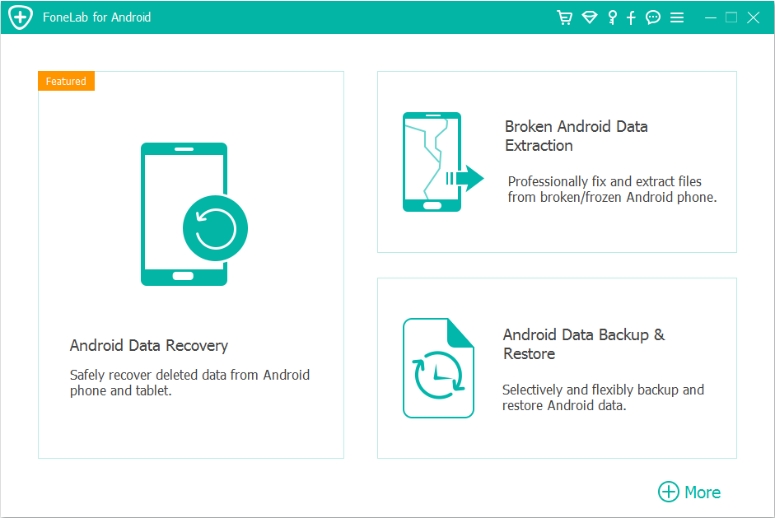
The recovery process is generally straightforward.
First, install the recovery software on a computer. Connect the Huawei tablet through USB and allow the software to scan the device. The scan examines storage sectors for recoverable data and organizes results into categories. Users can preview files before recovery and selectively restore only the information they need.
An important advantage is that users do not have to restore everything. Instead, they can recover specific files, saving time and storage space.
To maximize recovery success:
- Stop using the device immediately after data loss.
- Avoid installing new applications.
- Do not continue taking photos or downloading files.
- Perform recovery as soon as possible.
Many Huawei users focus entirely on unlocking their tablets but forget that data protection is equally important. Having a reliable recovery solution available can prevent permanent loss when unexpected system problems occur.
Tips to Prevent Huawei Tablet Lockouts in the Future
After regaining access, consider implementing a few preventive measures:
Enable Cloud Synchronization
Cloud backups make recovery easier after resets or system failures.
Use a Memorable Password
Avoid overly complicated passwords that are difficult to remember months later.
Keep Recovery Information Updated
Ensure your Huawei account email and recovery methods remain current.
Record Important Credentials Securely
Use a reputable password manager to store login information.
Create Regular Backups
Routine backups protect important files even if unlocking requires a factory reset.
Frequently Asked Questions
1. Can I unlock a Huawei tablet without losing data?
It depends on the method used. Some unlocking solutions may preserve data, while factory reset procedures typically erase local files.
2. What if I forgot both my password and Huawei account credentials?
In this situation, using a dedicated unlocking solution or performing a recovery-mode reset may be necessary.
3. Does a factory reset remove the screen lock?
Yes. A factory reset generally removes local screen lock settings, but account verification may still be required afterward.
4. Why is my Huawei tablet asking for account verification after unlocking?
This is a security feature designed to prevent unauthorized access after a reset.
Conclusion
Getting locked out of a Huawei tablet can be frustrating, but it is rarely a permanent problem. Whether you choose iDATAPP Android Unlocker, Huawei's built-in recovery tools, or account-based recovery options, there is usually a practical path back into your device.
The key is selecting the method that matches your situation. If convenience and simplicity are your priorities, iDATAPP Android Unlocker offers the most direct approach. If account recovery remains available, Huawei's services may help. For severe lockout situations, Recovery Mode provides a reliable fallback solution.
Most importantly, create regular backups and maintain updated account information so that future lockouts become far less stressful and much easier to resolve.
 English
 Nederlands
 Tiếng Việt
 日本
日本 Español
 Português
 Deutsche
 Français
 Italiano
 Norsk
Norsk Suomalainen
 Svenska
 Dansk
Dansk Ελληνικά
 Türk
Türk русский
 हिंदी
हिंदी தமிழ்
தமிழ் Bahasa Melayu
 ไทย
ไทย 한국어
한국어 Română
 Polskie
 қазақ
қазақ Gaeilge
 繁體中文
繁體中文