
 iPhone Data Recovery
 iOS System Recovery
 iOS Backup & Restore
 iOS WhatsApp Transfer
 iOS FoneTrans
 MobieSync
 Android Data Recovery
 Broken Android Data Extraction
 Android Data Backup & Restore
 iPhone Unlocker
 Best Samsung Phone Unlock Tool
 Android Unlocker
 Win/Mac Data Recovery
 iDATAPP Screen Recorder
 2D&3D Video Converter
 Video Repair Software Ai
 AI Video Converter
 Ai Blu-ray Player
 Unlock Huawei Mate 60 Without Password/Face ID/Pattern/Fingerprint Recognition
This guide explains how to unlock Huawei Mate 60 without password or biometrics, covering system methods, a reliable unlocking tool, and essential tips for preventing data loss.
The Huawei Mate 60 is positioned as a high-end flagship, blending powerful hardware with HarmonyOS security mechanisms. While this layered security protects user privacy, it also creates a real-world dilemma: what if you forget the lock screen password, pattern, Face ID, or fingerprint suddenly stops working? This situation is far more common than many users expect—especially after system updates, biometric sensor failures, or repeated incorrect attempts.

This article takes a practical, in-depth look at how to unlock Huawei Mate 60 without a password, starting from the root causes of lockout issues, then moving through three carefully selected unlocking methods. These methods avoid third-party professional tools from other companies and instead focus on official system logic, manual techniques, and one reliable solution using our own software. Along the way, we’ll also explore related data risks that Huawei users frequently encounter and how to deal with them intelligently.
Guide List
- Understanding the Huawei Mate 60 Lockout Problem
- Method 1: Unlock Huawei Mate 60 via Factory Reset (Manual System Method)
- Method 2: Unlock Huawei Mate 60 with iDatapp Android Unlocker (Recommended)
- Method 3: Unlock Huawei Mate 60 Using Huawei Account Verification
- Huawei Mate 60 Data Loss After System Crash
- FAQs
Understanding the Huawei Mate 60 Lockout Problem
Before jumping into solutions, it’s important to understand why unlocking a Huawei Mate 60 can be more complicated than older models.
Huawei Mate 60 devices rely heavily on secure enclave protection, encrypted partitions, and tight integration between lock credentials and user data. When you forget a password or biometric access fails repeatedly, the system intentionally restricts entry to prevent unauthorized access. This is excellent for security—but frustrating for legitimate owners.
Common scenarios include:
- Forgetting a complex numeric or alphanumeric password
- Face ID or fingerprint failure due to hardware wear or moisture
- Children or others entering the wrong password too many times
- System update glitches affecting biometric verification
The key is choosing an unlocking method that matches your situation while minimizing data loss.
Method 1: Unlock Huawei Mate 60 via Factory Reset (Manual System Method)
A factory reset is Huawei’s most basic built-in way to regain access when all lock credentials are forgotten. This method does not require external software, but it comes with an important tradeoff: all local data will be erased.
How This Method Works?
When the Huawei Mate 60 is reset through Recovery Mode, the system removes the existing lock screen credentials by wiping the encrypted user partition. This restores the phone to its original factory state, allowing you to set a new password. While this is effective, it also deletes apps, photos, messages, and settings stored on the device. If you previously backed up data to Huawei Cloud, you can restore it after unlocking. This method is best suited for users who prioritize device access over local data retention.
Step-by-Step Instructions
- Power off the Huawei Mate 60 completely
- Press and hold Volume Up + Power simultaneously
- Release buttons when the Huawei logo appears
- Enter Recovery Mode
- Select Wipe data/factory reset
- Confirm and wait for completion
- Reboot and set up the device again
Important Notes
- Requires Huawei ID credentials after reset
- Data not backed up will be permanently lost
- Battery level should be above 50%
Method 2: Unlock Huawei Mate 60 with iDatapp Android Unlocker (Recommended)
When system methods fail or account verification is unavailable, a dedicated unlocking solution designed for Android devices becomes the most practical option. This is where iDatapp Android Unlocker stands out.
How This Method Works
iDatapp Android Unlocker is developed to remove lock screen protection from Android devices, including Huawei Mate 60, without relying on Huawei’s cloud credentials or biometric access. The software communicates directly with the device system through a controlled unlocking process, bypassing password, pattern, PIN, fingerprint, and Face ID restrictions. Unlike risky manual tweaks, this method is stable, guided, and optimized for users without technical expertise. It significantly reduces trial-and-error attempts and works even when the screen is partially unresponsive.
Step-by-Step Instructions
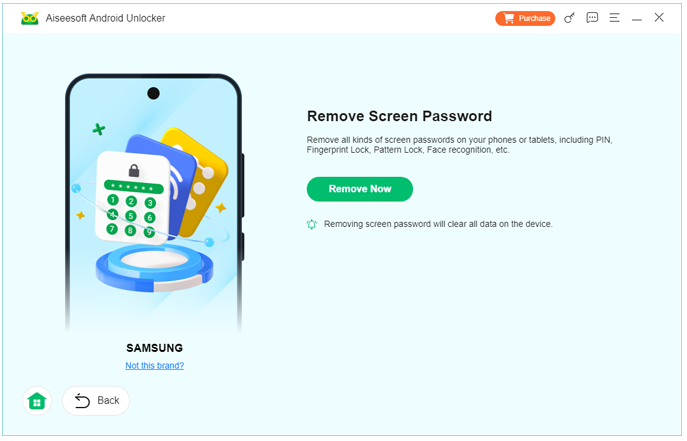
1.Install iDatapp Android Unlocker on your computer, launch the software and select Remove Screen Password

2.Connect Huawei Mate 60 via USB cable
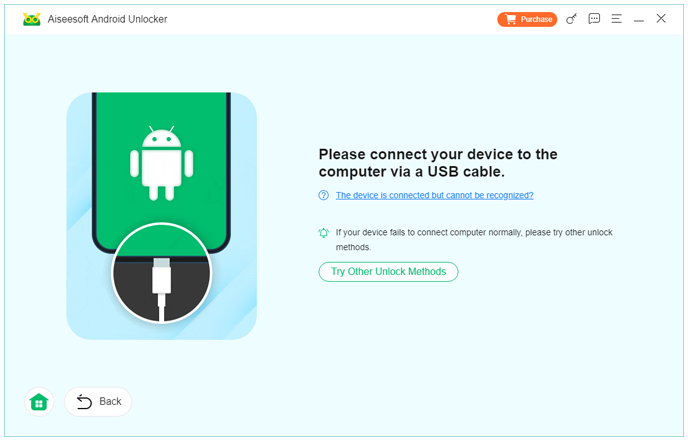
3.Follow on-screen instructions to enter device mode
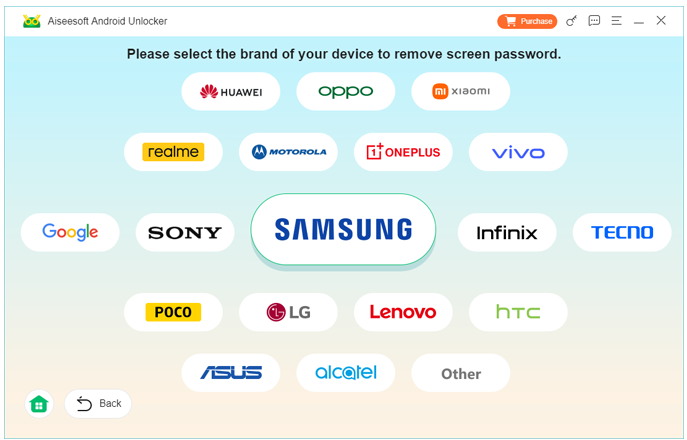
4.Confirm device model and begin unlocking
5.Wait for completion and reboot the phone
Notes
- Works even if lock credentials are fully forgotten
- Stable process with guided interface
- Suitable for users who value efficiency and reliability
Method 3: Unlock Huawei Mate 60 Using Huawei Account Verification
If you remember your Huawei ID credentials, this method offers a more account-based approach to regaining access after lockout, especially for devices linked to cloud services.
How This Method Works
Huawei’s ecosystem binds the lock screen security to the Huawei ID for theft prevention. After multiple failed attempts, the system may prompt you to verify ownership using the Huawei account associated with the device. By logging in with the correct account information, you can reset the lock screen and regain access. This method is particularly useful if biometric methods fail but account details are still accessible. However, it depends heavily on network connectivity and correct account credentials.
Step-by-Step Instructions
- Power on the locked Huawei Mate 60
- Enter the wrong password until verification options appear
- Choose Unlock with Huawei ID
- Enter Huawei ID email and password
- Verify via SMS or email if prompted
- Reset the lock screen credentials
Notes
- Internet connection required
- Huawei ID must be the original account
- Not available in all lockout states
Huawei Mate 60 Data Loss After System Crash
Unlocking the Huawei Mate 60 is often just the beginning of a larger issue. A frequently overlooked but highly common problem among Huawei users is unexpected data loss after system crashes or forced resets. This usually occurs after failed updates, overheating shutdowns, or repeated reboot loops. In many cases, users regain access to the device—only to realize their photos, messages, videos, or documents are gone.
Huawei Mate 60 devices rely on advanced file-based encryption. When the system crashes or resets unexpectedly, data blocks can become inaccessible even though they physically remain on the device. This leads users to believe their data is permanently lost, when in fact it may still be recoverable.
This is where professional Android data recovery solutions from iDatapp become extremely valuable. Tools available on idatapp.com are designed to scan Huawei devices deeply, reconstruct deleted file structures, and recover data from internal storage or SD cards—even after crashes, system errors, or accidental deletion.
For example, after unlocking a Huawei Mate 60 using any of the methods above, users can connect the device to a computer and perform a targeted scan for lost photos, messages, contacts, or videos. This is especially important for business users, content creators, or anyone storing critical information locally.
What makes this approach effective is that it doesn’t rely on cloud backups. Instead, it focuses on direct data extraction and recovery, giving users a second chance to retrieve valuable files that would otherwise be lost forever. Considering how often system instability occurs with high-performance devices, this type of recovery solution is becoming just as essential as unlocking itself.
FAQs
Can I unlock Huawei Mate 60 without losing data?
In most cases, avoiding data loss depends on whether you remember your Huawei ID or use a professional unlocking tool. Factory reset will erase data.
Does fingerprint or Face ID failure mean hardware damage?
Not always. Software glitches, updates, or moisture can temporarily disable biometric functions.
Is it safe to use unlocking software?
Using a reliable, purpose-built solution like iDatapp Android Unlocker is safer than unverified manual methods.
What if my Huawei Mate 60 screen is unresponsive?
USB-based unlocking software can still work even if the screen is partially damaged.
Can I recover data after unlocking the phone?
Yes. Data recovery tools from idatapp.com can help retrieve lost files after unlocking or system crashes.
Conclusion
Being locked out of a Huawei Mate 60 is stressful, but it’s not the end of the road. By understanding the system’s security logic and choosing the right unlocking method—manual reset, account verification, or a reliable unlocking tool—you can regain access safely. More importantly, addressing potential data loss early ensures that unlocking the phone doesn’t come at the cost of losing what truly matters.
 English
 Nederlands
 Tiếng Việt
 日本
日本 Español
 Português
 Deutsche
 Français
 Italiano
 Norsk
Norsk Suomalainen
 Svenska
 Dansk
Dansk Ελληνικά
 Türk
Türk русский
 हिंदी
हिंदी தமிழ்
தமிழ் Bahasa Melayu
 ไทย
ไทย 한국어
한국어 Română
 Polskie
 қазақ
қазақ Gaeilge
 繁體中文
繁體中文