
 iPhone Data Recovery
 iOS System Recovery
 iOS Backup & Restore
 iOS WhatsApp Transfer
 iOS FoneTrans
 MobieSync
 Android Data Recovery
 Broken Android Data Extraction
 Android Data Backup & Restore
 iPhone Unlocker
 Best Samsung Phone Unlock Tool
 Android Unlocker
 Win/Mac Data Recovery
 iDATAPP Screen Recorder
 2D&3D Video Converter
 Video Repair Software Ai
 AI Video Converter
 Ai Blu-ray Player
 How to Transfer Data From Android to iPhone 17 Series?
This article explores the challenges of transferring data from Android to the iPhone 17 series and presents three reliable methods, including a professional solution for secure, selective, and lossless migration.
Switching from an android phone to the iPhone 17 series sounds exciting—new design, smoother iOS experience, stronger ecosystem. But the excitement often fades the moment you realize how much data you’ve accumulated over the years. Photos scattered across albums, WhatsApp chats, contacts saved in different places, videos, documents, and even music files that don’t “belong” to Apple’s world.

This is not just a simple phone-to-phone transfer. It’s a cross-ecosystem migration, and that’s where most users get stuck.
In this guide, we’ll break down the real challenges of transferring data from Android to iPhone 17, analyze why some methods fail, and then walk you through three effective, legal, and realistic solutions—including one professional method using software from our own website. The goal is simple: move what matters, without losing control of your data.
Guide List
- Why Transferring Data from Android to iPhone 17 Is Harder?
- Method 1: Transfer Data Using Apple’s Built-in Migration Option (Best for First-Time Setup)
- Method 2: Transfer Android Data to iPhone 17 with MobieSync (Recommended)
- Method 3: Transfer Data Manually Using Cloud Sync and Local Export
- What If Data Gets Lost During Android-to-iPhone Transfer?
- Frequently Asked Questions
Why Transferring Data from Android to iPhone 17 Is Harder?
On the surface, both devices are smartphones. Under the hood, they speak very different languages.
Samsung phones rely on Android’s open file system, Google services, and SD card flexibility. iPhones, including the iPhone 17 series, operate inside Apple’s tightly controlled iOS ecosystem. This mismatch causes common problems such as:
- Some file types not showing up after transfer
- Media quality loss during syncing
- Contacts duplicated or missing
- Messages partially transferred or unreadable
- Apps not restoring with their original data
So the real question isn’t “Can I transfer data?”—it’s “How do I transfer data cleanly and completely?”
Let’s solve that step by step.
Method 1: Transfer Data Using Apple’s Built-in Migration Option (Best for First-Time Setup)
Apple provides a built-in migration option during the initial setup of the iPhone 17 series. This method is designed for users who are setting up a brand-new iPhone and still have access to their Samsung device. It’s safe and free, but also limited. While it handles basic data well—such as contacts, photos, and some messages—it often struggles with large media libraries, local files, and app-specific data. Think of it as a “starter transfer,” not a full migration solution.
Step-by-Step Breakdown
1.Power on your iPhone 17 and begin setup
2.On the “Apps & Data” screen, choose Move Data from Android
3.Install Apple’s migration app on your android phone
4.Connect both devices to the same Wi-Fi network
5.Enter the verification code shown on iPhone
6.Select data types to transfer (contacts, photos, messages, etc.)
7.Wait for the process to complete before using the iPhone
Important Details
- Only works during initial iPhone setup
- App data and some media formats may not transfer
- Transfer speed depends heavily on Wi-Fi stability
Method 2: Transfer Android Data to iPhone 17 with MobieSync (Recommended)
If you want more control, higher compatibility, and selective transfer, using a professional desktop-based solution is the smartest approach. MobieSync from iDatapp is built specifically for cross-platform data transfer between Android and iOS devices. Unlike basic migration tools, it allows you to preview, select, and transfer specific data types—contacts, photos, videos, music, messages, and more—without overwriting existing data on your iPhone 17. This method works whether your iPhone is brand new or already set up.
Step-by-Step Breakdown
1.Download and install MobieSync on your computer

2.Connect your Android phone and iPhone 17 via USB cables
3.Set Android as the source device and iPhone 17 as the target
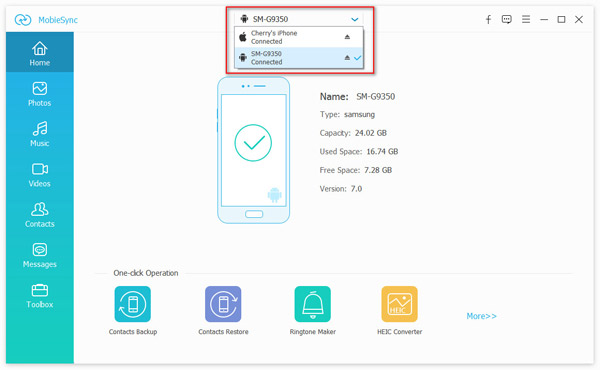
4.Choose the data categories you want to transfer
5.Click Start Transfer and wait for completion

Why This Method Stands Out
- Supports selective, lossless data transfer
- Works after iPhone setup (not limited to first boot)
- Handles large files and mixed formats reliably
- Ideal for users switching ecosystems permanently
Method 3: Transfer Data Manually Using Cloud Sync and Local Export
For users who prefer a hands-on approach or want to avoid installing extra software, manual transfer via cloud services and local exports is still an option. This method involves syncing contacts, calendars, and files through cloud platforms, then importing them into iOS-compatible apps. While flexible, it’s time-consuming and prone to human error. It works best for users with smaller data volumes and a good understanding of file management.
Step-by-Step Breakdown
- Sync contacts and calendars to your Google account
- Sign in to the same Google account on iPhone and enable sync
- Upload photos and videos to cloud storage or a computer
- Download and import them into the Photos app on iPhone
- Export documents and music manually where supported
Things to Watch Out For
- File organization can break during transfer
- Some metadata may be lost
- Not suitable for messages or app data
What If Data Gets Lost During Android-to-iPhone Transfer?
One issue that Android users frequently encounter—especially during large-scale transfers—is unexpected data loss. This can happen before, during, or after migration, often due to unstable system updates, interrupted transfers, or storage conflicts.
Common real-world situations include:
- Photos disappearing after failed sync
- Videos corrupted during export
- Contacts overwritten or merged incorrectly
- Files lost due to system crashes before transfer
- SD card data becoming unreadable
Samsung devices, with their flexible storage structures, are particularly vulnerable during transitions to iOS. When data loss occurs, repeating the transfer often makes things worse by overwriting recoverable files.
In these situations, professional recovery tools from idatapp.com become extremely valuable. iDatapp offers Android-focused data recovery solutions designed to scan internal storage and SD cards deeply, even after system errors or accidental deletions. These tools prioritize data preservation before migration, which is critical when preparing for a switch to the iPhone 17 series.
Instead of rushing into another transfer attempt, recovering lost or damaged files first ensures you’re migrating complete, intact data—not fragments. This approach saves time, reduces stress, and prevents permanent loss of irreplaceable memories.
Frequently Asked Questions
Can I transfer WhatsApp from Android to iPhone 17?
Yes, but success depends on the method used and data condition; some transfers require additional preparation.
Will my apps transfer to iPhone 17?
Apps can be reinstalled, but most Android app data does not transfer directly to iOS.
Is it possible to transfer data after setting up iPhone 17?
Yes, tools like MobieSync support post-setup transfers.
Will data quality be reduced during transfer?
Professional transfer tools preserve original quality better than cloud syncing.
What’s the safest way to avoid data loss?
Back up your Android phone before transferring and avoid repeated failed attempts.
Conclusion
Transferring data from Android to the iPhone 17 series is less about speed and more about strategy. By choosing the right method—especially a professional cross-platform tool—you can move your digital life smoothly, safely, and completely.
 English
 Nederlands
 Tiếng Việt
 日本
日本 Español
 Português
 Deutsche
 Français
 Italiano
 Norsk
Norsk Suomalainen
 Svenska
 Dansk
Dansk Ελληνικά
 Türk
Türk русский
 हिंदी
हिंदी தமிழ்
தமிழ் Bahasa Melayu
 ไทย
ไทย 한국어
한국어 Română
 Polskie
 қазақ
қазақ Gaeilge
 繁體中文
繁體中文