
 iPhone Data Recovery
 iOS System Recovery
 iOS Backup & Restore
 iOS WhatsApp Transfer
 iOS FoneTrans
 MobieSync
 Android Data Recovery
 Broken Android Data Extraction
 Android Data Backup & Restore
 iPhone Unlocker
 Best Samsung Phone Unlock Tool
 Android Unlocker
 Win/Mac Data Recovery
 iDATAPP Screen Recorder
 2D&3D Video Converter
 Video Repair Software Ai
 AI Video Converter
 Ai Blu-ray Player
 How to Recover Deleted Voicemail from iPhone 16?
Deleted voicemail on iPhone 16 isn't always lost forever. Check Deleted Messages first, then consider iDATAPP iOS Data Recovery for additional recovery options, and maintain regular backups to minimize future data loss.

Losing an important voicemail on your iPhone 16 can be frustrating. Whether it was a business message, an interview callback, or a memorable recording from a loved one, accidentally deleting voicemail often makes users think the file is gone forever. Fortunately, that's not always the case.
The way voicemail recovery works depends on how the message was deleted, whether your carrier still stores it, and whether the deleted data has already been overwritten. Understanding these factors is the key to choosing the right recovery method instead of wasting time trying random solutions.
This guide explains why voicemail disappears, how recovery actually works on the iPhone 16, and the most effective ways to restore deleted voicemail before it becomes permanently unrecoverable.
Why Deleted Voicemail Can Sometimes Be Recovered
Visual Voicemail on the iPhone works differently from regular files stored in Photos or Notes. In many cases, deleted voicemail is first moved into a "Deleted Messages" section instead of being erased immediately. Some carriers also temporarily retain voicemail on their own servers before permanent removal.
Recovery becomes more difficult if:
- The deleted voicemail has already been permanently erased.
- Your carrier has removed it from their server.
- New data has overwritten the deleted information.
- The voicemail account has been reset.
Because of these variables, the sooner you attempt recovery, the higher your chances of success.
Method 1: Recover Deleted Voicemail Using iDATAPP iOS Data Recovery
If the voicemail no longer appears inside the Phone app, a dedicated recovery solution may still be able to scan your device for recoverable voicemail data. iDATAPP iOS Data Recovery is designed to recover various deleted iPhone data types, including messages, contacts, photos, and many other supported files. It also provides flexible recovery options that help users retrieve data directly from an iPhone or from available backups without requiring complicated technical knowledge.
Compared with restoring an entire backup, this method is more convenient because you can preview supported recoverable items before restoring, reducing unnecessary data replacement on your device.
Steps
Step 1: Download and install iDATAPP iOS Data Recovery on your Windows or Mac computer.
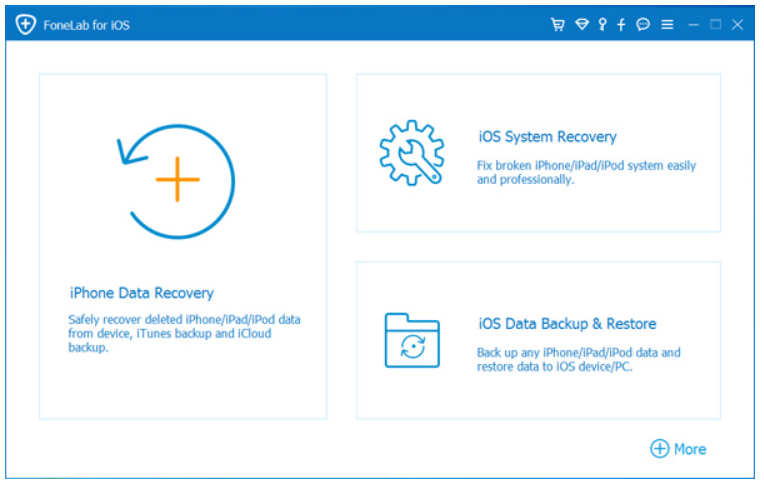
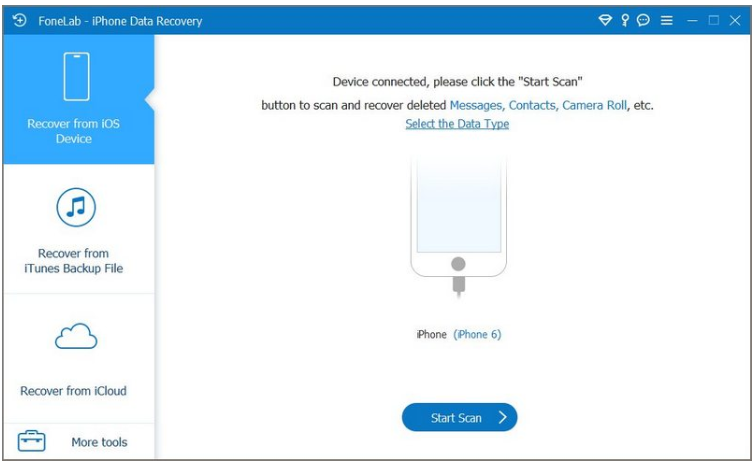
Step 2: Connect your iPhone 16 using a Lightning or USB-C cable and trust the computer if prompted.
Step 3: Launch the software and select the recovery mode that matches your situation.
Step 4: Start scanning your device. Wait until the scan finishes completely to maximize recovery results.
Step 5: Preview the recoverable data.
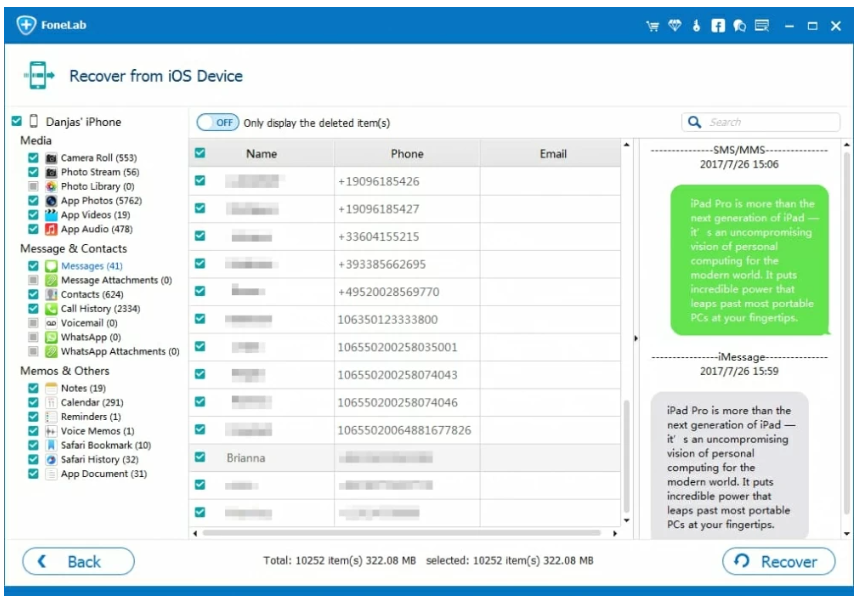
Step 6: Select the voicemail or other desired files if available, then recover them to your computer or supported destination.
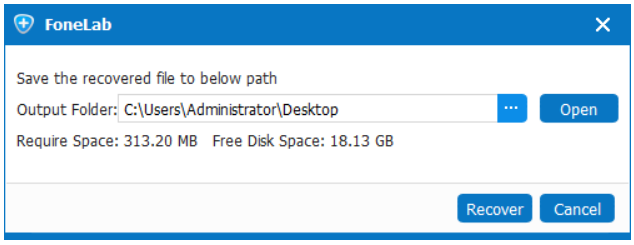
Important Tips
- Stop using your iPhone immediately after accidental deletion.
- Avoid installing new apps before recovery.
- Perform recovery as soon as possible to reduce data overwriting.
- Keep your device connected throughout the scanning process.
Method 2: Recover Deleted Voicemail from the Phone App
Many iPhone users don't realize that deleted voicemail isn't always removed immediately. If your carrier supports Visual Voicemail, recently deleted messages are often stored in a Deleted Messages folder for a limited time. This built-in recovery option is the safest and quickest solution because it doesn't require additional software or restoring backups. However, availability depends entirely on your mobile carrier and how long ago the voicemail was deleted.
Steps
Step 1: Open the Phone app.
Step 2: Tap the Voicemail tab.
Step 3: Scroll to the bottom of the screen.
Step 4: If Deleted Messages appears, tap it.
Step 5: Browse available deleted voicemail.
Step 6: Select the voicemail you want.
Step 7: Tap Undelete or the recovery option provided.
Important Tips
- Not every carrier offers Deleted Messages.
- Some carriers automatically remove deleted voicemail after several days.
- Once permanently deleted from both the iPhone and carrier server, recovery becomes much more difficult.
Preventing Future Voicemail Loss
Recovering deleted voicemail is helpful, but preventing future loss is even better. Consider these habits:
- Save important voicemail by sharing or exporting audio recordings.
- Regularly back up your iPhone using Finder or iCloud.
- Keep enough free storage on your device.
- Avoid deleting multiple voicemail messages in bulk.
- Check carrier voicemail retention policies if you frequently receive important messages.
These simple practices significantly reduce the risk of permanent data loss.
Frequently Asked Questions
1. Can permanently deleted voicemail still be recovered?
Possibly. Recovery depends on whether the voicemail data has been overwritten and whether your carrier still retains a copy.
2. Does restarting my iPhone delete voicemail permanently?
No. Restarting the device alone does not permanently erase voicemail.
3. Will updating iOS remove my voicemail?
Normally no. However, unexpected update failures or software issues could affect stored data, making backups important.
Summary
Recovering deleted voicemail on an iPhone 16 is often possible if you act quickly. Checking the Phone app's Deleted Messages folder should always be your first step. If the voicemail is no longer available there, using a dedicated recovery solution such as iDATAPP iOS Data Recovery may provide additional recovery options. The best protection, however, is maintaining regular backups and preserving important voicemail before accidental deletion occurs.
 English
 Nederlands
 Tiếng Việt
 日本
日本 Español
 Português
 Deutsche
 Français
 Italiano
 Norsk
Norsk Suomalainen
 Svenska
 Dansk
Dansk Ελληνικά
 Türk
Türk русский
 हिंदी
हिंदी தமிழ்
தமிழ் Bahasa Melayu
 ไทย
ไทย 한국어
한국어 Română
 Polskie
 қазақ
қазақ Gaeilge
 繁體中文
繁體中文