
 iPhone Data Recovery
 iOS System Recovery
 iOS Backup & Restore
 iOS WhatsApp Transfer
 iOS FoneTrans
 MobieSync
 Android Data Recovery
 Broken Android Data Extraction
 Android Data Backup & Restore
 iPhone Unlocker
 Best Samsung Phone Unlock Tool
 Android Unlocker
 Win/Mac Data Recovery
 iDATAPP Screen Recorder
 2D&3D Video Converter
 Video Repair Software Ai
 AI Video Converter
 Ai Blu-ray Player
 How to Recover Lost Data From Redmi Note 14?
Lost data on Redmi Note 14 can often be recovered using Xiaomi Cloud, Google backups, local files, or iDATAPP recovery software. Quick action greatly improves recovery success.

The Redmi Note 14 is built for fast performance, sharp photography, and smooth daily use—but like any smartphone, it is not immune to data loss. Photos disappearing after a system update, contacts vanishing after accidental deletion, or important WhatsApp files getting wiped out are more common than most users expect. In many cases, the data isn’t truly “gone”—it is just hidden, overwritten, or temporarily inaccessible in system storage layers.
Understanding how Android stores and manages data on devices like Redmi Note 14 is the key to successful recovery. When a file is deleted, the system usually marks the space as reusable rather than immediately erasing it. That means quick action can often restore lost files before they are overwritten. In this guide, we’ll go through practical, realistic recovery methods that don’t rely on guesswork, and focus on solutions that actually work in real-world situations.
Guide List
- Method 1: Recover Data via Xiaomi Cloud & System Backup (Built-in Recovery)
- Method 2: Restore Lost Files Using Google Drive Backup
- Method 3: Deep Recovery Using Android Data Recovery Software (Advanced Solution)
- Method 4: Restore Data from Local Backup or PC Transfer
- Unlocking Redmi Note 14 After System Lock or Crash
- Additional Tips to Prevent Data Loss in Redmi Note 14
- 5 Questions & Answers
Method 1: Recover Data via Xiaomi Cloud & System Backup (Built-in Recovery)
Many Redmi Note 14 users overlook Xiaomi’s built-in cloud ecosystem, which quietly syncs contacts, photos, notes, and even app data in the background. If your data loss happened recently, there’s a strong chance it still exists in Xiaomi Cloud or local system backup. This method is especially useful when the loss is caused by accidental deletion or device reset rather than physical damage. It doesn’t require third-party tools and works directly through your Mi account, making it one of the safest recovery options available.
Steps to recover:
- Open Settings on your Redmi Note 14.
- Tap Mi Account and sign in if not already logged in.
- Go to Xiaomi Cloud → select the data type (Gallery, Contacts, Notes).
- Check available backups and choose the most recent one.
- Tap Restore from backup and wait for synchronization.
Important notes:
- Ensure Wi-Fi is stable during restoration.
- Only data previously synced will be recoverable.
- If sync was disabled before loss, this method may not help.
Method 2: Restore Lost Files Using Google Drive Backup
Google services are deeply integrated into Redmi Note 14 devices, and many users unknowingly enable automatic backup for photos, app data, and device settings. Google Drive and Google Photos often retain deleted files for a limited time, making it a reliable recovery source when Xiaomi Cloud backup is unavailable. This method is especially effective for recovering media files and app-related data after resets or accidental deletion.
Steps to recover:
- Open Google Photos or visit Google Drive.
- Log in with the same Google account used on your phone.
- Check the Trash folder in Google Photos (files are kept for 30–60 days).
- Select the files you want to recover.
- Tap Restore or download them back to your Redmi Note 14.
Important notes:
- Deleted items in Trash are permanently removed after the retention period.
- Ensure auto-backup was enabled previously.
- App data recovery may require reinstalling apps first.
Method 3: Deep Recovery Using Android Data Recovery Software (Advanced Solution)
When cloud backups fail, the most effective solution is using professional recovery software designed to scan internal Android storage at a deeper level. This method works well for situations like system crashes, formatting errors, virus attacks, or accidental factory resets. Unlike basic recovery options, advanced scanning can detect fragmented or hidden files that are not visible to the system. One reliable solution is the Android Data Recovery tool from iDATAPP, which is designed specifically for Android devices like Redmi Note 14.
Steps to recover:
1.Install the Android Data Recovery tool on a Windows or Mac computer.
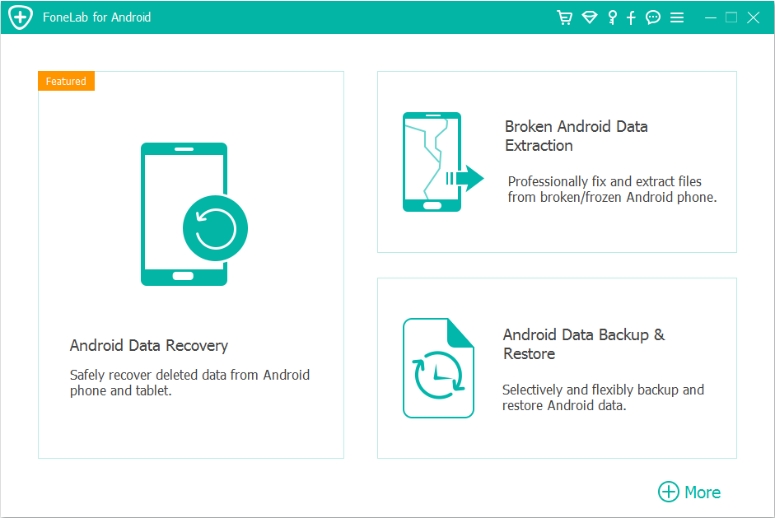
2.Connect your Redmi Note 14 using a USB cable.
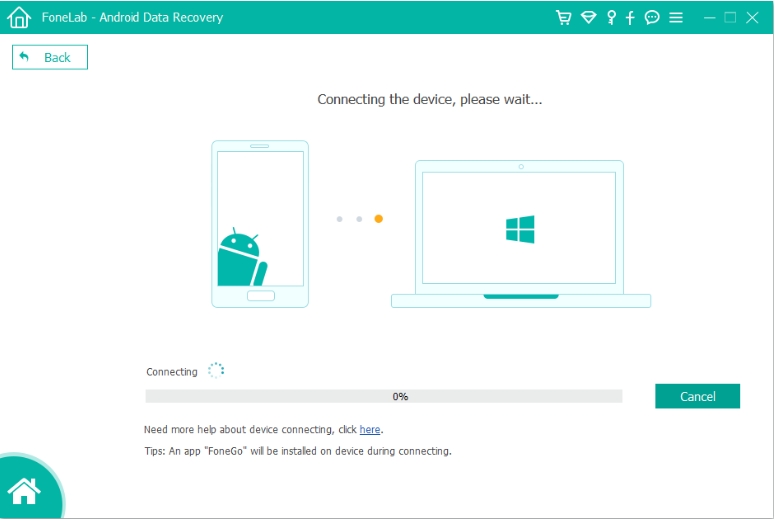
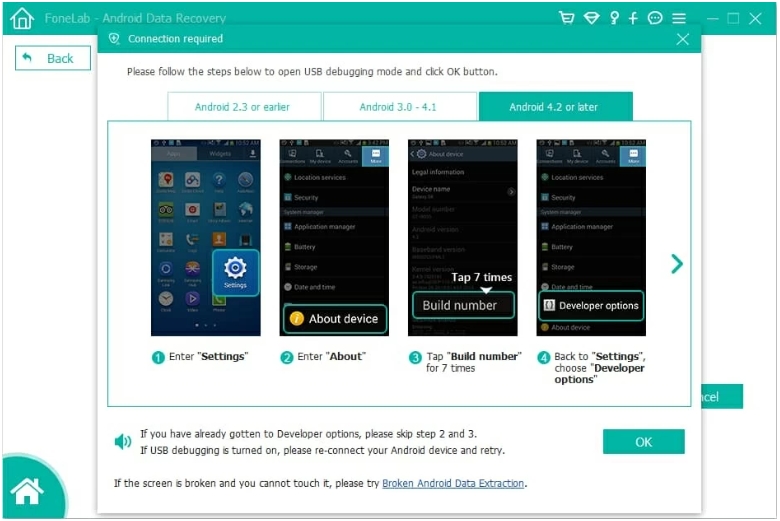
3.Enable USB debugging mode on your phone when prompted.
4.Select file types (photos, messages, contacts, WhatsApp data).
5.Run a deep scan and wait for analysis.
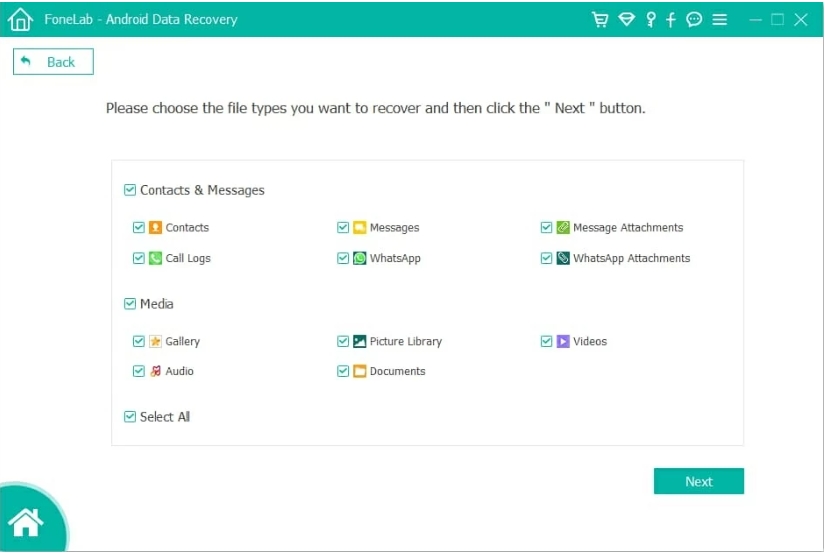
6.Preview and choose files to restore.
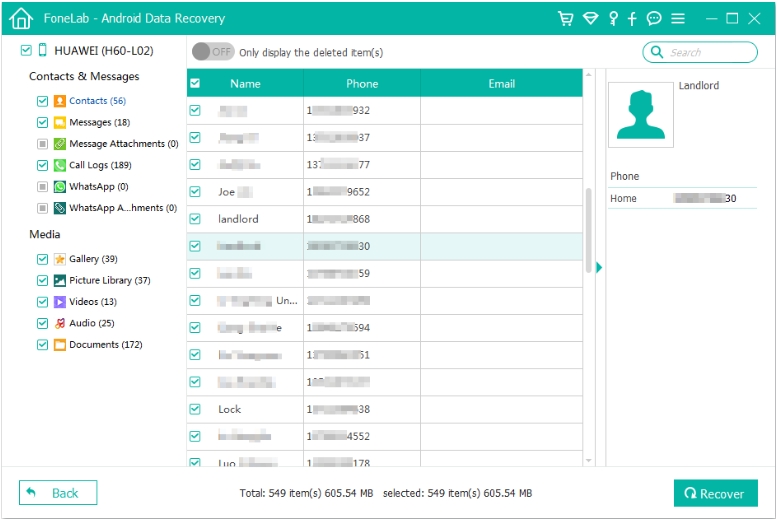
7.Click Recover and save files to your computer or phone.
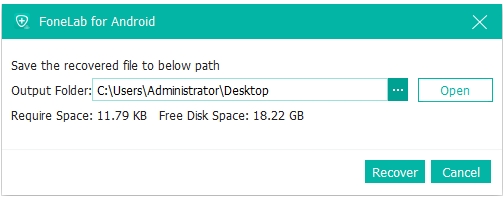
Important notes:
- Avoid using the phone before scanning to prevent overwriting data.
- Root access is not always required, but it may improve recovery depth.
- Always install software from trusted sources to avoid security risks.
Method 4: Restore Data from Local Backup or PC Transfer
Some Redmi Note 14 users regularly create local backups stored in internal memory or transferred to a computer. These backups are often forgotten until a data loss incident happens. If you previously used Xiaomi’s local backup feature or manually copied files to a PC, recovery becomes straightforward. This method is highly effective because it bypasses cloud dependency and gives full control over restoration.
Steps to recover:
- Connect Redmi Note 14 to a PC using USB cable.
- Open internal storage and locate MIUI/Backup folder or manually saved files.
- Identify the most recent backup date.
- Copy files back to your phone storage.
- Restart the device to refresh media and system indexing.
Important notes:
- Folder structure must remain unchanged for system backups.
- Always check multiple storage locations (Downloads, DCIM, Documents).
- This method only works if backups were created earlier.
Unlocking Redmi Note 14 After System Lock or Crash
Data loss is not the only issue Redmi users face. Another common problem is being locked out of the device due to forgotten passwords, system glitches, or failed fingerprint recognition after updates. In such cases, users often panic and attempt risky resets, which can worsen data loss. A safer approach is using a dedicated unlocking solution like the iDATAPP Android Unlock Tool, which helps regain access without unnecessary complications.
How it helps:
- Removes screen locks (PIN, pattern, password)
- Supports system crash recovery mode
- Works with multiple Android versions including MIUI-based systems
Basic steps:
- Install the unlocking tool on your computer.
- Connect Redmi Note 14 via USB.
- Select “Remove Screen Password” option.
- Follow on-screen instructions to complete unlocking.
- Restart device and regain access.
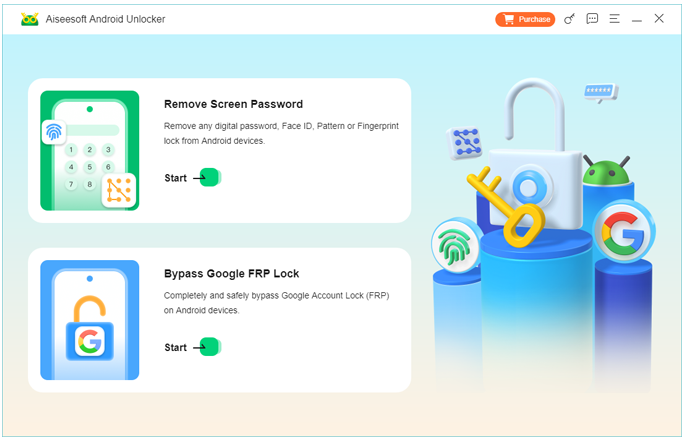
This is particularly useful when the phone becomes unusable due to software issues rather than hardware damage.
Additional Tips to Prevent Data Loss in Redmi Note 14
While recovery is possible in many cases, prevention is always more efficient. Redmi Note 14 users should consider enabling automatic sync for both Xiaomi Cloud and Google services. Regularly exporting important files to a computer or external drive adds another layer of protection. It’s also wise to avoid installing unknown apps that may corrupt storage or interfere with system files.
Another overlooked habit is clearing cache carefully—over-cleaning apps sometimes leads to unintended file removal. Keeping your MIUI system updated also reduces the risk of storage bugs and file indexing errors.
5 Questions & Answers
1. Can deleted photos be recovered after factory reset on Redmi Note 14?
Yes, but only if they were backed up on Xiaomi Cloud, Google Photos, or recovered using deep scan software before being overwritten.
2. Is data recovery software safe for Redmi Note 14?
Yes, if you use trusted tools like iDATAPP Android Data Recovery. Avoid unknown cracked software as it may damage data further.
3. How long does Google Photos keep deleted files?
Usually 30 to 60 days in the Trash folder before permanent deletion.
4. Can I recover WhatsApp messages without backup?
In some cases, yes. Advanced recovery tools can scan local databases, but success depends on whether new data has overwritten old files.
5. What should I do immediately after data loss?
Stop using the phone, avoid installing apps, and begin recovery as soon as possible to prevent overwriting lost files.
Conclusion
Recovering lost data from Redmi Note 14 is not a single-step process—it depends heavily on where your data was stored and how quickly you act. Built-in cloud backups, Google services, local backups, and advanced recovery tools all play different roles in restoring access to your files. Among them, professional recovery software like iDATAPP Android Data Recovery often becomes the most powerful option when other methods fail.
The key takeaway is simple: data loss is not always permanent, but timing and method selection matter. With the right approach, most users can successfully restore their important files without needing technical expertise.
 English
 Nederlands
 Tiếng Việt
 日本
日本 Español
 Português
 Deutsche
 Français
 Italiano
 Norsk
Norsk Suomalainen
 Svenska
 Dansk
Dansk Ελληνικά
 Türk
Türk русский
 हिंदी
हिंदी தமிழ்
தமிழ் Bahasa Melayu
 ไทย
ไทย 한국어
한국어 Română
 Polskie
 қазақ
қазақ Gaeilge
 繁體中文
繁體中文