
 iPhone Data Recovery
 iOS System Recovery
 iOS Backup & Restore
 iOS WhatsApp Transfer
 iOS FoneTrans
 MobieSync
 Android Data Recovery
 Broken Android Data Extraction
 Android Data Backup & Restore
 iPhone Unlocker
 Best Samsung Phone Unlock Tool
 Android Unlocker
 Win/Mac Data Recovery
 iDATAPP Screen Recorder
 2D&3D Video Converter
 Video Repair Software Ai
 AI Video Converter
 Ai Blu-ray Player
 How to Recover Deleted Photos on iOS 26?
Learn how to recover deleted photos on iOS 26 using built-in iPhone features, iCloud backups, and professional recovery tools. This guide explains practical solutions and expert tips to restore lost images safely.

Photos are among the most valuable types of data stored on an iPhone. They capture memories, store important documents, and often contain information that cannot be recreated. With the release of iOS 26, Apple introduced performance improvements and deeper system integrations—but accidental photo deletion still happens more often than most users expect.
Whether it’s an accidental tap, a failed system update, an iCloud sync issue, or a storage cleanup gone wrong, losing photos can feel alarming. Many users assume that once photos disappear from their gallery, they are permanently gone. In reality, iOS 26 includes several built-in recovery layers, and in many cases deleted photos remain recoverable for a period of time.
This guide explores how photo deletion works in iOS 26, why photos disappear, and three reliable methods to recover deleted photos. We will walk through practical solutions step-by-step, including one advanced method using professional recovery software from iDATAPP. The goal is not only to restore your photos but also to help you understand how iOS data protection works so that future losses can be prevented.
Guide List
- Why Photos Get Deleted on iOS 26?
- Method 1: Recover Photos from the Recently Deleted Album
- Method 2: Recover Deleted Photos Using iDATAPP iOS Data Recovery
- Method 3: Recover Photos from an iCloud Backup
- When Photos Are Lost Due to System Problems or Device Issues
- Tips to Prevent Photo Loss on iOS 26
- Frequently Asked Questions
- Conclusion
Why Photos Get Deleted on iOS 26?
Before jumping into recovery methods, it’s helpful to understand how photo deletion works in iOS.
When you delete a photo on iOS 26, it usually goes through two stages:
- Soft deletion
- Permanent deletion
During soft deletion, photos move to the Recently Deleted album. They remain there for 30 days before being permanently erased.
However, photos may disappear without appearing in this folder due to:
- iCloud synchronization conflicts
- Storage optimization clearing local files
- System crashes during updates
- Accidental permanent deletion
- Resetting the device
- Malware or configuration corruption
Fortunately, as long as the storage sectors holding the image data are not overwritten, recovery is still possible.
Below are three effective solutions.
Method 1: Recover Photos from the Recently Deleted Album
The Recently Deleted album is the first place to check when photos disappear. Apple designed this feature as a safety net to prevent accidental data loss. When a photo is deleted from the main Photos library, it is temporarily stored in this album for 30 days before being permanently removed.
Many users panic when they notice missing photos but forget that this folder exists. If the deletion happened recently, recovery can be completed in seconds without any software or backups. This method works best for accidental deletions that occurred within the last month and does not require technical knowledge.
Steps to recover photos from Recently Deleted
- Open the Photos app on your iPhone running iOS 26.
- Scroll down to the Utilities section.
- Tap Recently Deleted.
- Authenticate with Face ID or passcode if required.
- Browse the deleted images.
- Tap Select in the top-right corner.
- Choose the photos you want to restore.
- Tap Recover.
- Confirm the recovery.
Important details
- Photos stay here up to 30 days.
- After permanent deletion, they cannot be restored using this method.
- Videos and screenshots are also stored here.
- Recovering photos restores them to the original album location.
If your photos are not in this folder, move on to the next solution.
Method 2: Recover Deleted Photos Using iDATAPP iOS Data Recovery
Sometimes photos disappear after the Recently Deleted folder has been emptied or after a system crash. In these situations, specialized recovery software can scan your device storage and reconstruct deleted files.
The iDATAPP iOS Data Recovery tool is designed to recover lost iPhone data even when traditional recovery methods fail. It analyzes the device storage at a deeper level and identifies recoverable photo fragments that have not yet been overwritten.
This approach works well for situations like:
- Permanent deletion
- iOS upgrade failures
- Factory reset without backup
- System crashes
- Water damage affecting data access
Unlike basic recovery methods, this tool allows previewing photos before restoring them, which prevents unnecessary data recovery.
Steps to recover deleted photos using iDATAPP
1.Download and install the software and launch the program on your computer.
2.Select Recover from iOS Device.
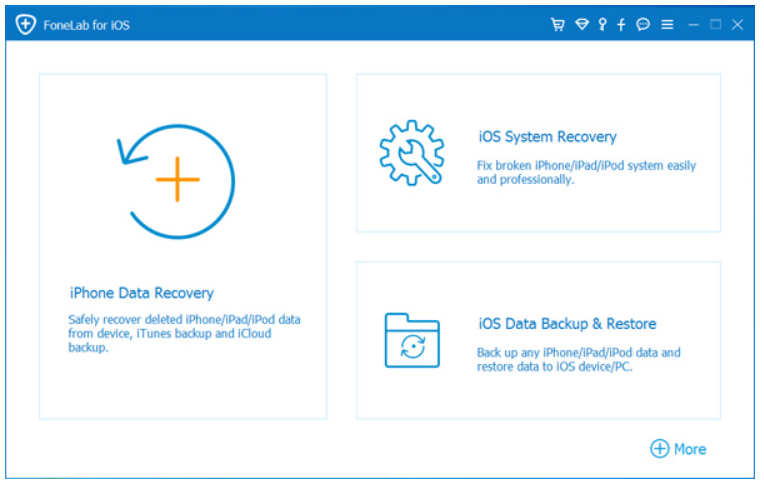
3.Connect your iPhone to the computer using a USB cable.
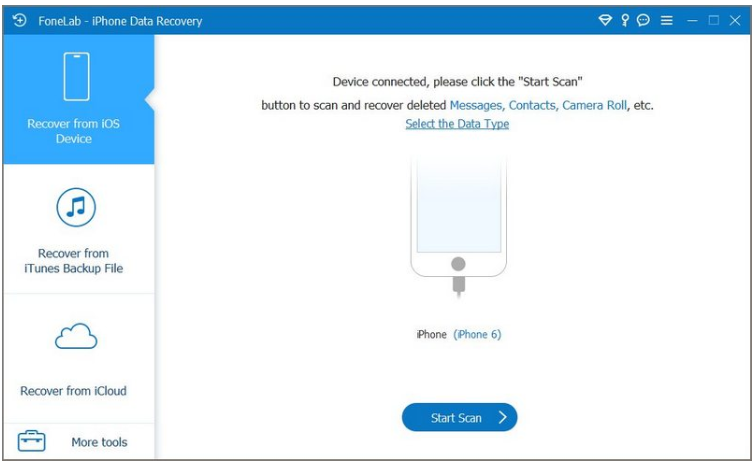
4.Click Start Scan.
5.Navigate to the Photos category in the results.
6.Preview the recoverable photos.
7.Select the photos you want to restore.
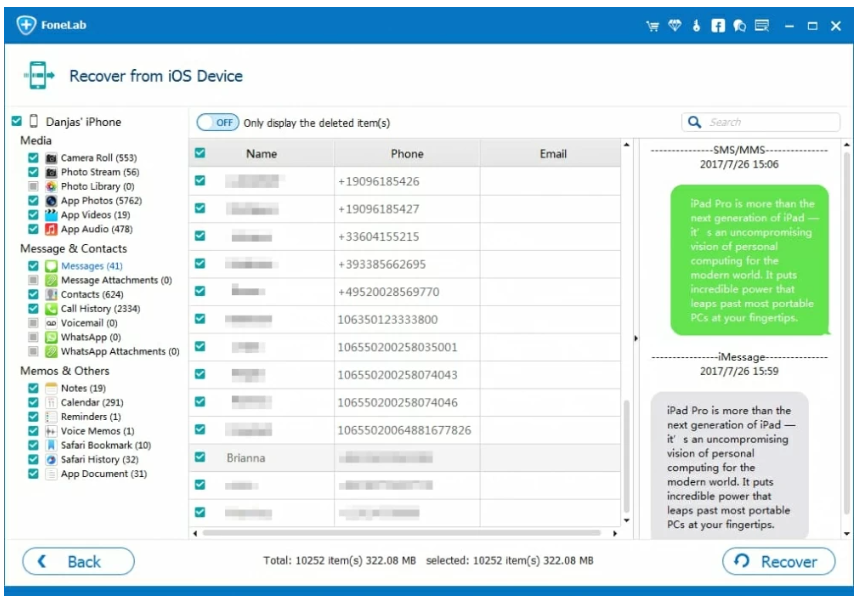
8.Click Recover and save them to your computer.
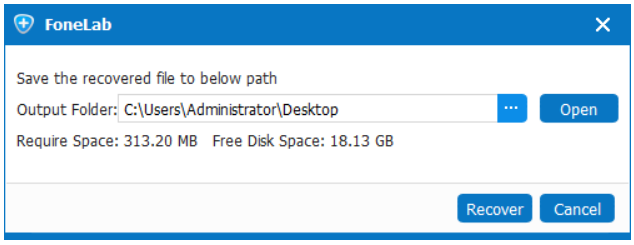
Important details
- Stop using the phone immediately after deletion to prevent data overwrite.
- The deeper the scan, the more recoverable files may appear.
- Works for photos, videos, contacts, messages, and notes.
- Compatible with the latest iOS versions including iOS 26.
This is often the most powerful recovery method when built-in solutions fail.
Method 3: Recover Photos from an iCloud Backup
Many iPhone users enable automatic iCloud backups without realizing it. If your photos were included in a backup created before the deletion occurred, restoring that backup can bring the images back.
This method essentially rewinds your device to a previous state. While effective, it also replaces current data with the data from the backup, so it should be used carefully.
It works best if:
- You regularly enable iCloud backup
- The backup date is before the photos were deleted
Steps to restore photos from iCloud backup
- Open Settings on your iPhone.
- Tap General.
- Select Transfer or Reset iPhone.
- Tap Erase All Content and Settings.
- Restart the device after the reset.
- During setup, select Restore from iCloud Backup.
- Sign in with your Apple ID.
- Choose the backup that contains your photos.
- Wait for the restore process to complete.
Notes:
- This method erases current data before restoring.
- Make sure the selected backup contains the deleted photos.
- Wi-Fi connection is required.
- The process may take time depending on backup size.
When Photos Are Lost Due to System Problems or Device Issues
Photo deletion is not always caused by user error. In some cases, system malfunctions or device lock issues can make your photos inaccessible.
For example, many iPhone users forget their screen passcode after a system update or device restart. When this happens, the device becomes locked and all stored data—including photos—cannot be accessed.
This scenario occurs frequently with:
- Children entering the wrong passcode repeatedly
- Face ID failures
- Passcode changes after an update
- Disabled iPhone security lock
When an iPhone becomes locked or disabled, the only official option is often a full reset. Unfortunately, resetting the device without preparation may lead to permanent data loss.
A safer solution is to use a specialized unlocking tool that can remove screen locks without causing unnecessary data complications.
The iDATAPP iPhone Unlocker tool available at idatapp.com helps solve this type of problem. It is designed to remove:
- Screen passcodes
- Face ID locks
- Apple ID restrictions
- Screen Time passwords

The software guides users through a secure unlocking process and helps restore access to the device so that photos and other data can be retrieved.
For example, if a user forgets their passcode and cannot open the Photos app, the unlocking tool allows them to regain access to the phone first. Once unlocked, users can then apply photo recovery methods such as scanning the device or restoring backups.
This type of scenario highlights an important reality: data recovery is often connected to device accessibility. Sometimes solving the lock problem is the first step toward recovering photos.
Therefore, tools like the ones offered at idatapp.com are useful not only for unlocking devices but also for preventing additional data loss during troubleshooting.
Tips to Prevent Photo Loss on iOS 26
Photo recovery is helpful, but prevention is even better. Consider these strategies:
Enable automatic backups
Use iCloud or local backups regularly.
Avoid clearing the Recently Deleted folder immediately
Wait several days before permanent deletion.
Stop using the device after accidental deletion
This prevents data overwriting.
Monitor iCloud sync settings
Incorrect settings can remove photos across devices.
Export important photos
Transfer critical images to a computer or external storage.
Frequently Asked Questions
Can permanently deleted photos be recovered on iOS 26?
Yes, in many cases they can still be recovered using data recovery software if the storage sectors have not been overwritten.
How long do deleted photos stay on iPhone?
Photos remain in the Recently Deleted folder for 30 days before being permanently removed.
Does iCloud automatically save deleted photos?
No. If iCloud Photos is enabled, deleting a photo on one device deletes it across all devices synced with the same Apple ID.
Can I recover photos without a backup?
Yes. Specialized recovery tools like iDATAPP iOS Data Recovery can scan your device storage and retrieve recoverable images.
Why did my photos disappear after updating iOS?
This can occur due to iCloud syncing issues, storage optimization settings, or update-related bugs.
Conclusion
Losing photos on iOS 26 can feel stressful, but in many cases the situation is reversible. Apple’s built-in protections—such as the Recently Deleted folder and iCloud backups—provide basic recovery options for most users.
When these solutions are not enough, deeper recovery tools like iDATAPP iOS Data Recovery offer a powerful alternative by scanning the device storage directly.
The key is acting quickly. The sooner recovery begins, the higher the chance that deleted photos can be restored successfully.
 English
 Nederlands
 Tiếng Việt
 日本
日本 Español
 Português
 Deutsche
 Français
 Italiano
 Norsk
Norsk Suomalainen
 Svenska
 Dansk
Dansk Ελληνικά
 Türk
Türk русский
 हिंदी
हिंदी தமிழ்
தமிழ் Bahasa Melayu
 ไทย
ไทย 한국어
한국어 Română
 Polskie
 қазақ
қазақ Gaeilge
 繁體中文
繁體中文