
 iPhone Data Recovery
 iOS System Recovery
 iOS Backup & Restore
 iOS WhatsApp Transfer
 iOS FoneTrans
 MobieSync
 Android Data Recovery
 Broken Android Data Extraction
 Android Data Backup & Restore
 iPhone Unlocker
 Best Samsung Phone Unlock Tool
 Android Unlocker
 Win/Mac Data Recovery
 iDATAPP Screen Recorder
 2D&3D Video Converter
 AI Video Converter
 Ai Blu-ray Player
  Video Repair Software Ai
iDATAPP Video Repairer can help fix/restore videos with lost or corrupted data.
How to Improve Resolution/Clarity of Old Videos/Movies?
Learn how to improve the resolution and clarity of old videos using AI upscaling, manual restoration, and smart playback techniques—plus practical tools to repair and modernize aging footage.
Old videos and classic movies carry irreplaceable memories, cultural value, and emotional weight. Unfortunately, many of them were recorded under technical limitations that are painfully obvious today: low resolution, heavy noise, motion blur, faded colors, compression artifacts, or shaky frames. When played on modern 4K or even 8K screens, these flaws become even more noticeable.

Improving the resolution and clarity of old videos is not just about “making them bigger.” It is about restoring lost details, correcting visual degradation, and making footage comfortable to watch again without destroying its original character. This article takes a deeper look at why old videos look bad, what can realistically be improved, and three effective, modern methods to enhance old videos—without relying on third-party commercial software outside our own ecosystem.
Guide List
- Why Old Videos Look Blurry and Low-Quality Today?
- Method 1: AI-Based Video Upscaling and Enhancement (Recommended)
- Method 2: Manual Restoration with Frame Cleanup and Smart Rescaling
- Method 3: Hybrid Enhancement with Modern Displays and Playback Optimization
- What If Your Old Videos Are Also Damaged or Unplayable?
- Frequently Asked Questions
Why Old Videos Look Blurry and Low-Quality Today?
Before jumping into solutions, it’s important to understand the root of the problem. Old videos suffer because of technical constraints at the time of recording and storage.
Early cameras had limited sensors, poor low-light performance, and minimal color depth. Broadcast standards like VHS, VCD, DVD, and early digital codecs compressed video aggressively to save storage space. Over time, physical media degraded, and repeated re-encoding caused even more quality loss.
On modern displays, the issue becomes worse. A 480p or 720p video stretched to a 4K screen doesn’t magically gain detail. Instead, pixels are enlarged, edges become jagged, and noise becomes more visible. That’s why simply “resizing” a video rarely works. True enhancement requires intelligent reconstruction, stabilization, and careful processing.
The good news? With today’s AI-assisted techniques and smarter workflows, improving old video quality is more achievable than ever—if you use the right approach.
Method 1: AI-Based Video Upscaling and Enhancement (Recommended)
Best for: Heavily compressed, low-resolution movies, home videos, documentaries
Difficulty: Easy to moderate
Result: Significant clarity improvement with minimal manual effort
AI video enhancement is currently the most effective way to improve old videos. Instead of blindly stretching pixels, AI models analyze motion, textures, edges, and faces frame by frame. They predict missing details and reconstruct them in a visually natural way.
Using iDatapp AI Video Converter, you can upscale old videos while simultaneously improving sharpness, reducing noise, and enhancing color balance. Unlike traditional upscalers, AI-based processing understands context—skin tones, text edges, background patterns—so the result looks cleaner and more realistic.
This method works especially well for old movies, TV recordings, anime, and personal footage. It preserves the original style while making the video suitable for modern screens, streaming platforms, or archiving.
Step-by-Step Guide
1.Install and launch iDatapp AI Video Converter and click the first option Converter in the navigation bar.
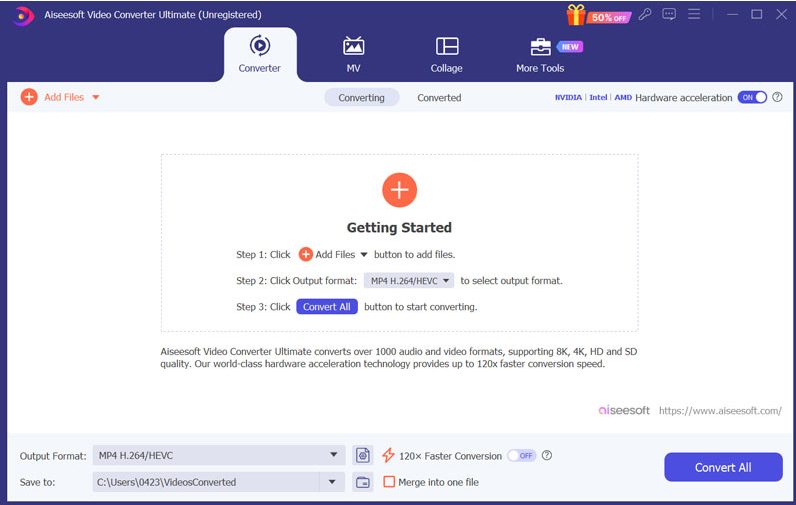
2.Import your old video or movie file.
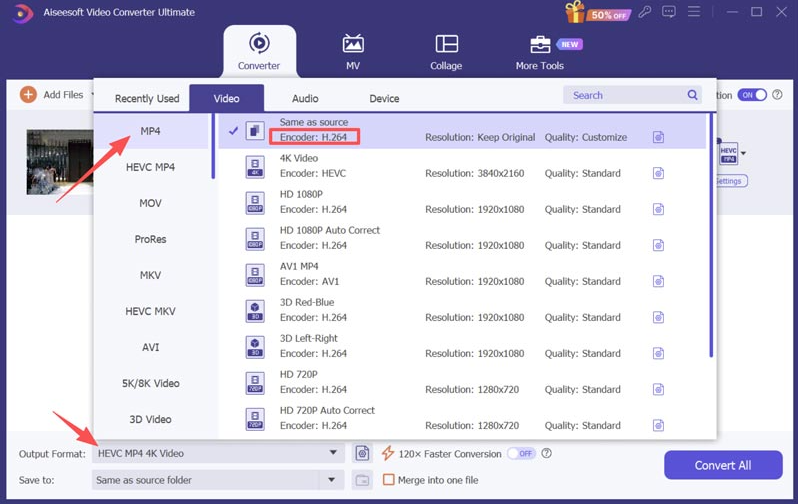
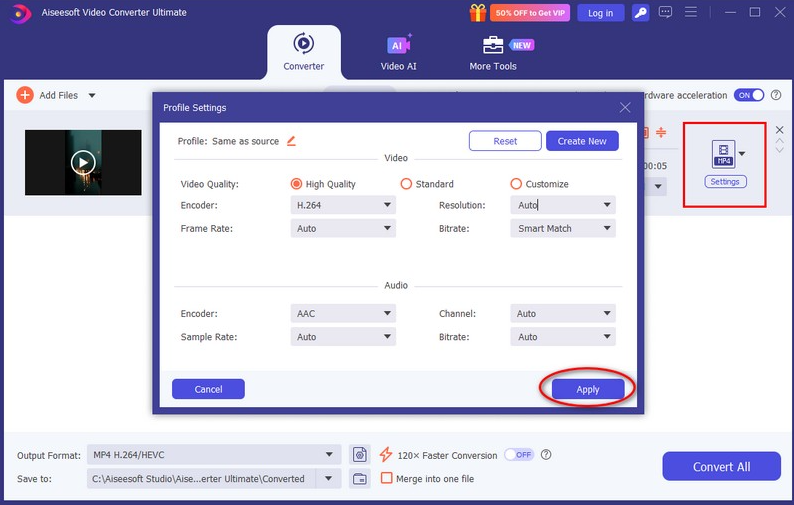
3.Choose High-Quality Mode or select Lossless/High Bitrate in the output settings.
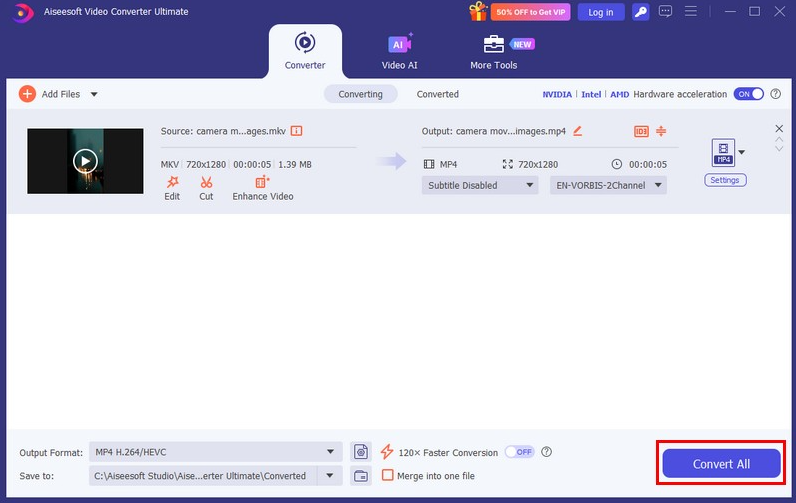
4.Select your video output format and then click Convert All.
5.Export the enhanced video in a modern format like MP4 or MKV.
Important Tips:
- Avoid jumping straight to 8K for very low-quality sources; gradual upscaling often looks better.
- Keep the original frame rate to avoid motion artifacts.
- AI enhancement works best when combined with mild noise reduction, not aggressive filtering.
Method 2: Manual Restoration with Frame Cleanup and Smart Rescaling
Best for: Historical footage, archival videos, rare films
Difficulty: Moderate to advanced
Result: Controlled, authentic restoration
If you care deeply about preserving the original feel of a video, a semi-manual workflow can be extremely effective. This method focuses on cleanup first, scaling second. Instead of immediately increasing resolution, you remove the issues that confuse upscalers: dust, flicker, jitter, and color inconsistency.
By stabilizing shaky footage, correcting exposure, and balancing contrast, you create a cleaner base image. Once the video is visually consistent, rescaling produces far better results—even without aggressive AI reconstruction.
This approach is popular among archivists and restoration enthusiasts who value authenticity over dramatic enhancement.
Step-by-Step Guide
- Split the video into manageable clips if it’s long.
- Apply basic stabilization to reduce camera shake.
- Correct brightness, contrast, and faded colors.
- Remove visible noise and compression artifacts gently.
- Rescale the video using high-quality interpolation (not nearest-neighbor).
- Export using a low-compression codec to preserve detail.
Important Details:
- Over-cleaning destroys texture; subtle adjustments are key.
- This method takes more time but offers precise control.
- Ideal for black-and-white or historically important footage.
Method 3: Hybrid Enhancement with Modern Displays and Playback Optimization
Best for: Casual viewing, large collections, home theaters
Difficulty: Easy
Result: Noticeable improvement without permanent changes
Not every old video needs permanent enhancement. Sometimes, improving how the video is displayed delivers surprisingly good results. Many modern TVs, monitors, and media players include built-in AI upscaling, noise smoothing, and motion enhancement.
By combining smart playback settings with light preprocessing, you can dramatically improve clarity without altering the original file.
This method is ideal for users who want quick results, especially for large movie libraries.
Step-by-Step Guide
- Convert old videos to modern formats (H.264/H.265).
- Maintain original aspect ratio to avoid stretching.
- Enable AI upscaling or clarity enhancement on your TV or media player.
- Disable excessive motion smoothing to avoid “soap opera” effect.
- Adjust sharpness manually—less is often more.
Important Notes:
- This method does not permanently restore lost detail.
- Results vary depending on hardware quality.
- Best used in combination with Method 1 for long-term archiving.
What If Your Old Videos Are Also Damaged or Unplayable?
While improving resolution and clarity is a major concern, many users face another frustrating problem: old videos that won’t play at all. This often happens with corrupted files, incomplete downloads, damaged storage devices, or outdated codecs.
For example, users frequently encounter issues like:
- Videos that freeze halfway
- Audio playing without video
- Black screens with sound
- Files that refuse to open on modern devices
These problems are common with legacy formats and aging hard drives. Before you can enhance video quality, you need to repair or convert the file into a usable state.
This is where other tools from idatapp.com become extremely useful. Their video-related solutions are designed to handle real-world problems caused by format incompatibility and file corruption.
One practical example is using iDatapp’s video processing tools to repair damaged videos and convert them into modern, stable formats. Once repaired, these videos can then be enhanced using AI upscaling or clarity optimization.
This workflow—repair → convert → enhance—is especially effective for family videos, wedding recordings, surveillance footage, and old DVDs that have been digitized poorly. Instead of giving up on broken files, you can recover, modernize, and enhance them in a structured way, saving both time and irreplaceable memories.
Frequently Asked Questions
Can AI really restore lost video details?
AI does not recover original data, but it intelligently reconstructs missing details based on patterns. The result looks more natural than traditional upscaling.
Is it possible to improve extremely blurry videos?
Yes, but expectations matter. AI enhancement improves clarity, edges, and perception, but it cannot create true detail from nothing.
Should I enhance videos before or after converting formats?
It’s best to convert old formats first, then enhance. Clean, stable files produce better enhancement results.
Will enhancing videos increase file size significantly?
Yes. Higher resolution and lower compression lead to larger files. Using efficient codecs like H.265 helps balance quality and size.
Is old movie restoration worth the effort?
Absolutely. Proper enhancement makes old films enjoyable on modern screens and preserves them for future generations.
Final Summary
Improving the resolution and clarity of old videos is no longer a niche skill reserved for professionals. By understanding the limitations of legacy footage and applying the right combination of AI enhancement, manual cleanup, and smart playback strategies, you can dramatically improve visual quality. Tools like iDatapp AI Video Converter make this process accessible, powerful, and practical for anyone who wants to preserve and enjoy old videos in a modern world.
 English
 Nederlands
 Tiếng Việt
 日本
日本 Español
 Português
 Deutsche
 Français
 Italiano
 Norsk
Norsk Suomalainen
 Svenska
 Dansk
Dansk Ελληνικά
 Türk
Türk русский
 हिंदी
हिंदी தமிழ்
தமிழ் Bahasa Melayu
 ไทย
ไทย 한국어
한국어 Română
 Polskie
 қазақ
қазақ Gaeilge
 繁體中文
繁體中文