
 iPhone Data Recovery
 iOS System Recovery
 iOS Backup & Restore
 iOS WhatsApp Transfer
 iOS FoneTrans
 MobieSync
 Android Data Recovery
 Broken Android Data Extraction
 Android Data Backup & Restore
 iPhone Unlocker
 Best Samsung Phone Unlock Tool
 Android Unlocker
 Win/Mac Data Recovery
 iDATAPP Screen Recorder
 2D&3D Video Converter
 Video Repair Software Ai
 AI Video Converter
 Ai Blu-ray Player
 [Solved]Bypass iPad Locked Screen With The Best Methods
Forgot your iPad passcode or Face ID isn’t working? This guide explains three reliable ways to unlock a locked iPad, recover access safely, and protect your data from future lockouts.

There is a particular kind of panic that only Apple users understand.
You pick up your iPad after weeks of not using it. Face ID fails because your appearance changed, or Touch ID no longer recognizes your finger. You try several passcodes, but none work. Suddenly, the screen displays:
- iPad Unavailable
- Try again in 15 minutes
Or worse:
iPad is disabled. Connect to iTunes.
At that moment, the iPad in your hand feels more like a brick than a premium device.
The good news? A locked iPad is almost never permanently inaccessible.
Apple built several ways to erase and unlock a disabled device. And if you use the right tools, the process can be much faster and simpler than many people expect.
This article explores three proven methods to bypass the iPad locked screen without passcode or Face ID, including a professional solution using iDatapp iPad Unlocker.
Guide List
- Why Does an iPad Become Locked?
- Can You Bypass an iPad Lock Screen Without Losing Data?
- Method 1: Bypass iPad Locked Screen with iDatapp iPad Unlocker
- Method 2: Unlock iPad Using Find My iPad (iCloud)
- Method 3: Restore iPad in Recovery Mode
- Which Method Should You Choose?
- What Happens After Unlocking?
- Recover Lost Data After Unlocking a Disabled iPad
- Frequently Asked Questions
Why Does an iPad Become Locked?
An iPad may be locked for several reasons:
- Forgotten screen passcode
- Too many incorrect passcode attempts
- Face ID or Touch ID malfunction
- Child accidentally changing the passcode
- Purchasing a second-hand iPad with an unknown password
- iPad disabled after software update
- Cracked screen causing incorrect input
When this happens, there is no legitimate way to access the device without erasing the screen lock. The goal is to restore access as efficiently as possible.
Can You Bypass an iPad Lock Screen Without Losing Data?
If you never created a backup in iCloud or Finder on Mac, removing the passcode will erase existing data.
However, if you have a backup, your apps, photos, notes, and settings can be restored after unlocking.
That’s why unlocking and data recovery should be considered together.
Method 1: Bypass iPad Locked Screen with iDatapp iPad Unlocker
For most users, the easiest approach is to use iDatapp iPhone Unlocker.
Unlike iTunes, it walks you through the process step by step and automatically downloads the required firmware.
- 4-digit and 6-digit passcodes
- Face ID and Touch ID locks
- Screen Time restrictions
- Apple ID lock (in supported situations)
- MDM profiles
Why This Method Stands Out
Many unlocking tutorials assume users are comfortable with Recovery Mode and firmware restoration. In reality, most people simply want clear instructions and a tool that handles the technical details.
iDatapp simplifies the entire process, making it ideal for beginners and repair technicians alike.
Steps to Unlock iPad Without Passcode:
Step 1: Install and open iDatapp iPad Unlocker.
Step 2: Select Unlock iOS Screen.
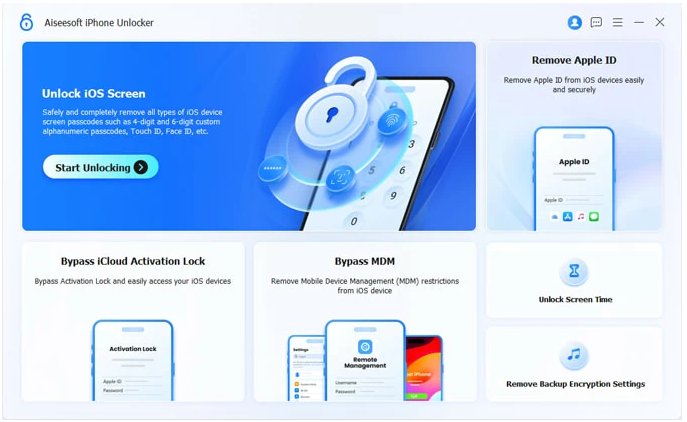
Step 3: Connect your locked iPad using a USB cable.

Step 4: Confirm device information.
Step 5: Quickly select your iPad device model and put your iPad into recovery mode.
Step 6: Click Start Now.

Step 7: Download the matching firmware package.
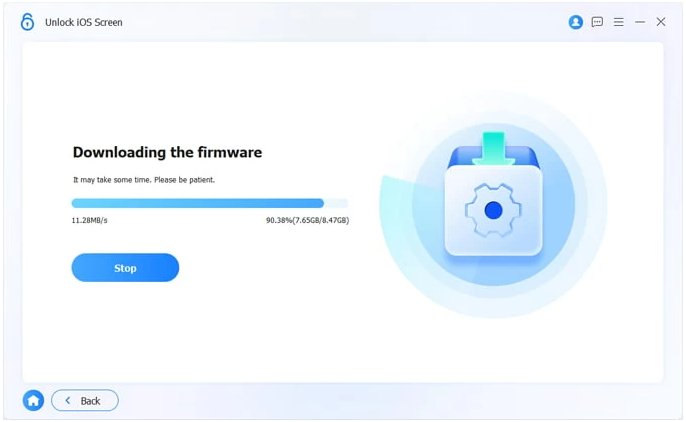
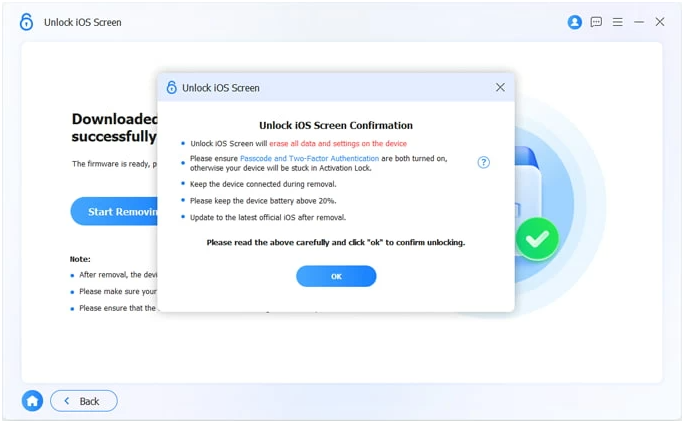
Step 8: Wait for the lock screen to be removed.

Important Details
- Works with most iPad models and iPadOS versions.
- Requires internet to download firmware.
- Erases the device but allows restoration from backup.
Best For
- Forgotten passcode
- Disabled iPad
- Broken Face ID
- Second-hand devices
Method 2: Unlock iPad Using Find My iPad (iCloud)
If Find My iPad was enabled and you know the Apple ID credentials, you can remotely erase the device.
This method is especially useful if your iPad is not physically with you or if your computer doesn’t recognize it.
Steps to Unlock via iCloud
Step 1: Visit iCloud Find Devices.
Step 2: Sign in with your Apple ID.
Step 3: Select Find My iPad > All Devices
Step 4: Click Erase iPad.
Step 5: Wait for the process to finish.
Step 6: Set up the device again.
Important Details
- Requires internet connection on the iPad.
- Activation Lock remains, so you must know the Apple ID password.
- All data is erased.
Best For
- You remember your Apple ID.
- Find My was already enabled.
- You want an official Apple solution.
Method 3: Restore iPad in Recovery Mode
Recovery Mode is Apple’s universal rescue system for devices that are locked, disabled, or malfunctioning.
This method is highly reliable, but it requires manually entering Recovery Mode.
Steps to Enter Recovery Mode
For iPads Without Home Button
- Press Volume Up.
- Press Volume Down.
- Hold Top button until the recovery screen appears.
For iPads With Home Button
- Hold Home + Top buttons together.
- Release when the recovery screen appears.
Restore Process
Step 1: Connect the iPad to a computer.
Step 2: Open Apple Devices for Windows, iTunes for Windows, or Finder on Mac.
Step 3: Select Restore.
Step 4: Download firmware and reinstall iPadOS.
Step 5: Set up the iPad again.
Important Details
- Free official solution.
- Requires stable USB connection.
- Can take longer than dedicated software.
Best For
- Users comfortable with Apple tools.
- Situations where third-party software is unnecessary.
Which Method Should You Choose?
| Scenario | Recommended Method |
|---|---|
| Fastest and easiest | iDatapp iPhone Unlocker |
| Know Apple ID and Find My is enabled | iCloud |
| Prefer official free solution | Recovery Mode |
| Disabled iPad after too many attempts | Any of the above |
| Face ID not working | iDatapp or Recovery Mode |
What Happens After Unlocking?
Once the lock screen is removed, the iPad restarts to the setup screen.
You can then:
- Restore from iCloud backup
- Restore from computer backup
- Transfer data from another iPad
- Set up as new
If the iPad was linked to your Apple ID, you must complete Activation Lock verification.
Recover Lost Data After Unlocking a Disabled iPad
Unlocking solves the immediate access problem, but another issue often appears right afterward:
“My iPad is unlocked, but all my photos and notes are gone.”
Because passcode removal erases the device, users frequently need to restore deleted or missing data. This is where data recovery becomes just as important as unlocking.
Why Data Loss Happens
Data may disappear because of:
- Forced restore during unlocking
- Interrupted iOS update
- Accidental deletion
- Factory reset
- Water damage
- Screen damage preventing normal backup
- System crashes
For students, business users, and families, this can mean losing years of important files.
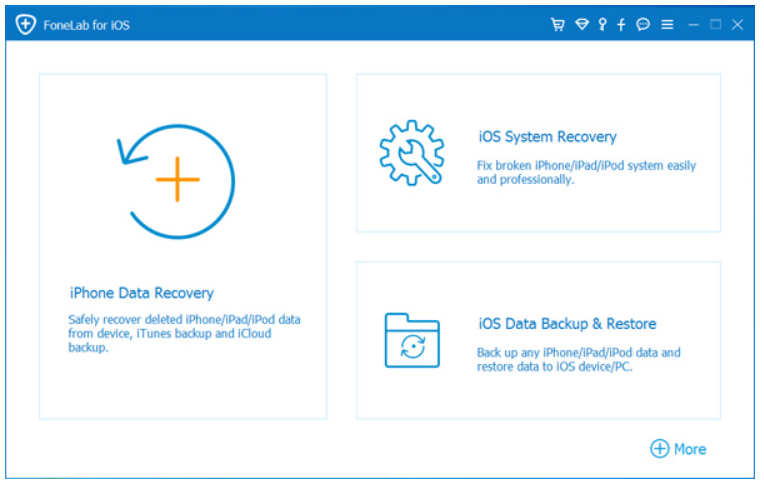
Practical Solution: iDatapp iPhone Data Recovery
iDatapp offers an iOS Data Recovery solution that can retrieve:
- Photos
- Videos
- Notes
- Contacts
- Messages
- WhatsApp chats
- Safari bookmarks
The software scans the device, iTunes backup, or iCloud backup and lets you preview recoverable files before restoration.
Typical Recovery Workflow
- Install iDatapp iPhone Data Recovery.
- Select recovery mode.
- Scan device or backup.
- Preview recoverable data.
- Export files to your computer.
Real-World Example
A parent unlocks an old iPad used by their child. During restoration, they realize family photos from vacations are missing. Instead of accepting the loss, they scan the device backup with iDatApp and recover thousands of images.
Why This Matters
Unlocking a device is only half the story. A complete recovery strategy ensures that forgotten passwords do not turn into permanent data loss.
Frequently Asked Questions
Can I unlock an iPad without a passcode and without losing data?
Generally no, unless you already have a backup. Removing the iPad passcode erases the device.
Can Face ID be bypassed?
Yes. Removing the screen lock also removes Face ID settings.
Is it legal to unlock my own iPad?
Yes, as long as you are the rightful owner.
What if I forgot my Apple ID password too?
You can reset it at iforgot.apple.com.
Will Activation Lock be removed?
No. You must sign in with the original Apple ID after unlocking.
Conclusion
If you forgot your iPad passcode or Face ID no longer works, you still have several reliable options.
- iDatapp iPhone Unlocker offers the simplest and fastest process.
- iCloud Find My provides a remote Apple-based solution.
- Recovery Mode is the universal free method.
After unlocking, consider data recovery tools from iDatapp if important files are missing.
A locked iPad may seem like a disaster, but with the right approach, it is usually a temporary inconvenience rather than a permanent problem.
 English
 Nederlands
 Tiếng Việt
 日本
日本 Español
 Português
 Deutsche
 Français
 Italiano
 Norsk
Norsk Suomalainen
 Svenska
 Dansk
Dansk Ελληνικά
 Türk
Türk русский
 हिंदी
हिंदी தமிழ்
தமிழ் Bahasa Melayu
 ไทย
ไทย 한국어
한국어 Română
 Polskie
 қазақ
қазақ Gaeilge
 繁體中文
繁體中文