
 iPhone Data Recovery
 iOS System Recovery
 iOS Backup & Restore
 iOS WhatsApp Transfer
 iOS FoneTrans
 MobieSync
 Android Data Recovery
 Broken Android Data Extraction
 Android Data Backup & Restore
 iPhone Unlocker
 Best Samsung Phone Unlock Tool
 Android Unlocker
 Win/Mac Data Recovery
 iDATAPP Screen Recorder
 2D&3D Video Converter
 Video Repair Software Ai
 AI Video Converter
 Ai Blu-ray Player
 How to Recover Deleted Videos On Samsung S23 Series?
This guide explains how to recover deleted videos on Samsung S23 using built-in recovery options, external storage methods, and professional Android data recovery software, with expert tips and troubleshooting insights.
Why Samsung S23 Videos Disappear?
Losing videos on a Samsung Galaxy S23, S23+, or S23 Ultra can be frustrating—especially when those clips capture important moments like travel memories, work recordings, or family events. Unlike simple photo loss, videos often occupy large storage blocks, making recovery more complex and time-sensitive.
Deleted videos may disappear for many reasons. Common causes include accidental deletion, clearing the Gallery Trash folder, system crashes, OS updates, factory resets, malware infections, or SD card corruption. The Samsung S23 series uses Android’s modern file system with TRIM optimization, meaning deleted data may be overwritten quickly. This makes immediate recovery attempts critical.
In this article, we’ll explore three highly effective methods to recover deleted videos on Samsung S23 devices, including one professional solution using iDataApp Android Data Recovery software. Each method includes detailed steps and practical insights based on real-world Android storage behavior, not generic advice.
Guide List
- Method 1: Recover Deleted Videos Using iDatapp Android Data Recovery (Professional Solution)
- Method 2: Restore Deleted Videos from Samsung Gallery Trash or Cloud Backup
- Method 3: Recover Videos from External SD Card Using Manual File Extraction
- What If Samsung S23 Data Loss Happens After System Crash or Android Update?
- FAQs
Method 1: Recover Deleted Videos Using iDatapp Android Data Recovery (Professional Solution)
When videos are permanently deleted from Samsung S23 storage, traditional recovery methods often fail due to Android encryption and storage optimization. iDatapp Android Data Recovery is designed to bypass these challenges by scanning device storage and retrieving recoverable video fragments before they are overwritten. Unlike cloud-based restoration, this method directly extracts data from internal memory, making it ideal for users who didn’t enable backups. It supports Samsung S23 series, Android 14/15, and multiple video formats like MP4, MKV, AVI, and HEVC.

Step-by-Step Recovery Guide
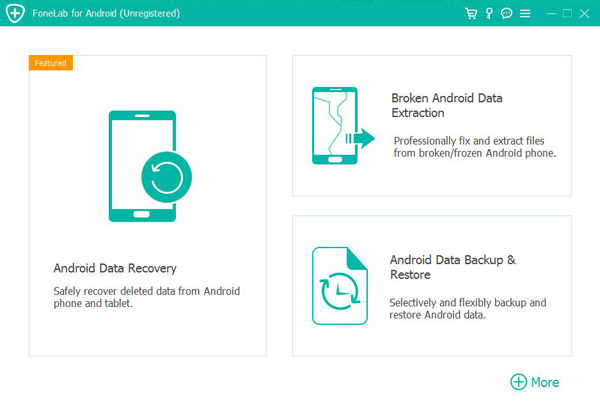
Step 1: Install the Software
Download and install iDatapp Android Data Recovery on a Windows or macOS computer. Launch the program and select “Android Data Recovery.”
Step 2: Connect Samsung S23 to Computer
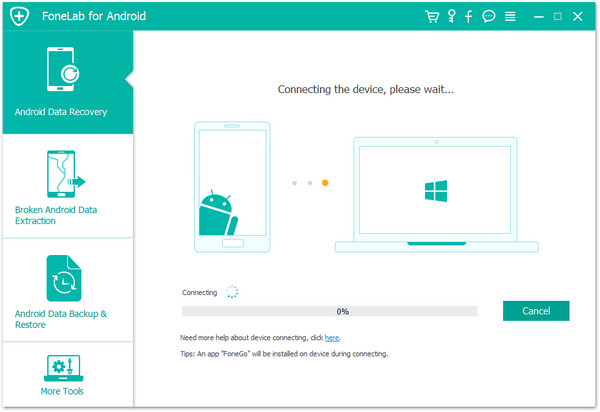
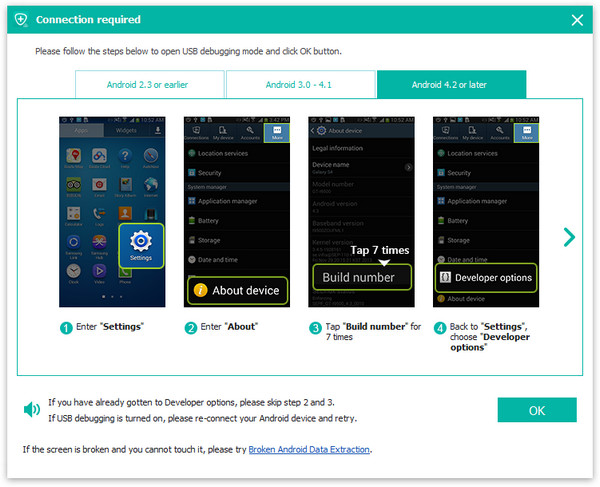
Use a USB cable to connect your Samsung S23. Enable USB debugging in Developer Options to allow the software to access internal storage.
Step 3: Choose Video Recovery Mode
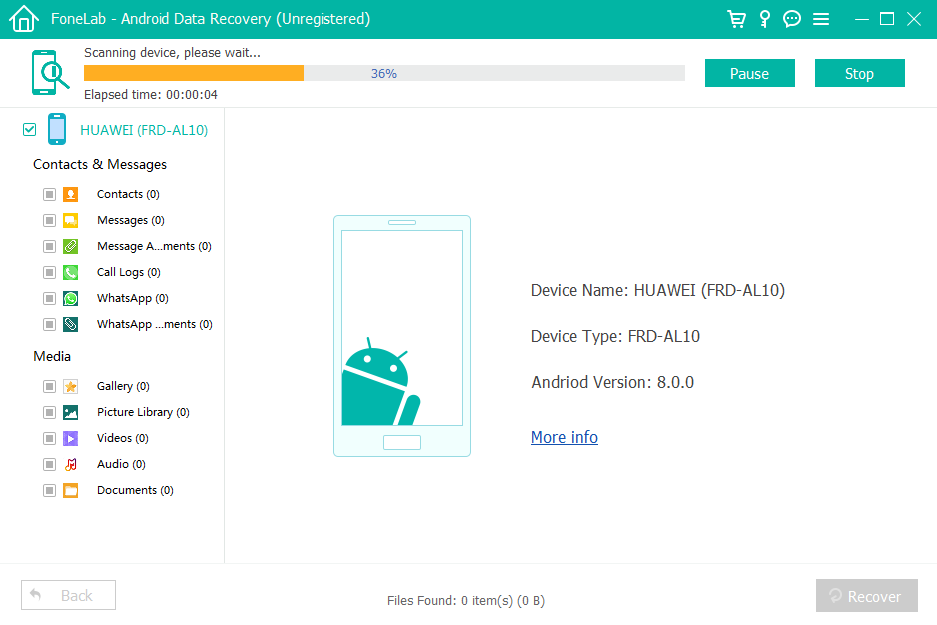
Select “Videos” or “Media Files” in the scanning interface. The software will analyze device storage sectors for recoverable video fragments.
Step 4: Deep Scan and Preview
Perform a deep scan for better results. Preview recovered videos before restoration to ensure integrity.
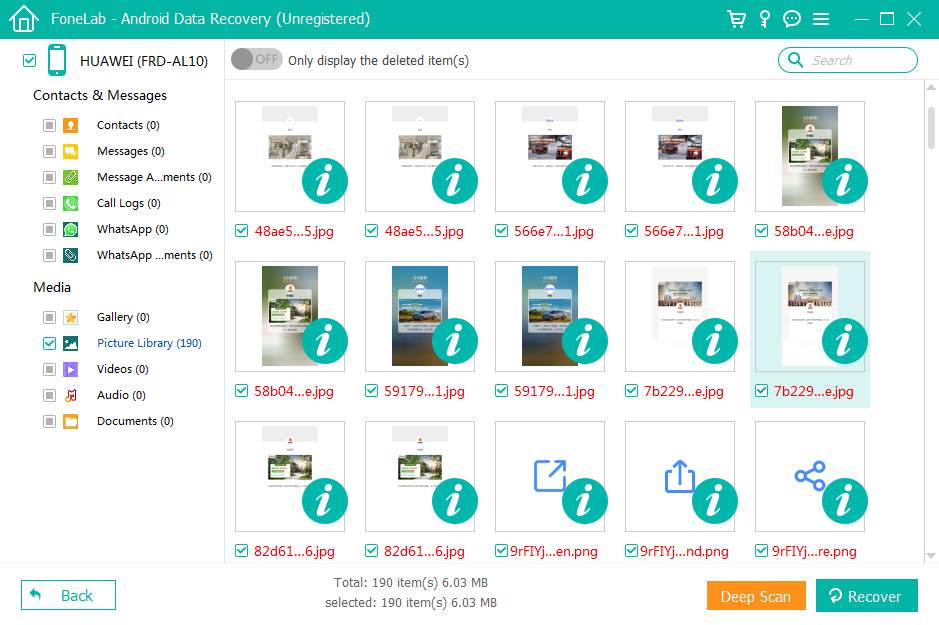
Step 5: Restore Deleted Videos
Click “Recover” and save the videos to your computer. You can then transfer them back to your Samsung device.

Notes
- Stop using the phone immediately after deletion to prevent overwriting.
- Root access may increase recovery success, but basic scanning works without rooting.
- External SD card videos can be recovered even more easily.
Method 2: Restore Deleted Videos from Samsung Gallery Trash or Cloud Backup
Samsung Gallery includes a Trash folder where deleted videos are stored for 30 days before permanent deletion. Additionally, Samsung Cloud and Google Photos can automatically back up media files. This method is best for users who accidentally deleted videos recently and have not emptied the Trash folder. It does not require any third-party software and is completely free, but only works if backup features were enabled before data loss.
Step-by-Step Recovery Guide
Step 1: Open Samsung Gallery
Go to Gallery > Menu (three dots) > Trash.
Step 2: Select Deleted Videos
Browse the list of deleted videos. Samsung stores them here for up to 30 days.
Step 3: Restore Videos
Tap “Restore” to return videos to the main Gallery folder.
Using Samsung Cloud or Google Photos Backup
Step 4: Check Samsung Cloud
Go to Settings > Accounts and Backup > Samsung Cloud > Gallery. Download backed-up videos.
Step 5: Check Google Photos
Open Google Photos > Trash. Videos remain for 60 days if synced.
Notes
- Trash recovery works only within the retention period.
- Cloud backups require internet and prior sync activation.
- Large videos may not sync automatically on mobile data.
Method 3: Recover Videos from External SD Card Using Manual File Extraction
Some Samsung S23 users store videos on external SD cards using adapters or USB-C storage devices. If videos were deleted from removable storage, recovery becomes easier because SD cards do not use the same aggressive encryption as internal storage. This method uses a card reader and desktop recovery scanning to restore deleted files. It is ideal for creators who record high-resolution videos directly to external media.
Step-by-Step Recovery Guide
Step 1: Remove the SD Card
Take out the SD card or external storage device from your Samsung S23.
Step 2: Connect to Computer
Insert the card into a card reader and connect it to your PC or Mac.
Step 3: Scan for Deleted Videos
Use built-in OS file recovery tools or manual directory scanning to locate deleted files. If available, enable deep scan in recovery utilities.
Step 4: Restore Video Files
Copy recovered videos to your computer and reinsert the SD card into your phone.
Important Notes
- Avoid formatting the SD card after deletion.
- Do not record new videos to the card before recovery.
- External storage offers higher recovery success rates than internal storage.
What If Samsung S23 Data Loss Happens After System Crash or Android Update?
System crashes and failed Android updates are among the most frequent causes of large-scale data loss on Samsung S23 devices. A sudden reboot loop, firmware corruption, or forced factory reset can wipe videos, photos, contacts, messages, and even app data. This scenario is more severe than accidental deletion because the file system may be rewritten during OS recovery.
Samsung S23 uses dynamic partitions and encrypted storage (FBE), meaning data loss can occur during OTA updates or flashing custom firmware. Many users lose their videos after upgrading Android or flashing One UI beta firmware. In these cases, standard Gallery Trash recovery is useless, and cloud backups may be incomplete.
How iDatapp Tools Help with System-Crash Data Loss
iDatapp offers multiple Android recovery and device management tools beyond media recovery. For example:
- Android Data Recovery Tool: Extracts photos, videos, messages, contacts, and documents from crashed or unresponsive devices.
- Android Unlocker: Helps unlock phones stuck on lock screen after system failures.
- Data Backup & Restore Tools: Create full device backups before risky system updates.
These tools are particularly useful for technicians, content creators, and repair shops who need to extract data from malfunctioning Samsung devices. For example, if your Samsung S23 is stuck in bootloop after an update, you can connect it to a computer and use recovery software to extract videos before flashing new firmware.
Another common situation is virus infection or malicious apps causing file deletion. Some malware deletes large media files to free space or encrypts data for ransomware. Professional recovery software can scan for deleted or hidden files and export them safely.
By combining backup strategies with recovery tools, you can create a reliable safety net for your Samsung S23 data ecosystem.
FAQs
Can I recover permanently deleted videos from Samsung S23 without root?
Yes, partial recovery is possible without root, especially for cached or non-overwritten data. Root access increases success but is not always required.
How long do deleted videos stay in Samsung Trash?
Samsung Gallery Trash stores deleted videos for 30 days. Google Photos Trash stores them for 60 days if backed up.
Does factory reset permanently erase Samsung S23 videos?
Factory reset removes file references, but some data fragments may remain recoverable until overwritten. Immediate recovery attempts increase success rates.
Can I recover videos after Android update failure?
Yes, specialized Android recovery software can extract data from system-crashed devices, depending on encryption status and storage overwrite level.
How can I prevent video loss in the future?
Enable Samsung Cloud or Google Photos backup, use external storage for critical recordings, and perform periodic full-device backups using professional tools.
Conclusion
Recovering deleted videos on Samsung S23 is possible through Trash restoration, cloud backups, SD card extraction, and professional recovery software. Acting quickly and using reliable tools significantly improves recovery success and prevents permanent data loss.
 English
 Nederlands
 Tiếng Việt
 日本
日本 Español
 Português
 Deutsche
 Français
 Italiano
 Norsk
Norsk Suomalainen
 Svenska
 Dansk
Dansk Ελληνικά
 Türk
Türk русский
 हिंदी
हिंदी தமிழ்
தமிழ் Bahasa Melayu
 ไทย
ไทย 한국어
한국어 Română
 Polskie
 қазақ
қазақ Gaeilge
 繁體中文
繁體中文