
 iPhone Data Recovery
 iOS System Recovery
 iOS Backup & Restore
 iOS WhatsApp Transfer
 iOS FoneTrans
 MobieSync
 Android Data Recovery
 Broken Android Data Extraction
 Android Data Backup & Restore
 iPhone Unlocker
 Best Samsung Phone Unlock Tool
 Android Unlocker
 Win/Mac Data Recovery
 iDATAPP Screen Recorder
 2D&3D Video Converter
 Video Repair Software Ai
 AI Video Converter
 Ai Blu-ray Player
 Redmi FRP Unlock Tool|Bypass FRP Lock On Redmi/Realmi
FRP lock on Redmi phones protects devices after factory resets. This guide explains why it occurs, how to regain access through account recovery, and how iDatApp Android Data Recovery helps protect important data.
How to Bypass FRP Lock On Redmi Phone?
Redmi smartphones are widely appreciated for their excellent balance of performance, affordability, and user-friendly MIUI or HyperOS experience. However, many users encounter a frustrating issue after performing a factory reset: the device requests verification of a previously synced Google account before allowing access. This security mechanism is known as Factory Reset Protection (FRP).
FRP is designed to prevent unauthorized access if a device is lost or stolen. While this protection is beneficial, it can become a problem when the legitimate owner forgets their Google account credentials, purchases a second-hand Redmi phone, or receives a device from a family member without account information.
The challenge is clear: how can you regain access to your Redmi phone without violating security principles or damaging the device?
In this guide, we'll examine the causes of FRP lock on Redmi devices, explore two practical solutions, and discuss additional Redmi-related issues that users frequently face. By the end, you'll have a clear understanding of how to deal with FRP lock safely and efficiently.
Understanding Why FRP Lock Appears on Redmi Phones
Before looking at solutions, it's important to understand what triggers FRP.
When a Google account is added to a Redmi phone, Android automatically enables Factory Reset Protection. If the device is reset through recovery mode, fastboot mode, or system settings without first removing the Google account, Android will require verification of the previously linked account during setup.
Common situations include:
- Forgotten Google account credentials.
- Purchasing a used Redmi device.
- Receiving a phone from a relative or friend.
- Resetting the phone after software issues.
- Device repair followed by factory reset.
The purpose of FRP is security, but when ownership is legitimate, users naturally need a way to regain access.
Solution 1: Recover the Original Google Account
For most Redmi owners, recovering the original Google account remains the fastest and most reliable option. Many users assume their account is permanently lost when in reality Google offers several recovery methods. If you still have access to a recovery email address, phone number, previous passwords, or other account information, you can often restore access within minutes. Once the account is recovered, FRP verification becomes straightforward because the phone recognizes the legitimate owner. This approach maintains device security, avoids unnecessary risks, and ensures future account synchronization continues normally.
Detailed Steps
Step 1: Open Google's Account Recovery page on another device.
Step 2: Enter the Google email address previously used on the Redmi phone.
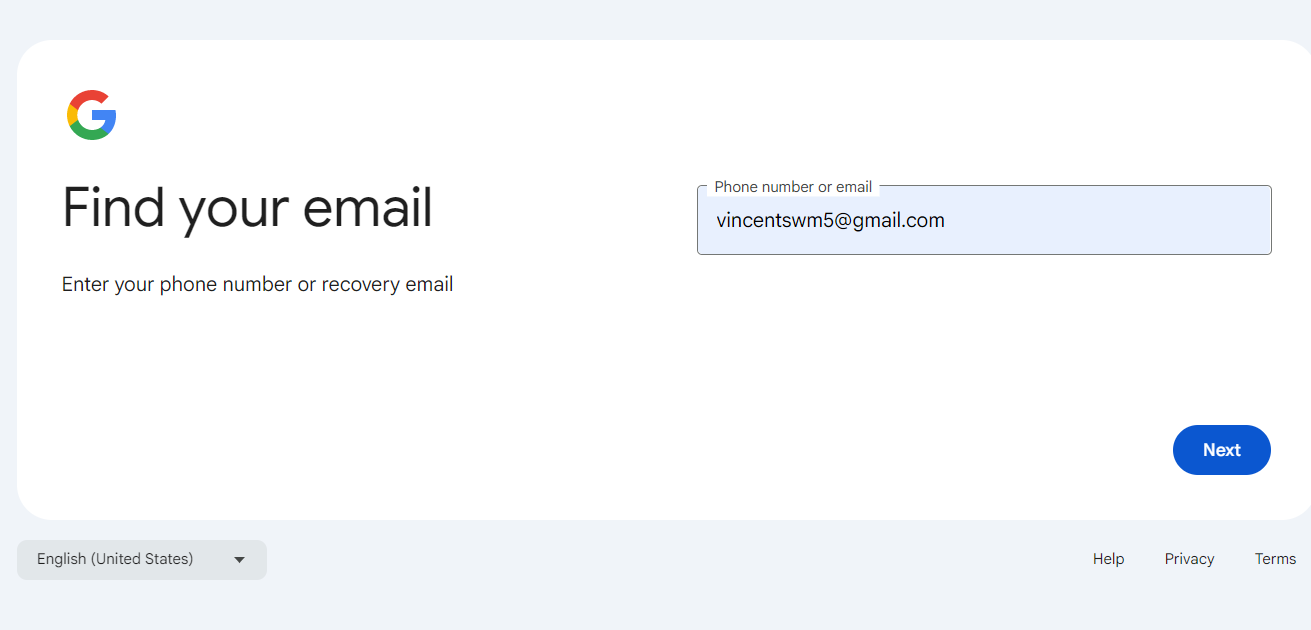
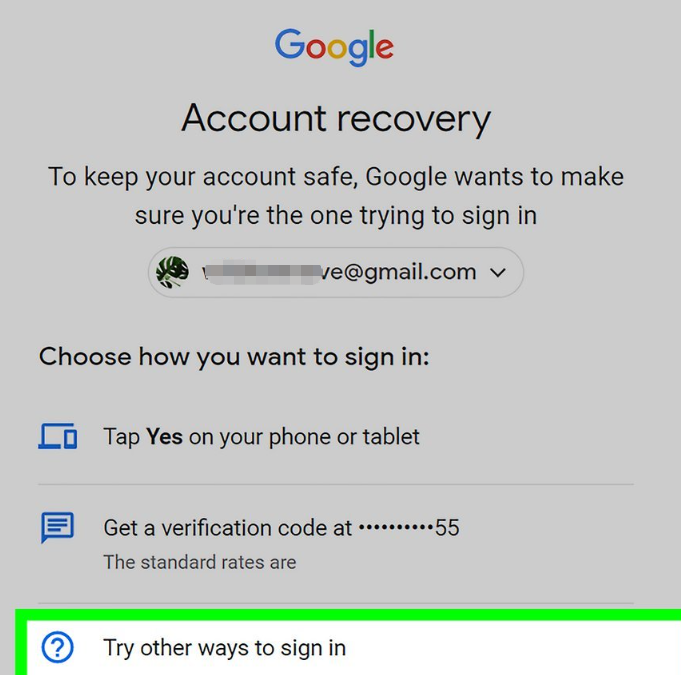
Step 3: Follow the identity verification process.
Step 4: Confirm ownership through:
- Recovery phone number
- Recovery email
- Previous passwords
- Security verification prompts
Step 5: Create a new password if required.
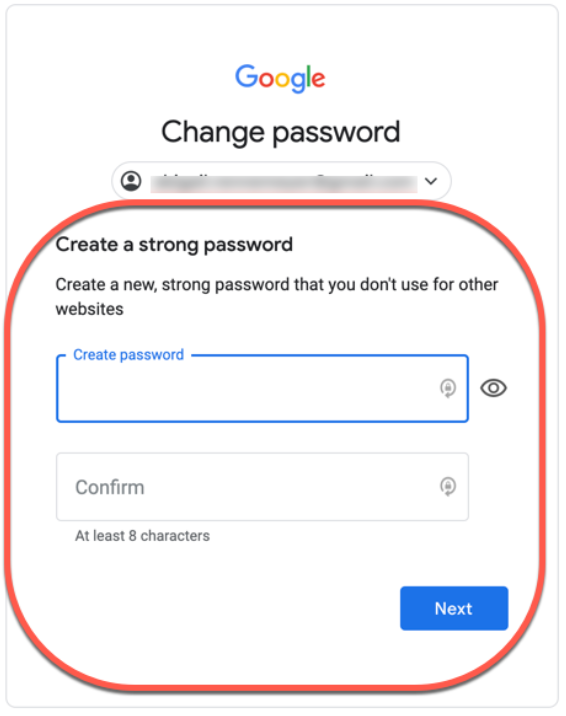
Step 6: Wait for account security synchronization if Google requests it.
Step 7: Return to the Redmi setup screen and sign in using the recovered account.
Important Details
- Always use the Google account originally linked to the phone.
- Recent password changes may require a short waiting period.
- Avoid repeated failed login attempts.
- Keep recovery information updated for future security.
Solution 2: Use iDatapp Android Unlocker for Legitimate Device Access Management
When ownership of the Redmi phone can be verified but access issues continue to prevent normal setup, dedicated Android management tools can simplify the process. iDatapp Android Unlocker is designed to help users handle Android screen lock and device access problems in supported situations. Instead of relying on risky unofficial techniques found online, users can follow a structured process that focuses on legitimate device recovery and access management. This approach is particularly helpful when forgotten credentials, screen lock complications, or account verification issues create barriers to accessing a personally owned Redmi device.

Detailed Steps
Step 1: Download and install iDatapp Android Unlocker on a Windows computer.
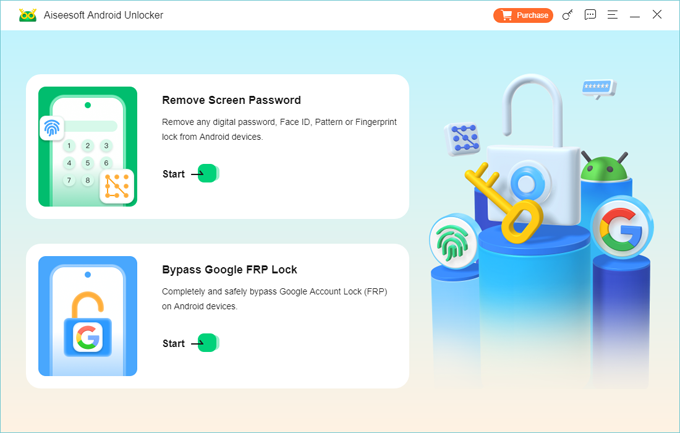
Step 2: Launch the software.
Step 3: Connect the Redmi device using a stable USB connection.
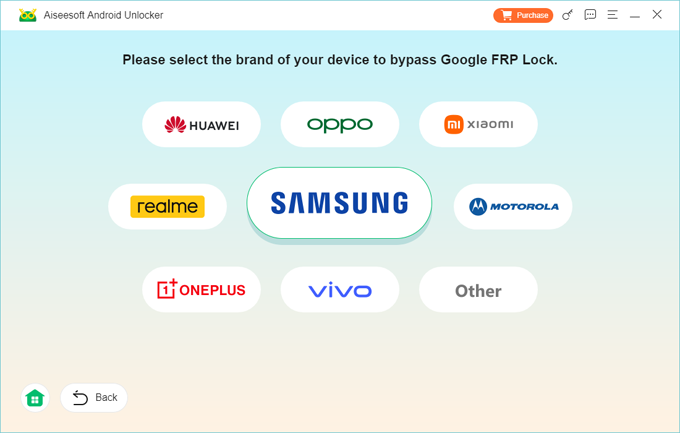
Step 4: Select the appropriate Android access or unlocking module supported by the software.
Step 5: Follow the on-screen instructions to identify the device model.
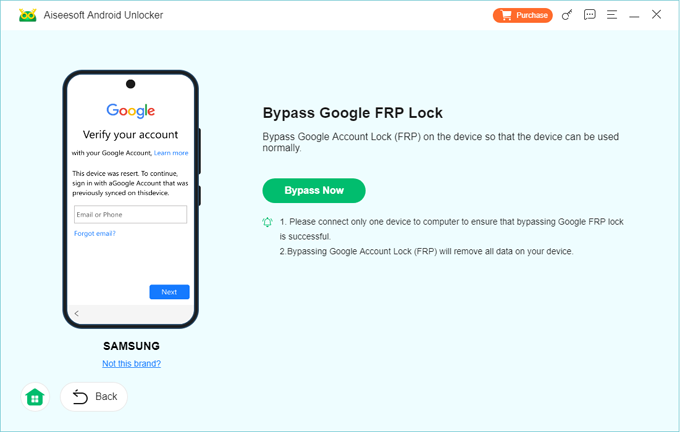
Step 6: Allow the software to perform the required device preparation process.
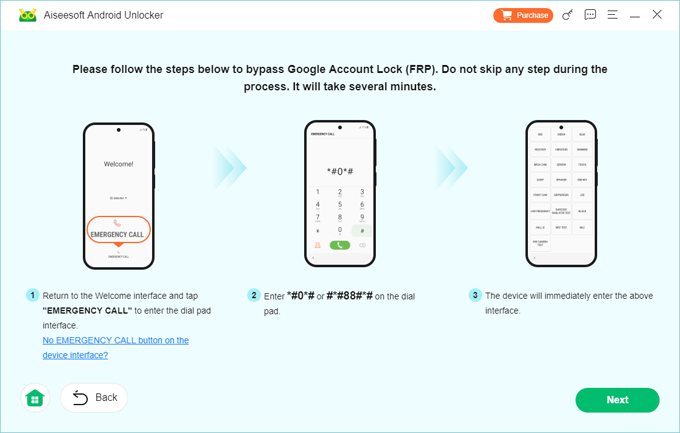
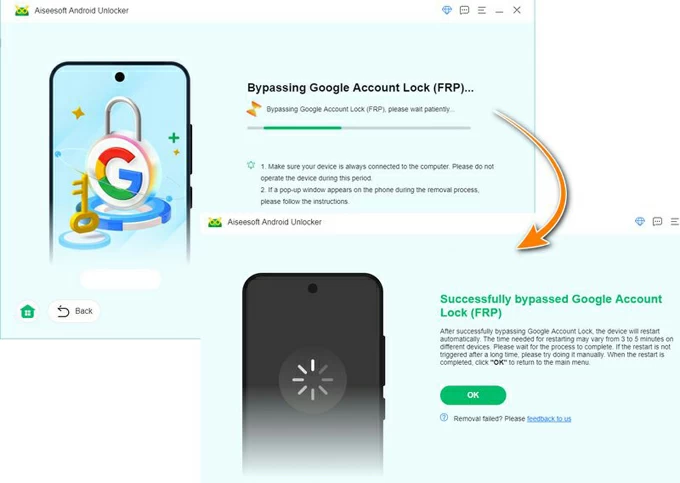
Step 7: Complete the guided recovery procedure.
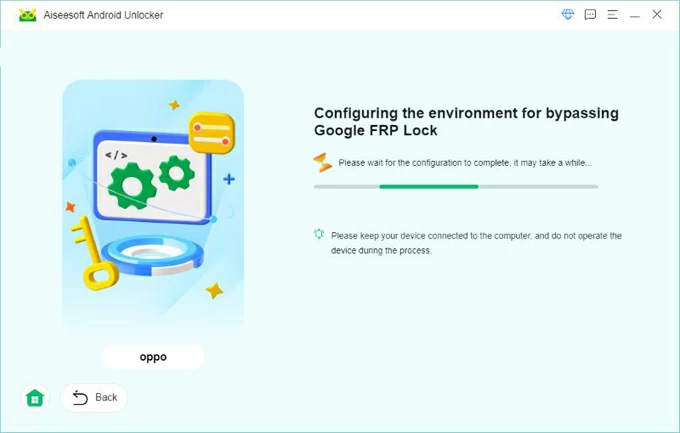
Step 8: Reconfigure the phone and sign in using your verified account information.
Important Details
- Ensure you are the lawful owner of the device.
- Back up important information whenever possible.
- Use original cables to prevent connection interruptions.
- Follow all instructions provided by the software carefully.
Small Habits That Prevent Big FRP Problems
Most FRP lock situations are avoidable
Before resetting a Redmi phone:
- Remove the Google account first.
- Verify account credentials.
- Enable cloud backup.
- Save recovery information.
- Confirm account ownership when purchasing used devices.
- Keep passwords stored securely.
These simple precautions often eliminate the need for troubleshooting later.
Frequently Asked Questions
1. What is FRP lock on a Redmi phone?
FRP (Factory Reset Protection) is an Android security feature that requires verification of the previously connected Google account after a factory reset.
2. Why is my Redmi asking for a Google account after resetting?
The phone was reset while a Google account remained linked to the device. Android requires verification to confirm ownership.
3. Can I remove FRP without proving ownership?
No. FRP is designed to protect devices from unauthorized access. Legitimate ownership verification is required.
4. Does changing my Google password remove FRP?
No. However, recovering the correct Google account and signing in with it can satisfy FRP verification requirements.
5. How can I avoid FRP lock before selling my Redmi phone?
Remove all Google accounts from the device before performing a factory reset and confirm the phone starts setup without requesting account verification.
Conclusion
FRP lock on Redmi phones exists to protect user data and discourage unauthorized device use. While it can be inconvenient for legitimate owners who forget account details, there are reliable ways to regain access. Recovering the original Google account remains the safest option, while iDatApp Android Unlocker offers an additional structured solution for supported device access situations. By understanding how FRP works and preparing account recovery information in advance, Redmi users can avoid unnecessary lockouts and keep their devices secure.
 English
 Nederlands
 Tiếng Việt
 日本
日本 Español
 Português
 Deutsche
 Français
 Italiano
 Norsk
Norsk Suomalainen
 Svenska
 Dansk
Dansk Ελληνικά
 Türk
Türk русский
 हिंदी
हिंदी தமிழ்
தமிழ் Bahasa Melayu
 ไทย
ไทย 한국어
한국어 Română
 Polskie
 қазақ
қазақ Gaeilge
 繁體中文
繁體中文